New article
Recently updated
Attaching multiple documents to a test

Who is this article for?
Administrators responsible for managing testing.
Administration module access is required.
Sometimes, a test may be related to more than one document, procedure, or reference in your system. To account for that, you can attach more than one document to each test. This gives you greater flexibility in your testing!
This article shows you how you can attach multiple documents to a test and run a test set up this way.
1. Attaching documents
To attach documents to a test:
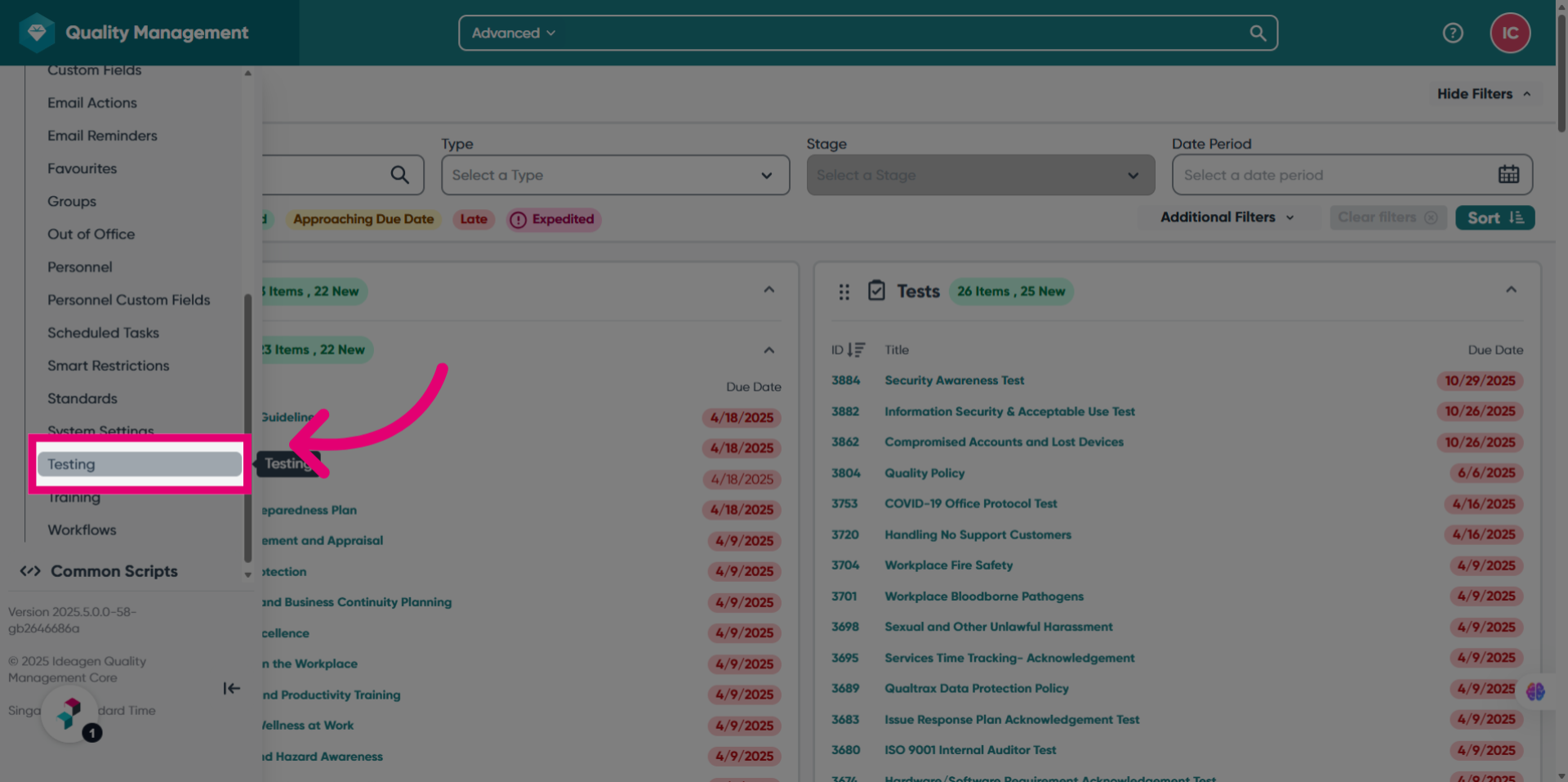
- Open the Administration module.
- Select Testing.
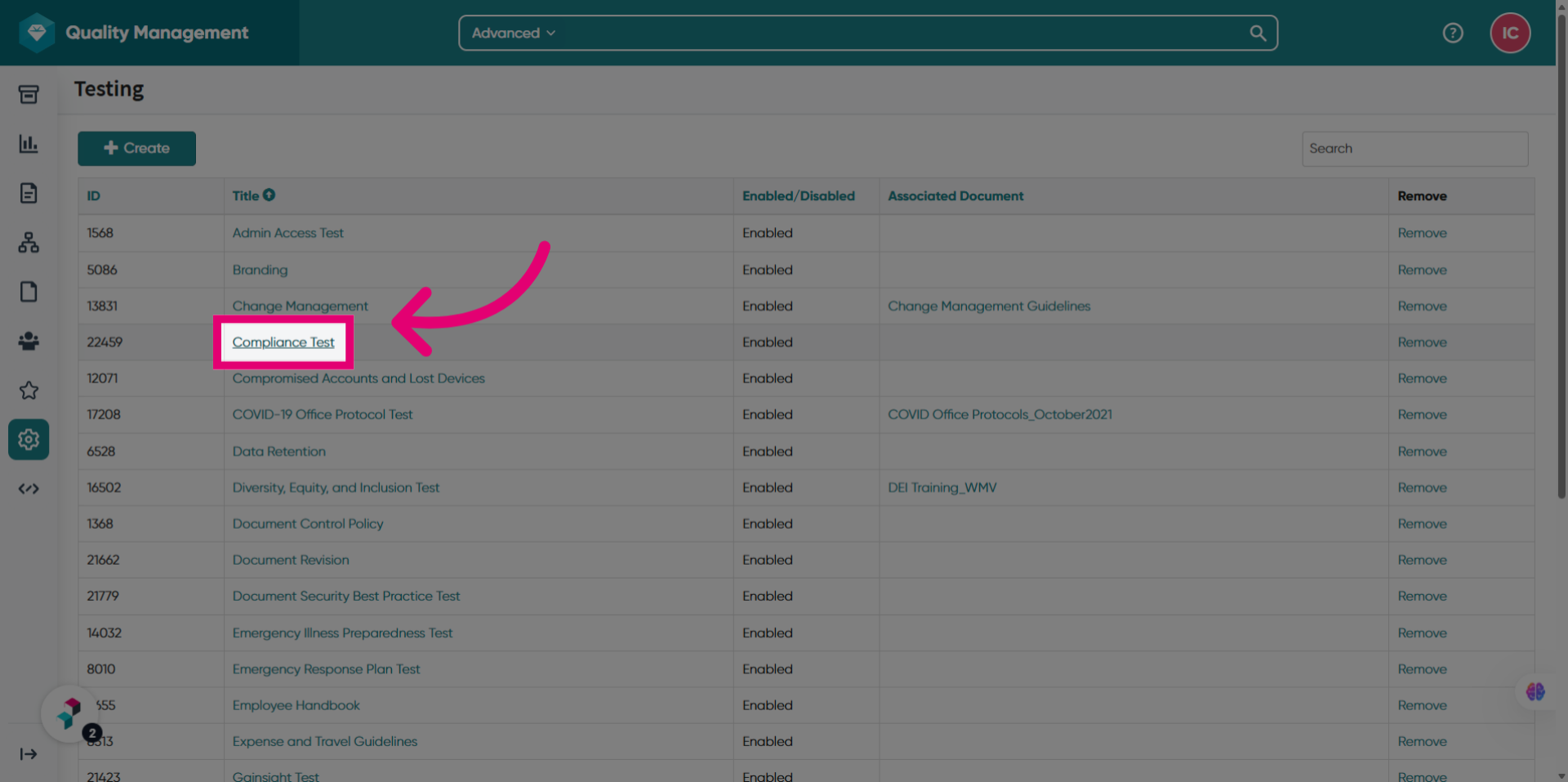
- Open a test.
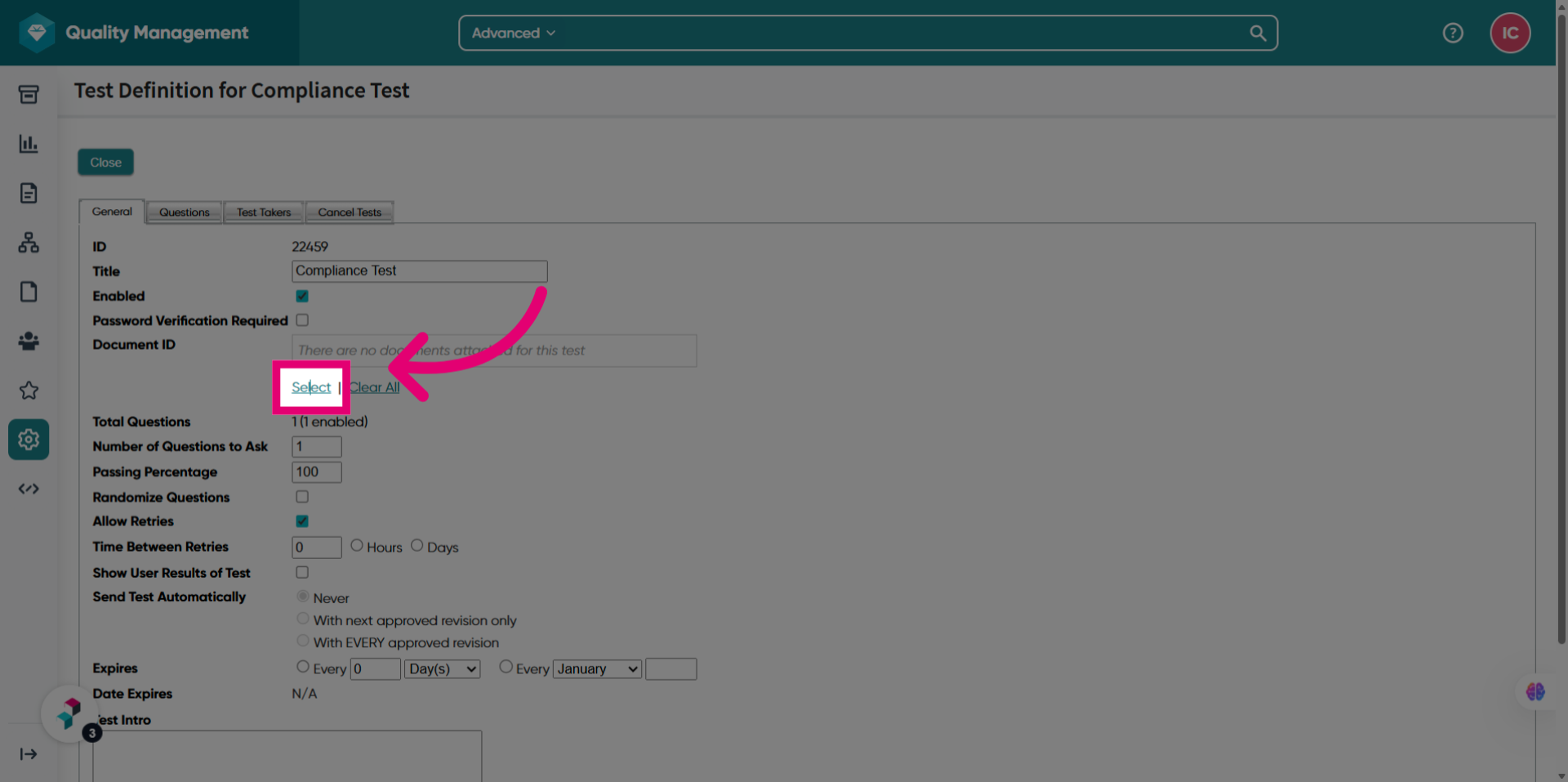
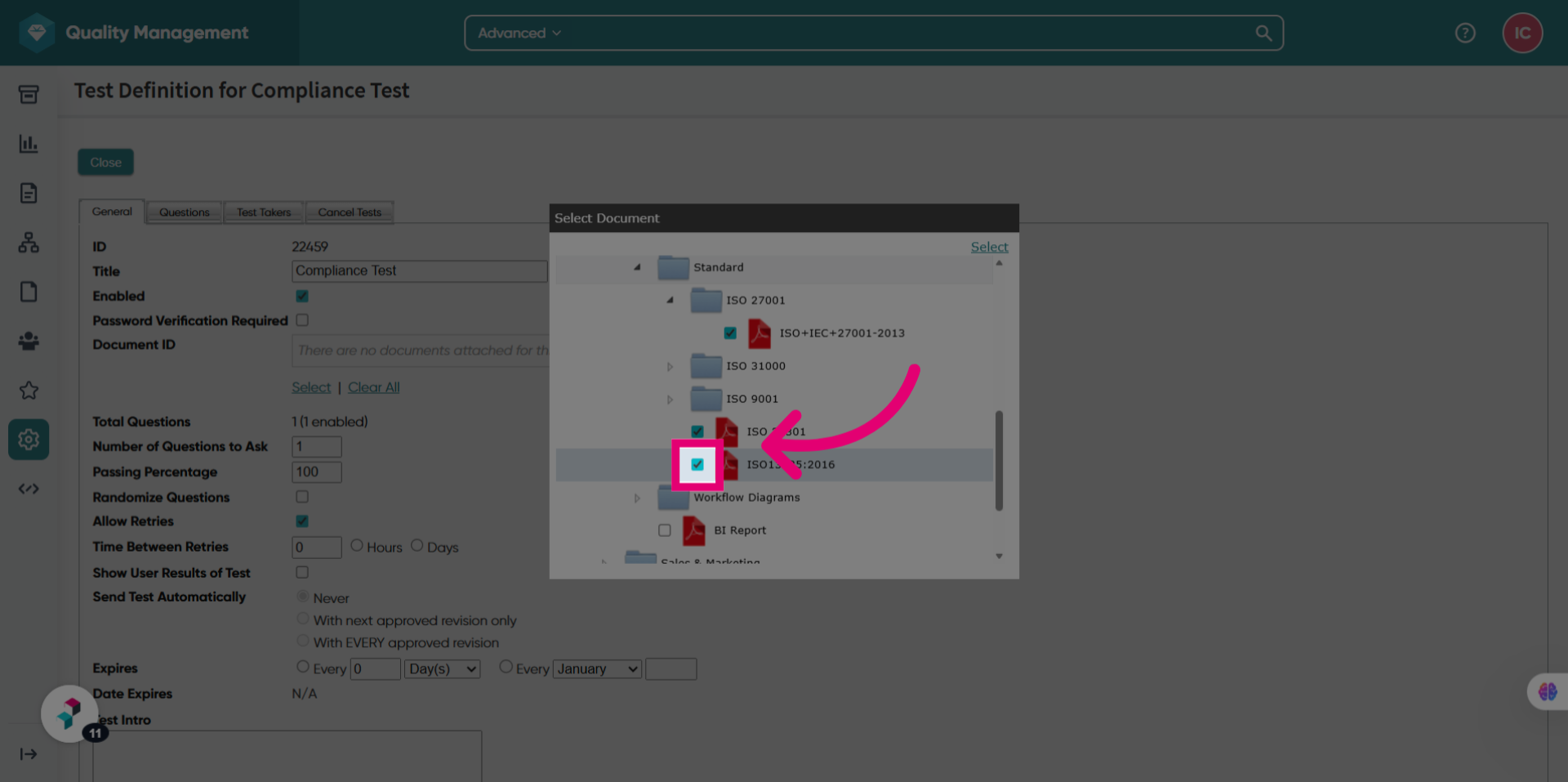
- Click Select under Document ID.
Tick the box next to each document you want to attach to the test.
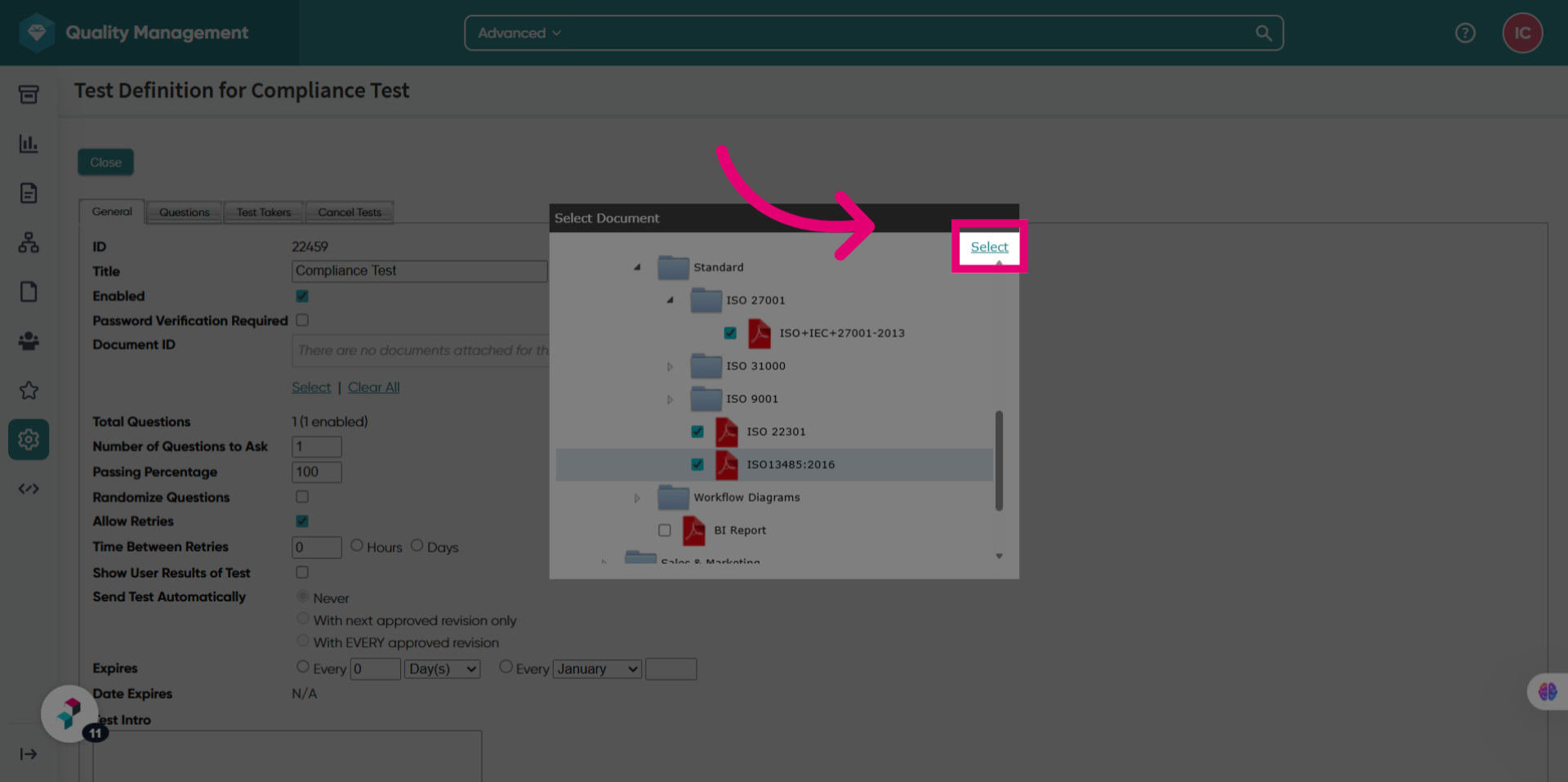
- Click Select.
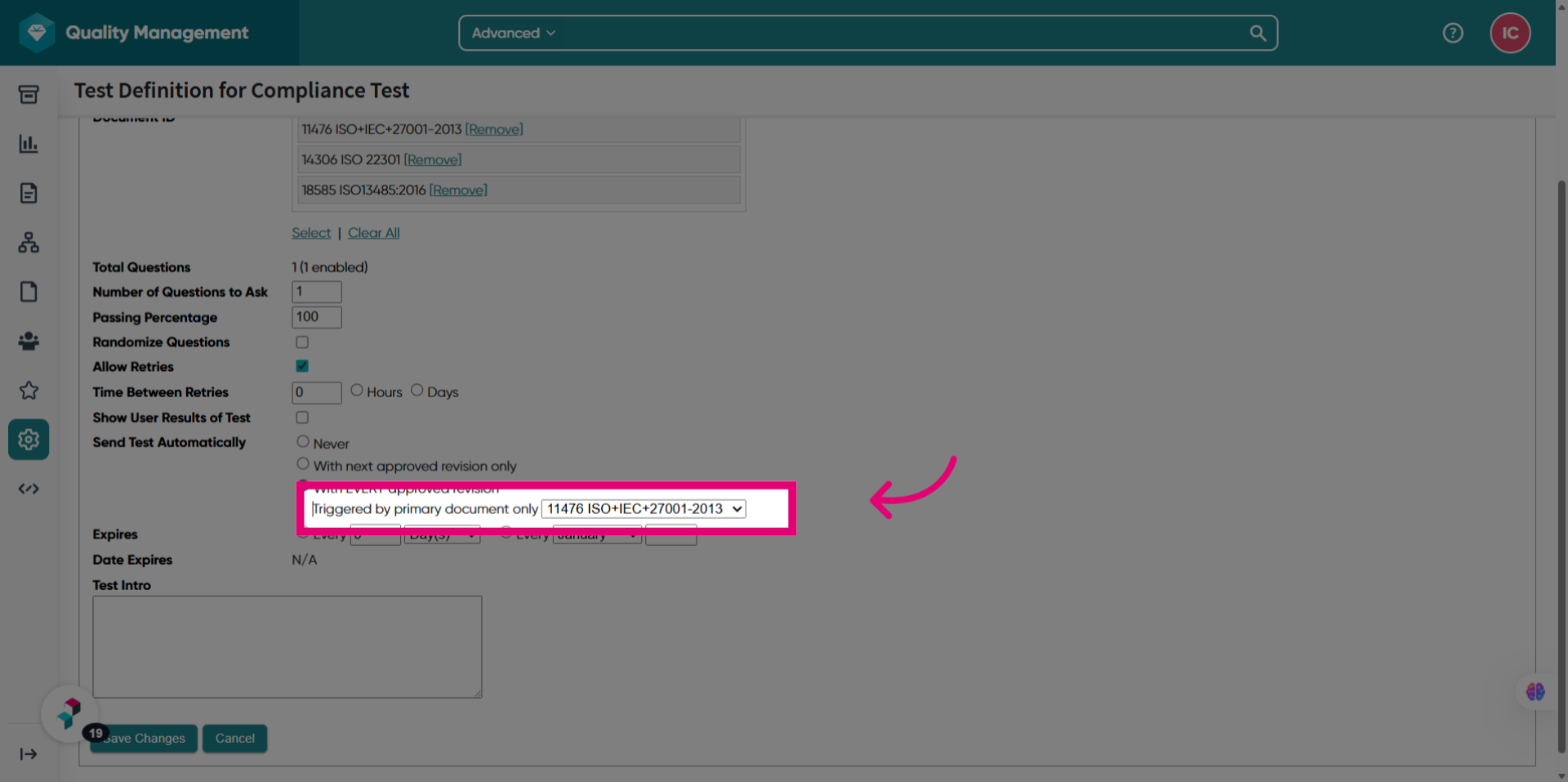
If multiple documents are attached to a test, Triggered by primary document only will appear for the send test automatically options.
Select which primary document will trigger the test.
- Set up the test by adding questions to it.
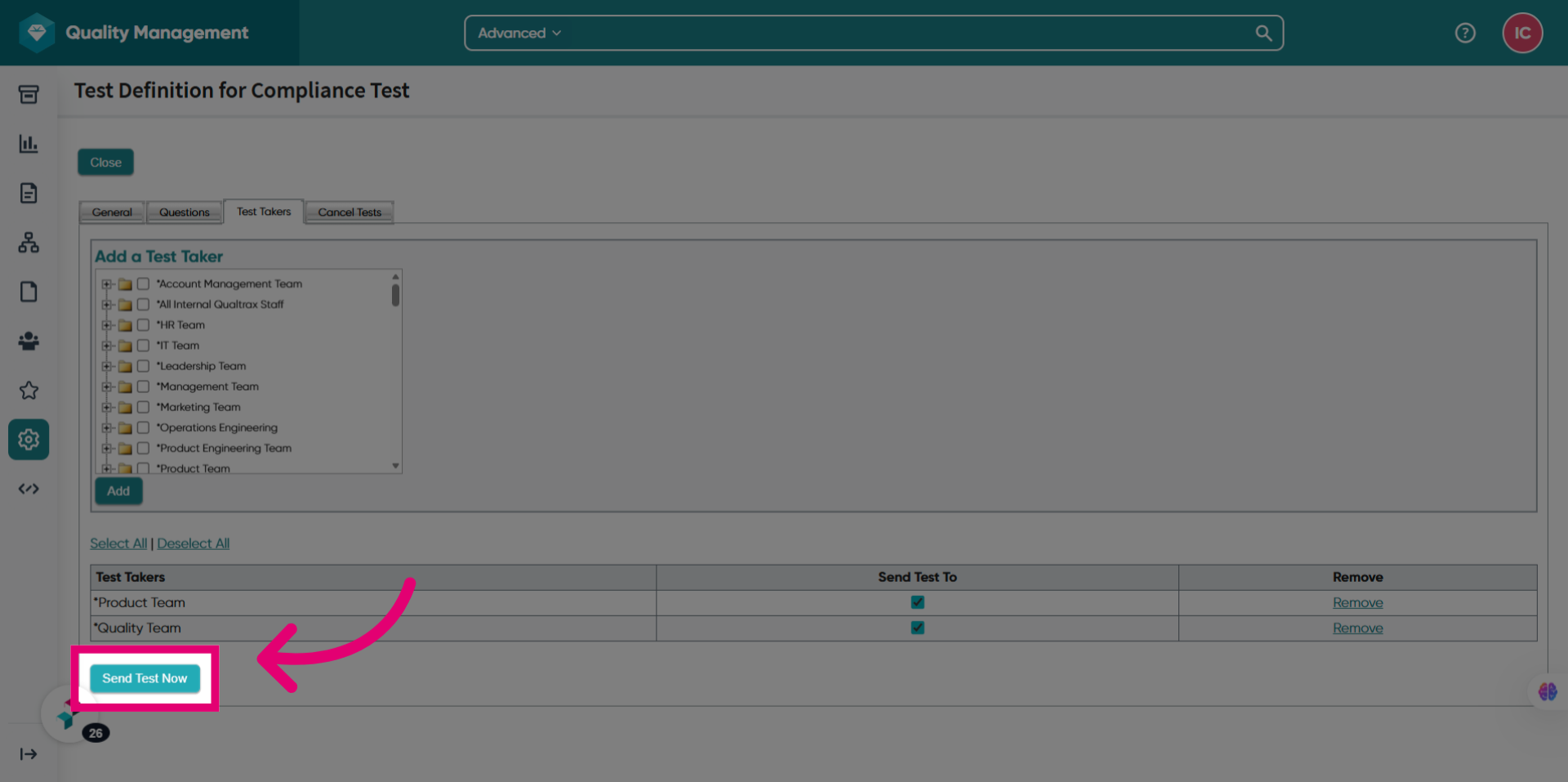
- Set up the test takers.
- Choose the test takers who will receive the test.
- Click Send Test Now.
2. Viewing documents
You can view the documents attached to a test in a couple of ways.
2.1. Tests
When users are completing the test, they will see all attached documents listed.
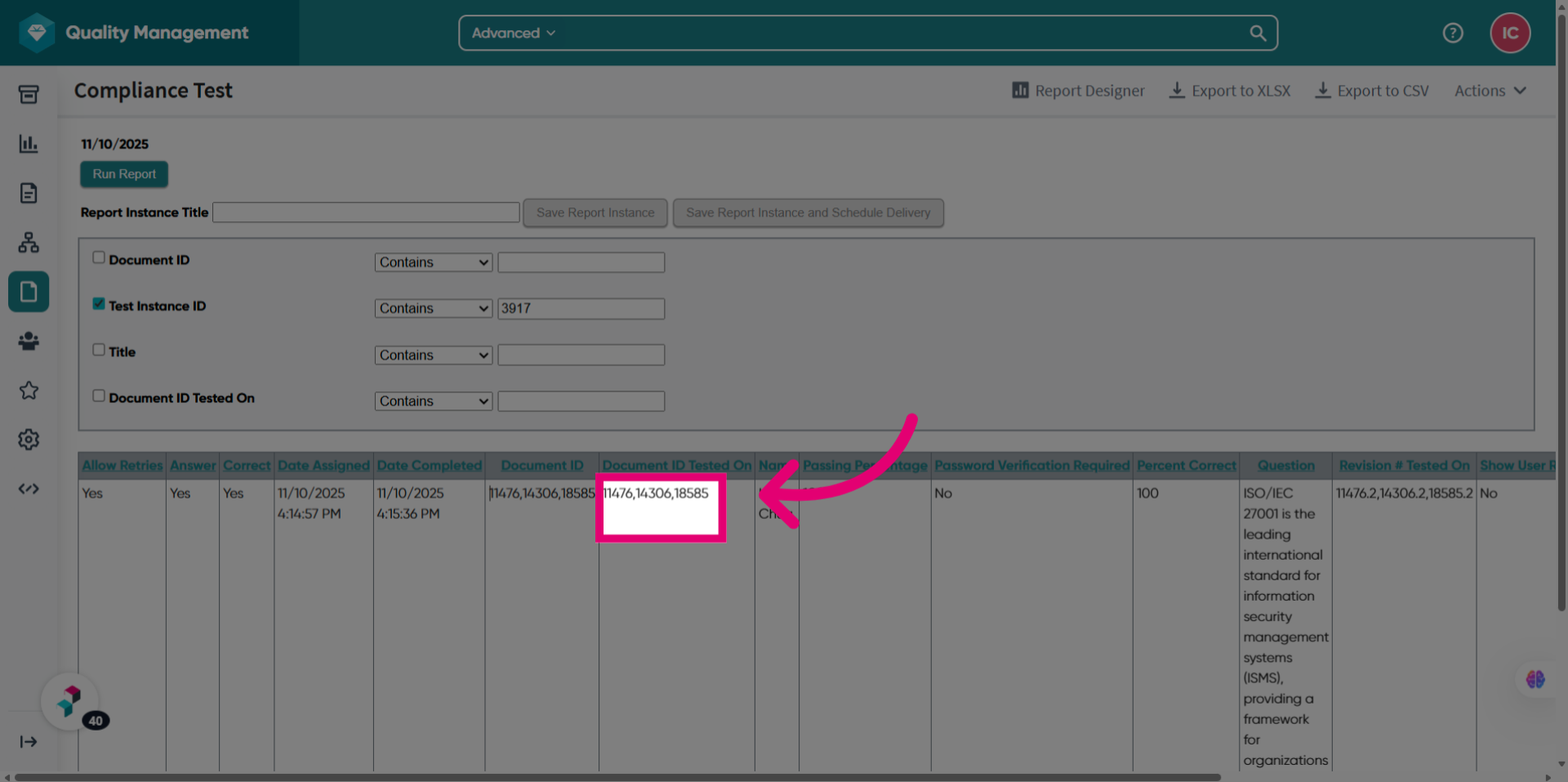
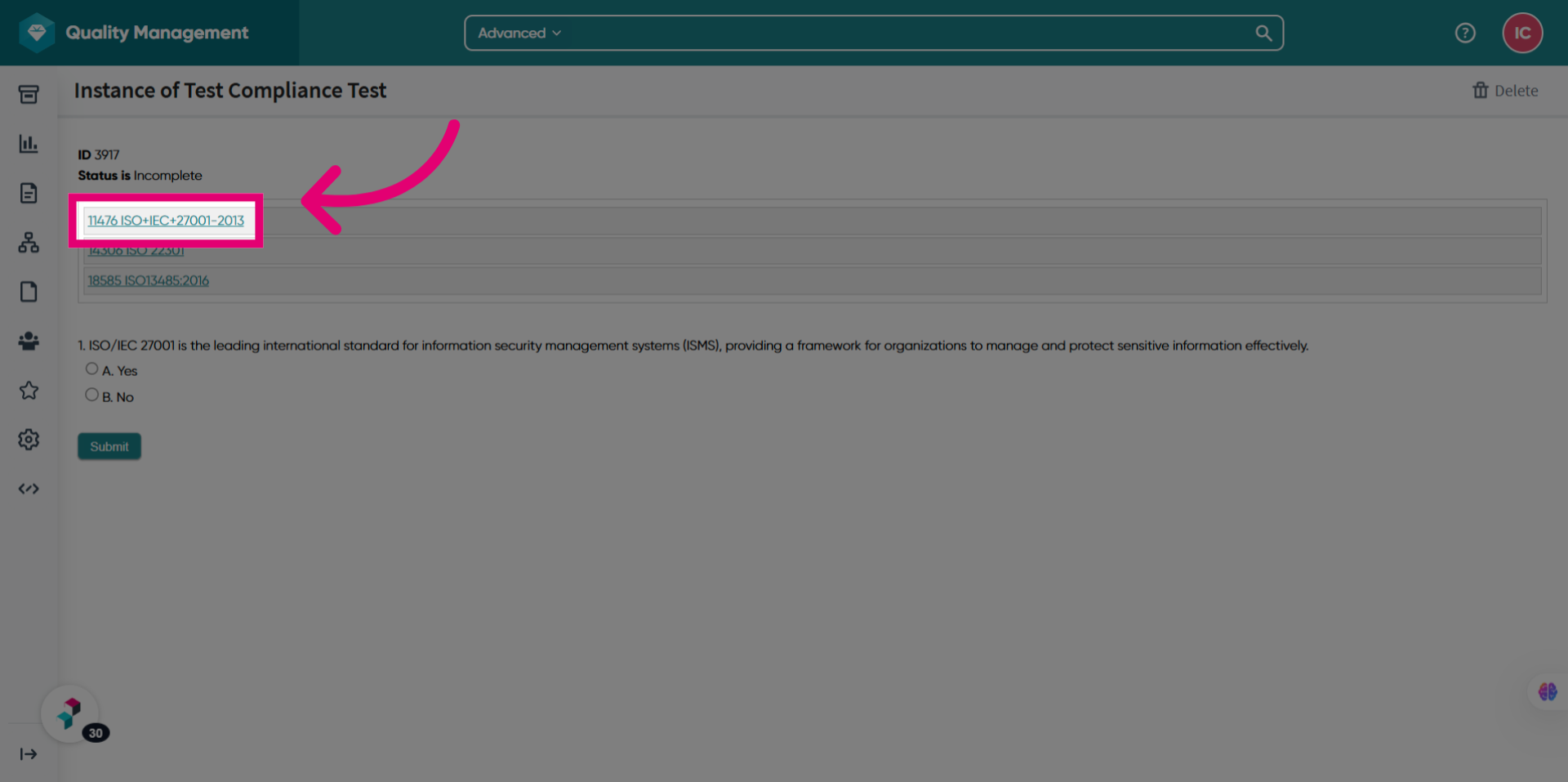 2.2. Reports
When users are running a report on the test, they will see all attached documents listed.