


New article
Recently updated
Attaching multiple documents to a training

Who is this article for?
Administrators responsible for managing training.
Administration module access is required.
Sometimes, training may apply to several related documents, procedures, or reference materials in your system. To support that, you can attach more than one document to each training.
This article shows you how you can attach multiple files to a training.
1. Attaching documents
To attach documents to a test:
- Open the Administration module.
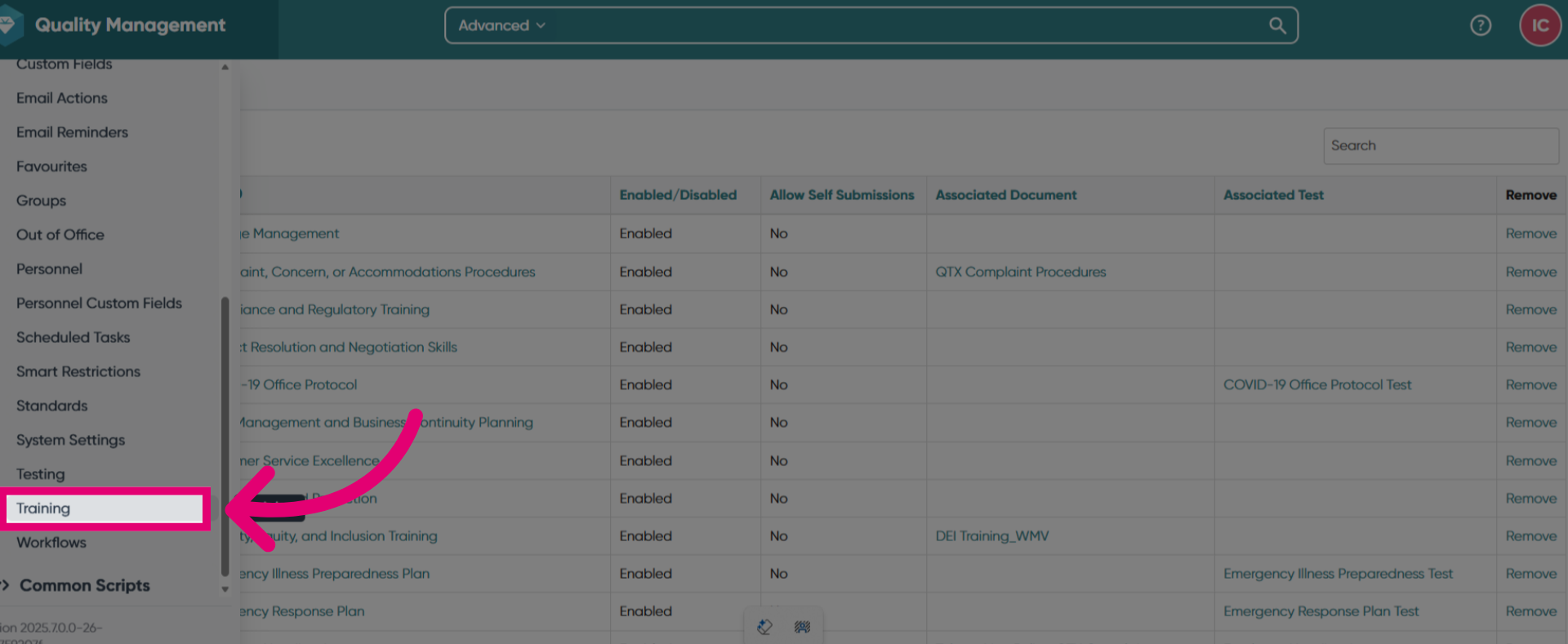
- Select Training.
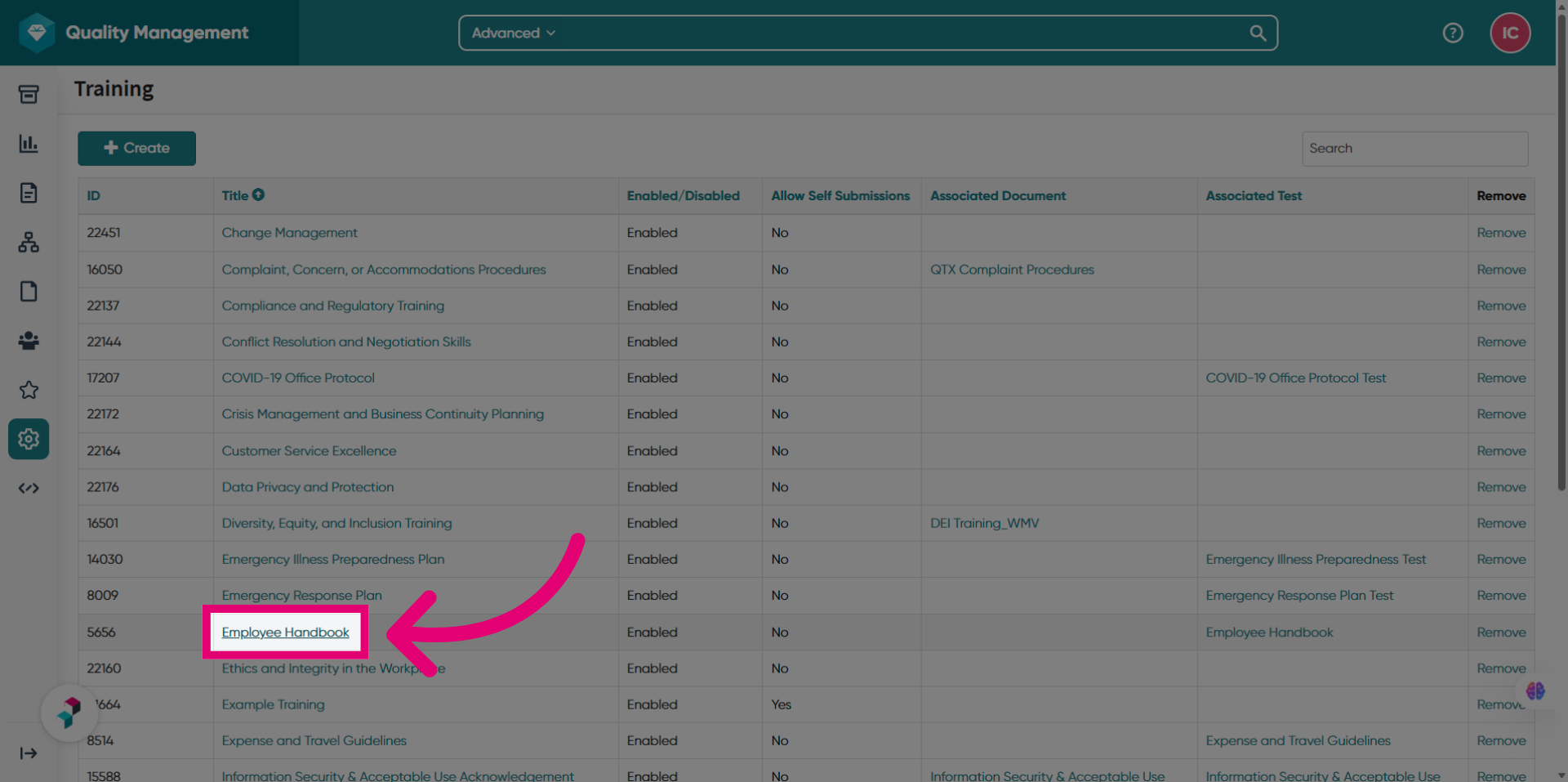
- Open a training template.
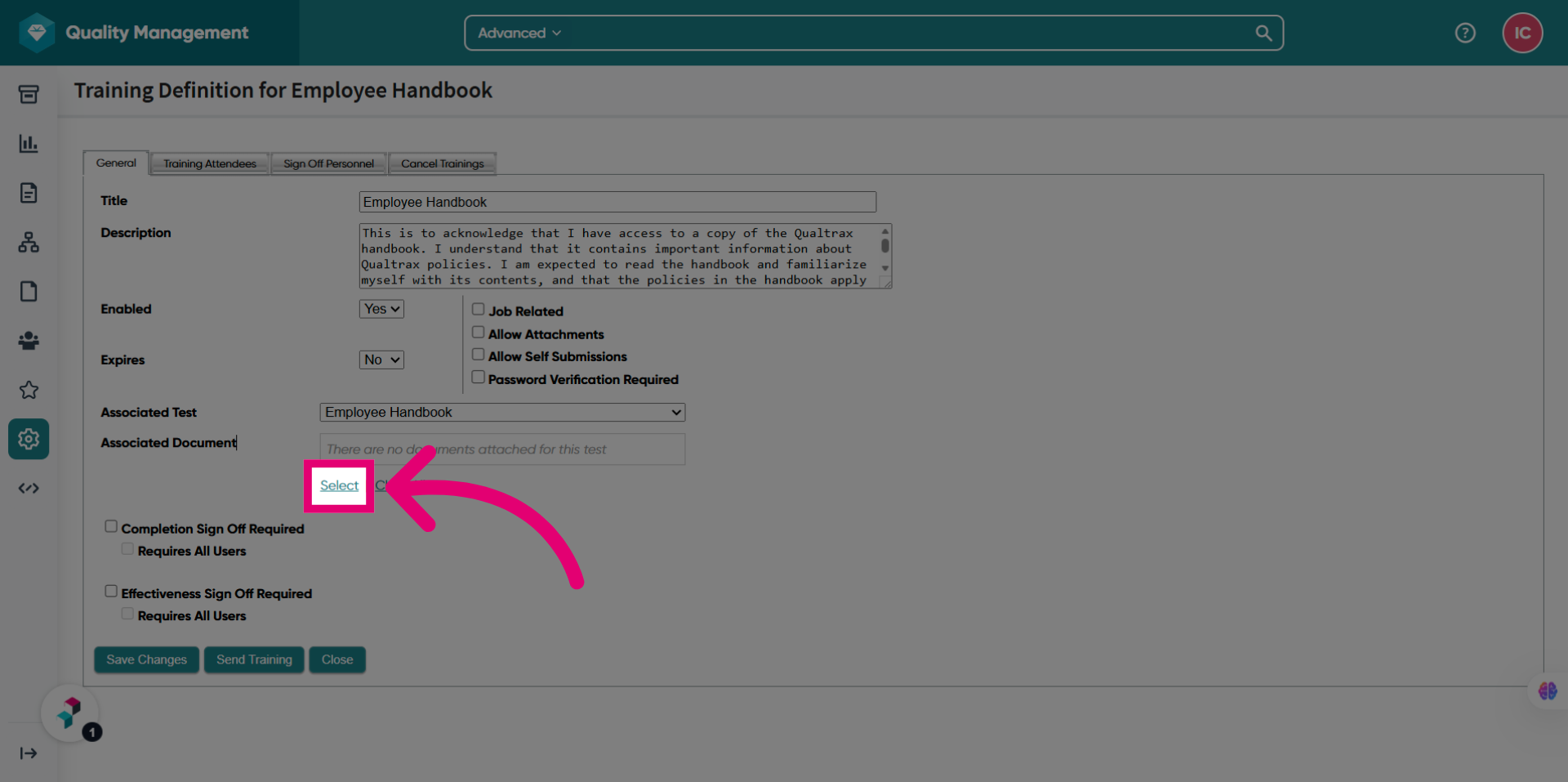
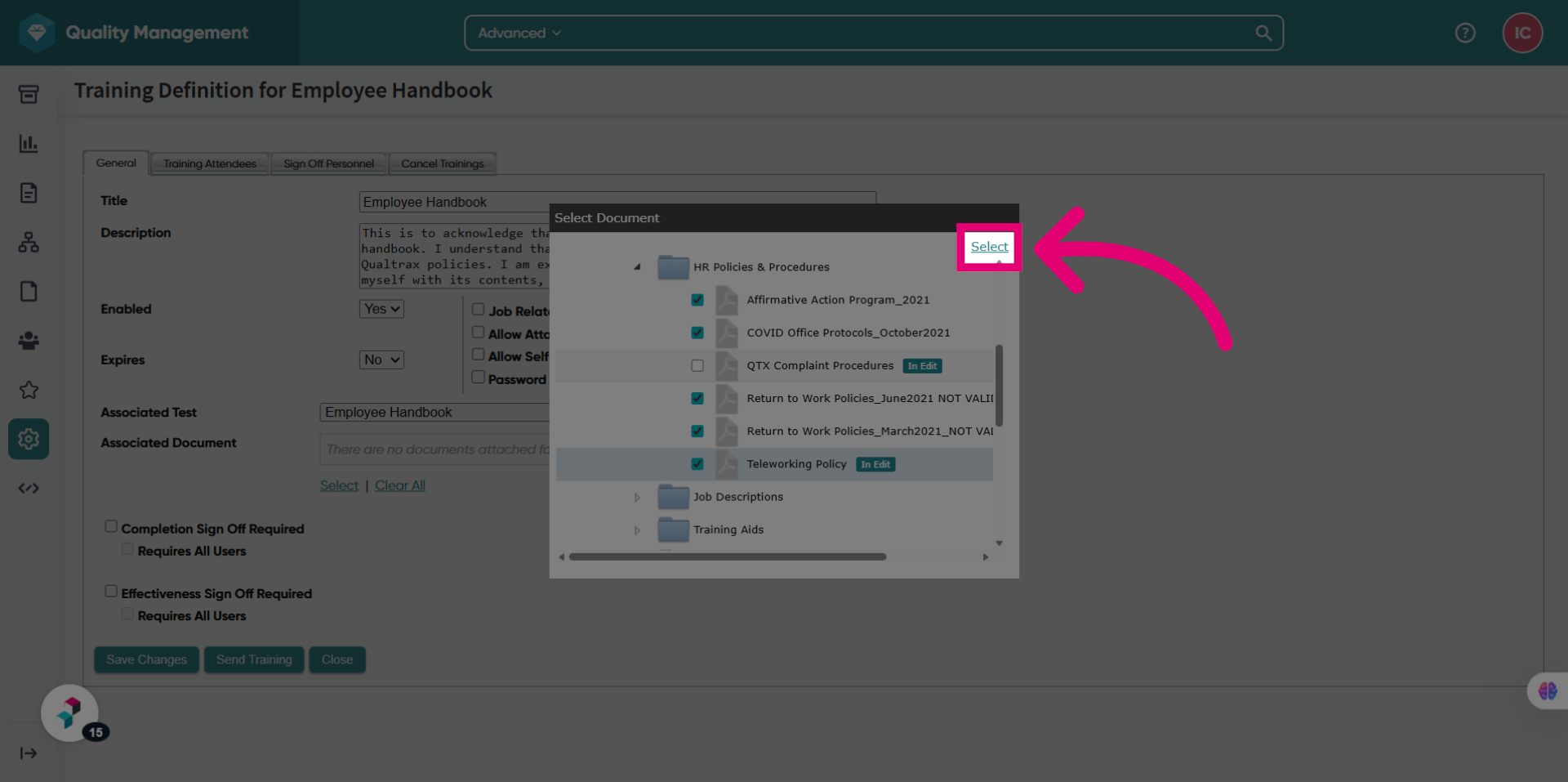
- Click Select under Associated Documents.
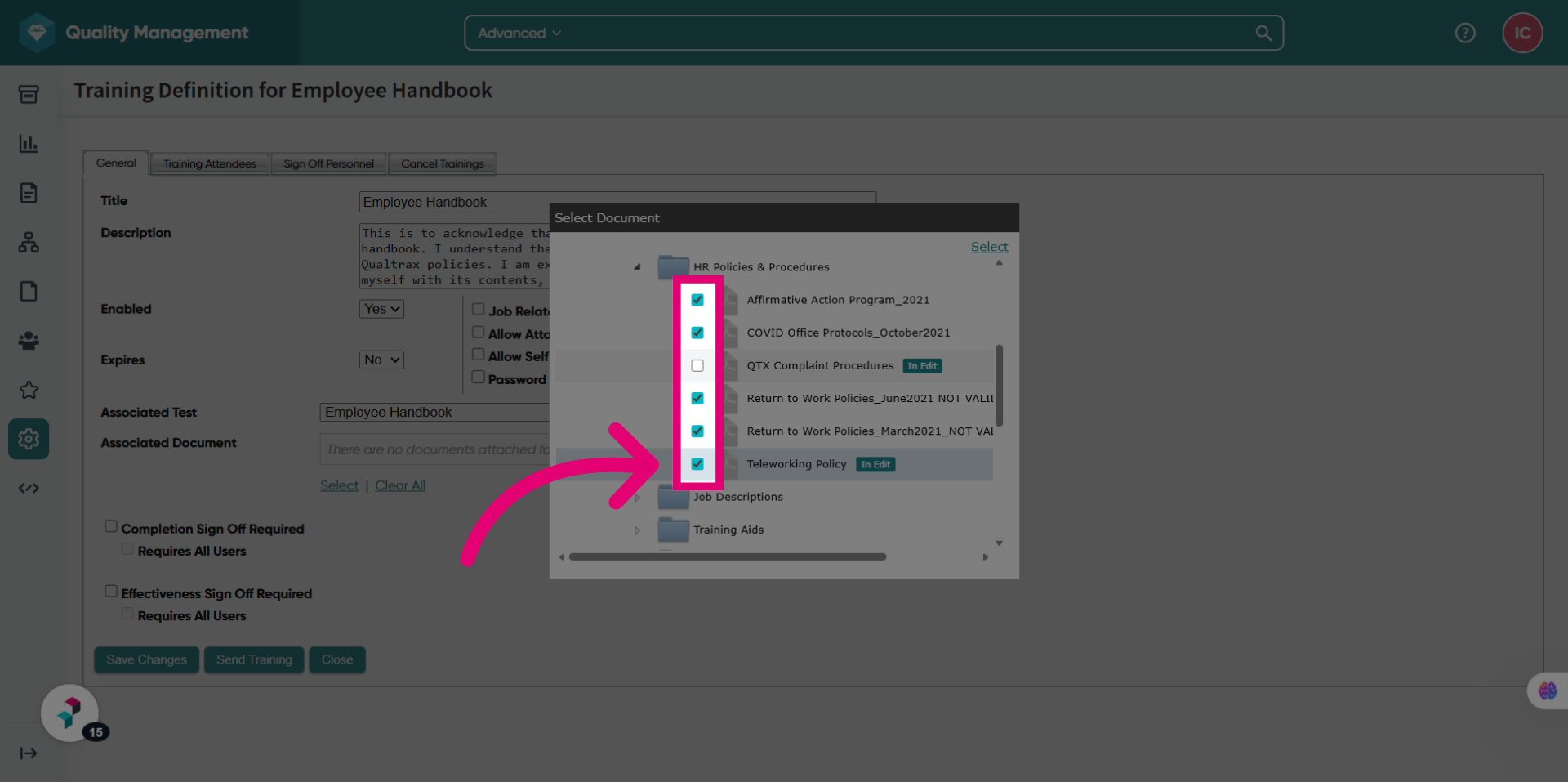
- Tick the box next to each document you want to attach to the training.
- Click Select.
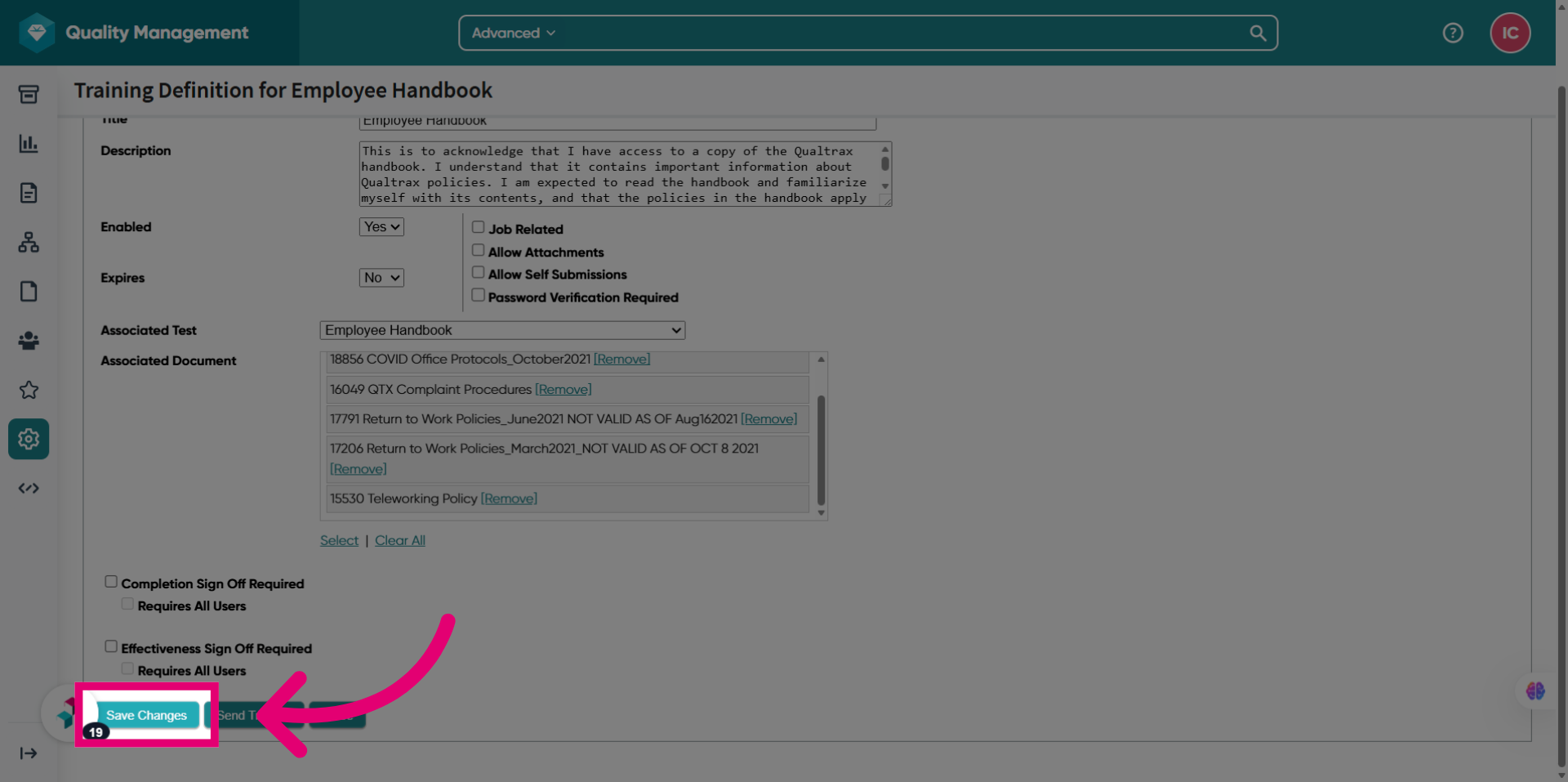
- Click Save Changes.
2. Viewing documents
You can view the documents attached to a training test in a few ways.
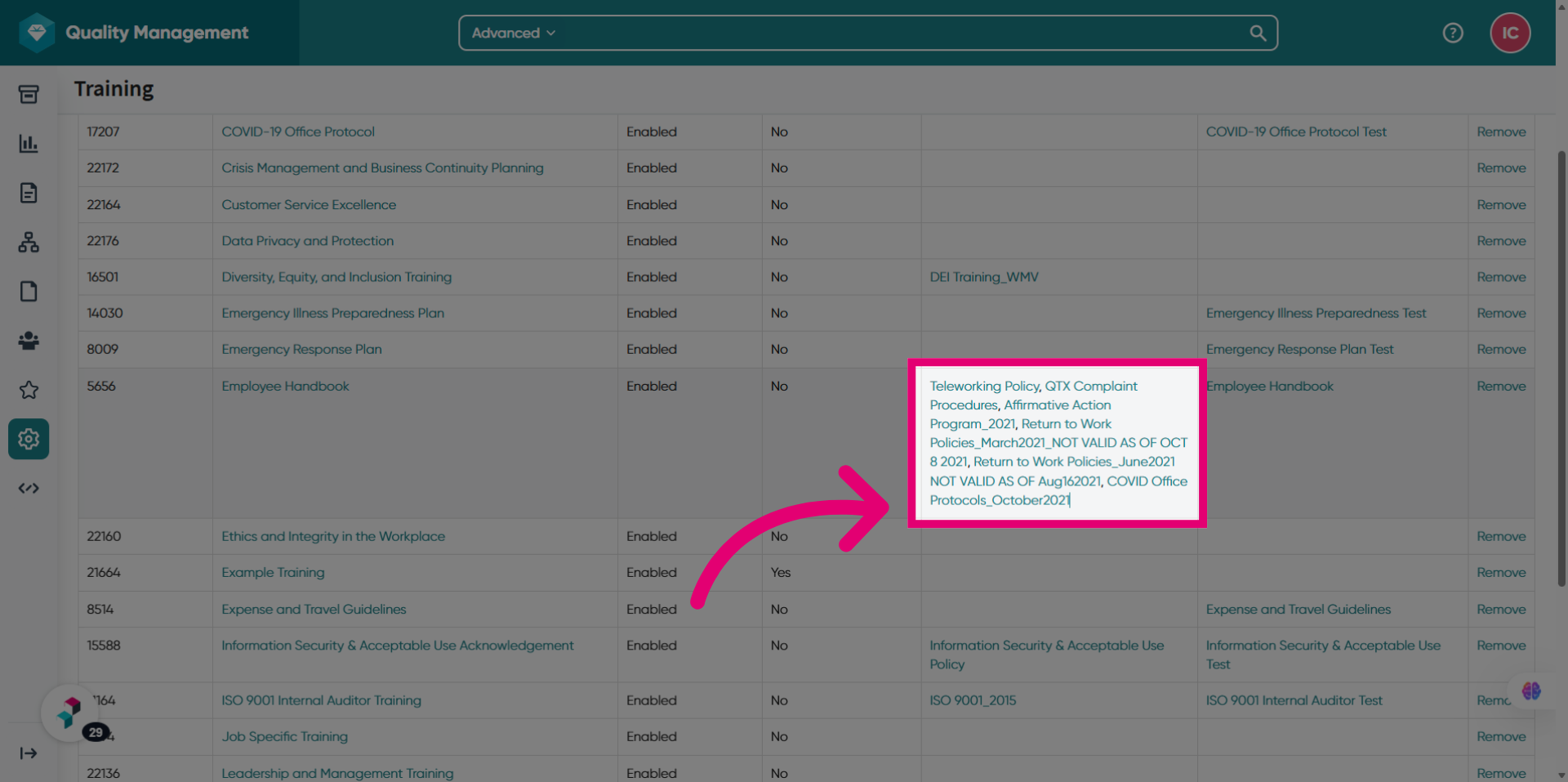
2.1. Training list
Users with access to the training list can view the attached files there.
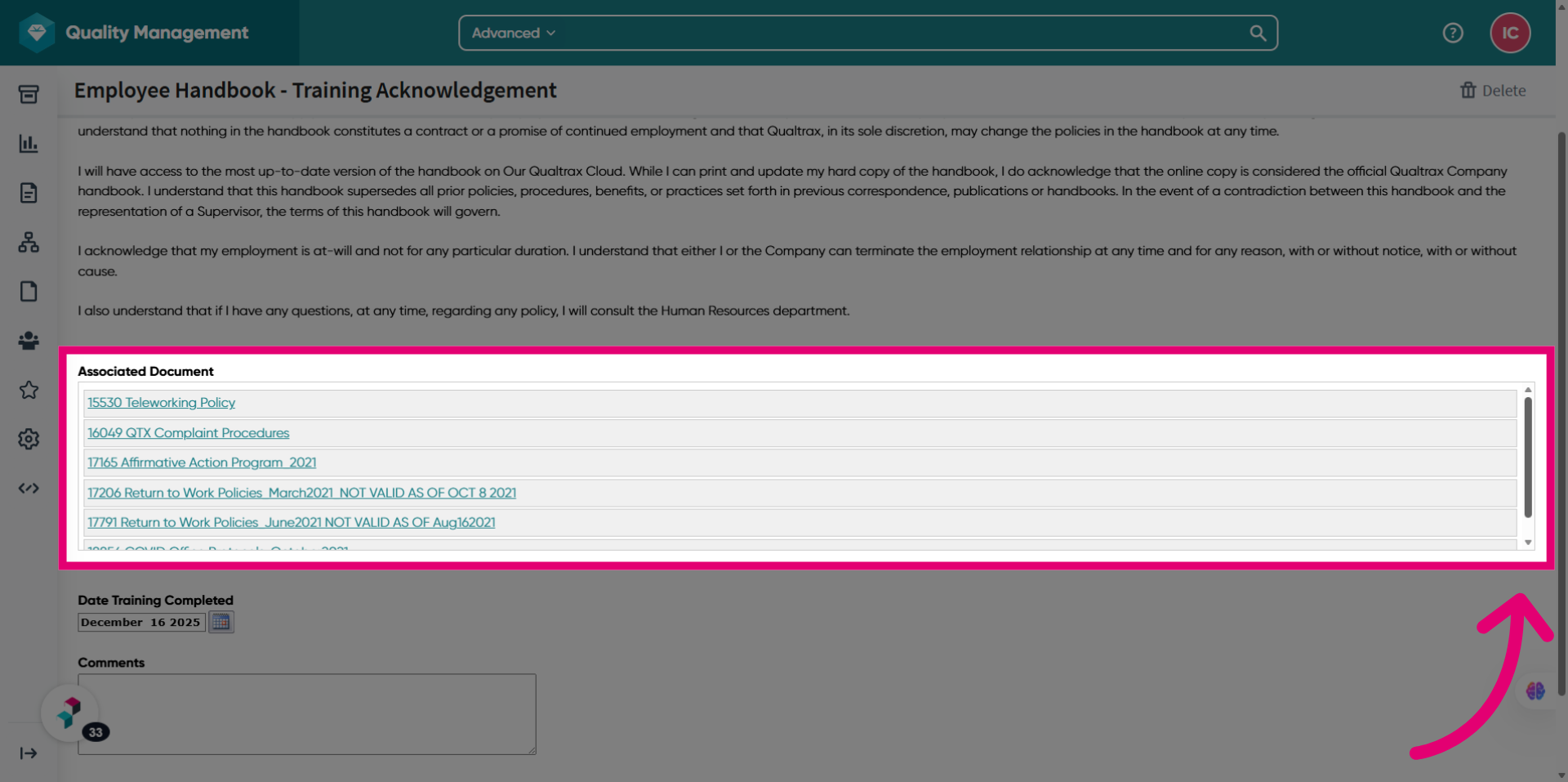
2.2. Training task
Users are completing the assigned training task will find the attached files there.
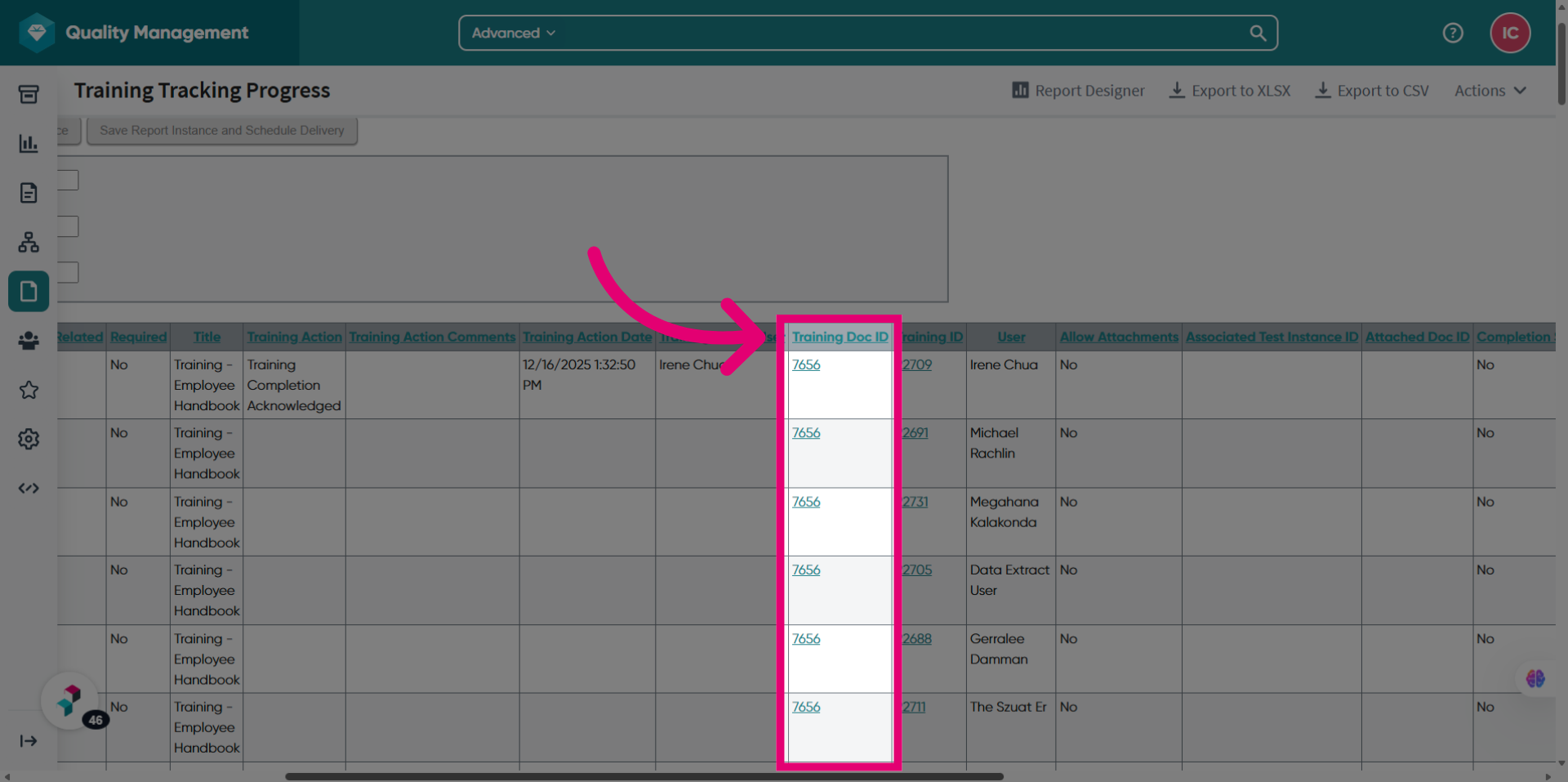
2.3. Reports
Users running a report on training will see the attached files listed. Due to Excel export limitations, each document is displayed as a separate row.
If a document is deleted or retired, it is automatically removed from the associated training. It will no longer appears in any of the above views.