


New article
Recently updated
Configuring your Single Sign-On (SSO) for Mazlan Home

Who is this article for?
IT Administrators setting up the Mazlan Home migration.
IT Administrator access is required.
This article walks you through each required step for the Single Sign-On (SSO) and Identity Provider (IdP) migration to Mazlan Home (formerly Ideagen Mazlan Home).
Additional information on the migration itself are in our article on preparing for the Mazlan Home integration.
1. Receiving details
Ideagen will send your organisation's Entity ID and Reply URL via email. These values are unique to your tenant and are required to configure your IdP.
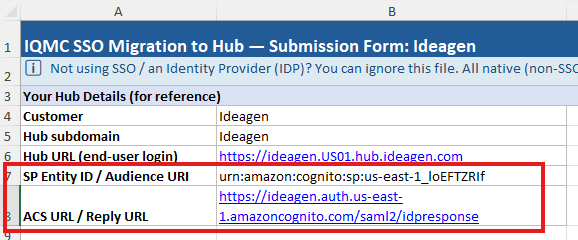
2. Configuring your IdP
Your IdP is the system that authenticates your users, like Microsoft Entra ID, Okta, or similar.
You can either update your existing SAML configuration or create a new SAML application.
2.1. Existing configuration (Option A)
To update an existing configuration:
- Log in to your IdP admin portal.
- Locate the existing enterprise application or SAML integration.
- Add a new Entity ID entry with the value provided by Ideagen.
This field may be labelled Identifier (Entity ID) or Audience URI depending on the provider. Do not remove the existing entry. - Add a new Reply URL entry with the value provided by Ideagen.
This field may be labelled ACS URL or Single Sign-On URL depending on the provider. Do not remove the existing entry. - Click Save.
- Download or copy your IdP metadata.
2.2. New configuration (Option B)
To create a new configuration:
- Log in to your IdP admin portal.
- Create a new enterprise application or SAML integration for Mazlan Home.
- Enter the Entity ID in the field labelled Identifier (Entity ID) or Audience URI.
- Enter the Redirect URL in the field labelled Reply URL (ACS URL) or Single Sign-On URL.
- Configure any remaining SSO fields the same way as your existing SSO setup.
- Click Save.
- Download or copy your IdP metadata.
Important
Do not set your new IdP configuration as the default until Phase 1 testing begins.
3. Completing metadata template
Once your IdP is configured, complete the metadata template sent to your organisation by Ideagen. The table below explains each field.
| Field | Valid input | Example |
|---|---|---|
| TenantURL | Ideagen Quality Management • Core site URL. | https://your.qualtraxcloud.com |
| Option To Set Up IdP | Option A or Option B from the previous section. | Option A |
| MetadataType |
How you are providing your IdP metadata:
If MetadataType is File, attach the XML metadata file alongside the completed template when you reply to the email from Ideagen. |
File |
| MetadataFileName |
Name of your XML metadata file. It must be in an .xml format, and at least four characters. Leave blank if MetadataType is URL. |
Ideagen Quality Management-Entra-metadata.xml |
| MetadataUrl |
SAML metadata URL from your IdP. For Microsoft Entra, the format is: https://login.microsoftonline.com/<tenant-id>/federationmetadata/2007-06/federationmetadata.xml?appid=<app-id> Leave blank if MetadataType is File. |
(leave blank if using File) |
| IdpSignOut |
Choose sign out behaviour:
|
FALSE |
| SignedRequest |
Choose signing behaviour:
|
TRUE |
| AttributeMappings |
Map Hub user fields to your IdP's SAML attributes. Format: hub-attribute:idp-saml-attribute. For multiple mappings, separate each pair with a |. Available Hub attributes:
|
preferred_username:http://schemas.xmlsoap.org/ws/2005/05/identity/claims/name|email:http://schemas.xmlsoap.org/ws/2005/05/identity/claims/emailaddress |
| ProviderName |
Display name for your IdP. Must be 3-32 characters, using only letters, numbers, and punctuation. No spaces or underscores allowed. Must be unique within your tenant. |
Ideagen Quality Management-EntraSSO |
| Admin / test user accounts |
Email addresses for Phase 1 accounts. At least one valid email is required. These accounts will receive a welcome email from Hub post-migration and will be used to validate your SSO setup and sign in via your IdP. Use the email linked to your SSO sign in. |
testadmin@yourorg.com |
| IdP Platform | Name of your IdP platform | PingOne |
| Technical contact | Name and email of the IT contact responsible for this configuration | Jane Smith, it@yourorg.com |
4. Completing Phase 1 validation
During Phase 1, tentatively starting in early June 2026, only the test accounts listed in the metadata template will be migrated to Hub. You will get a welcome email from Hub when your test accounts are ready, signalling you to start validation.
Important
Before you start testing, set the Hub IdP configuration as the default in your IdP portal. We recommend performing the testing during non-peak hours to avoid any disruption.
To validate your configuration:
- Open the Hub URL from your welcome email.
Do not test using the Ideagen Quality Manager URL yet, as it is not enabled for the testing phase. - Click the SSO sign in option (the button label will match the ProviderName you entered in the metadata template).
You will be redirected to your organisation's IdP sign in page. - Enter your credentials.
- Verify that you are redirected back to Hub and signed in automatically.
- Verify that your user role is correct and your expected content is visible.
Important
Once testing is complete, revert your default IdP setting back to your original configuration. If no issues are reported before Phase 2 begins, migration will proceed as scheduled.
4.1. Troubleshooting issues
If you are unable to complete the validation steps, check for these common causes:
- Entity ID or Reply URL in your IdP does not exactly match what Ideagen provided. Check for trailing slashes or extra spaces.
- Test user account has not been assigned to the Hub application in your IdP.
- Firewall rules or conditional access policy are blocking the authentication redirect.
If you cannot resolve the issue, open a ticket with the error message and your IdP platform name. Report all issues before Phase 2 begins. If no issues are reported, Phase 2 will proceed as scheduled.
5. Completing Phase 2 migration
During Phase 2, all users will be migrated to Hub. Tenants migrate gradually across this period. Ideagen will confirm your specific date in advance.
Before Phase 2 begins, complete the following based on how you configured your IdP.
5.1. Existing configuration (Option A)
Set the Entity ID and Redirect URL configured earlier as the default in your IdP. This ensures all users are routed through the correct SSO configuration on sign in.
5.2. New configuration (Option B)
No further changes to your default IdP setting are required.
Once migration is complete, all users will receive a welcome email from Hub and will need to complete a one-time password reset before logging in.
For more information, refer to our signing in with Mazlan Home after integration article.