


New article
Recently updated
Unretiring retired documents

Who is this article for?
Users responsible for managing retired documents.
Retire Documents & Templates permissions and Edit permissions for the specific document are required.
When a previously retired document becomes relevant again, you may want to restore it rather than recreating the document. This allows you to keep a record of all previous and future changes against one file.
This article shows you how you can restore, or unretire, a retired document in version 2025.6.0.0 (or higher).
1. Unretiring a document
To unretire a document:
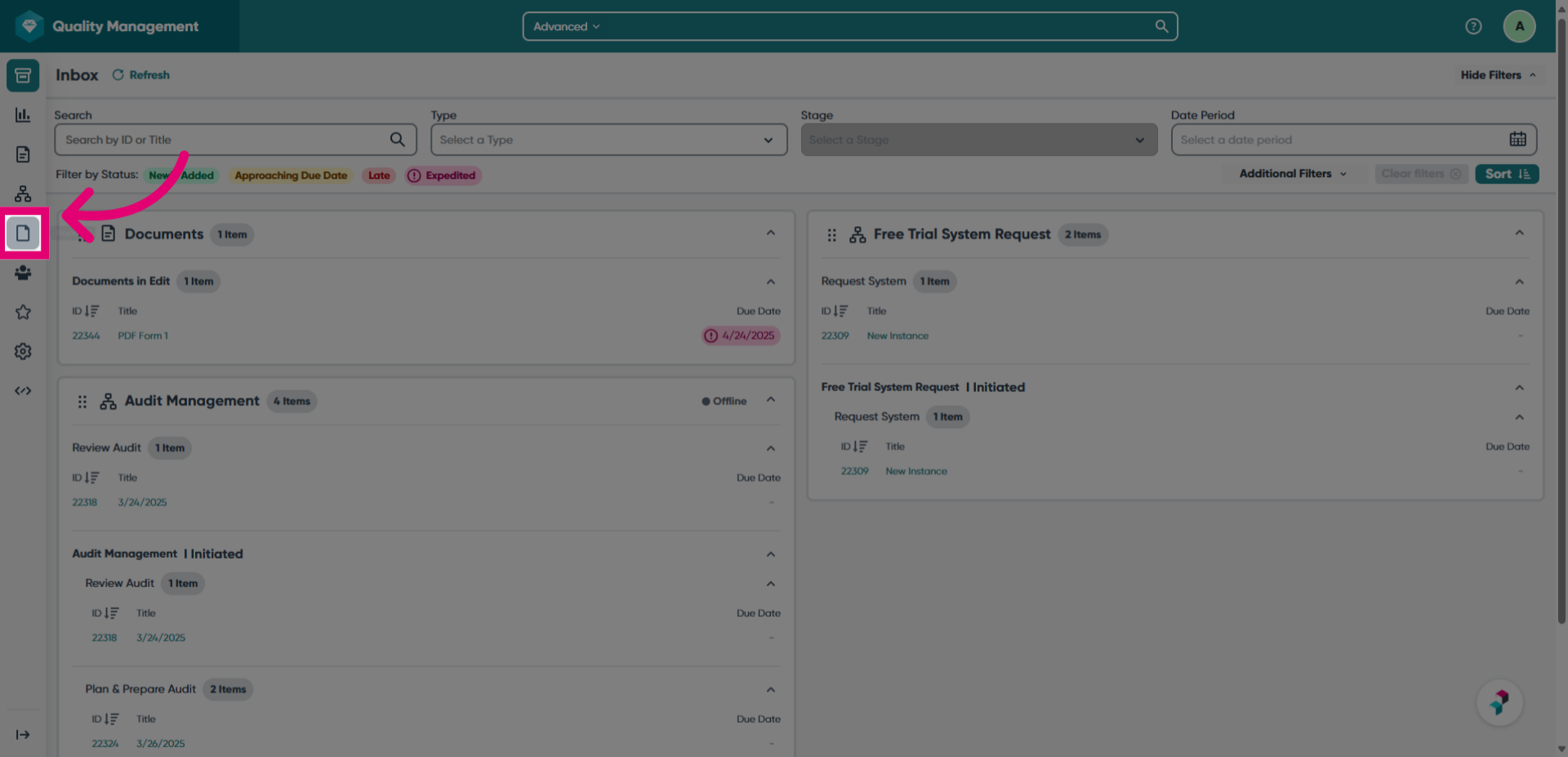
- Access the Reports module.
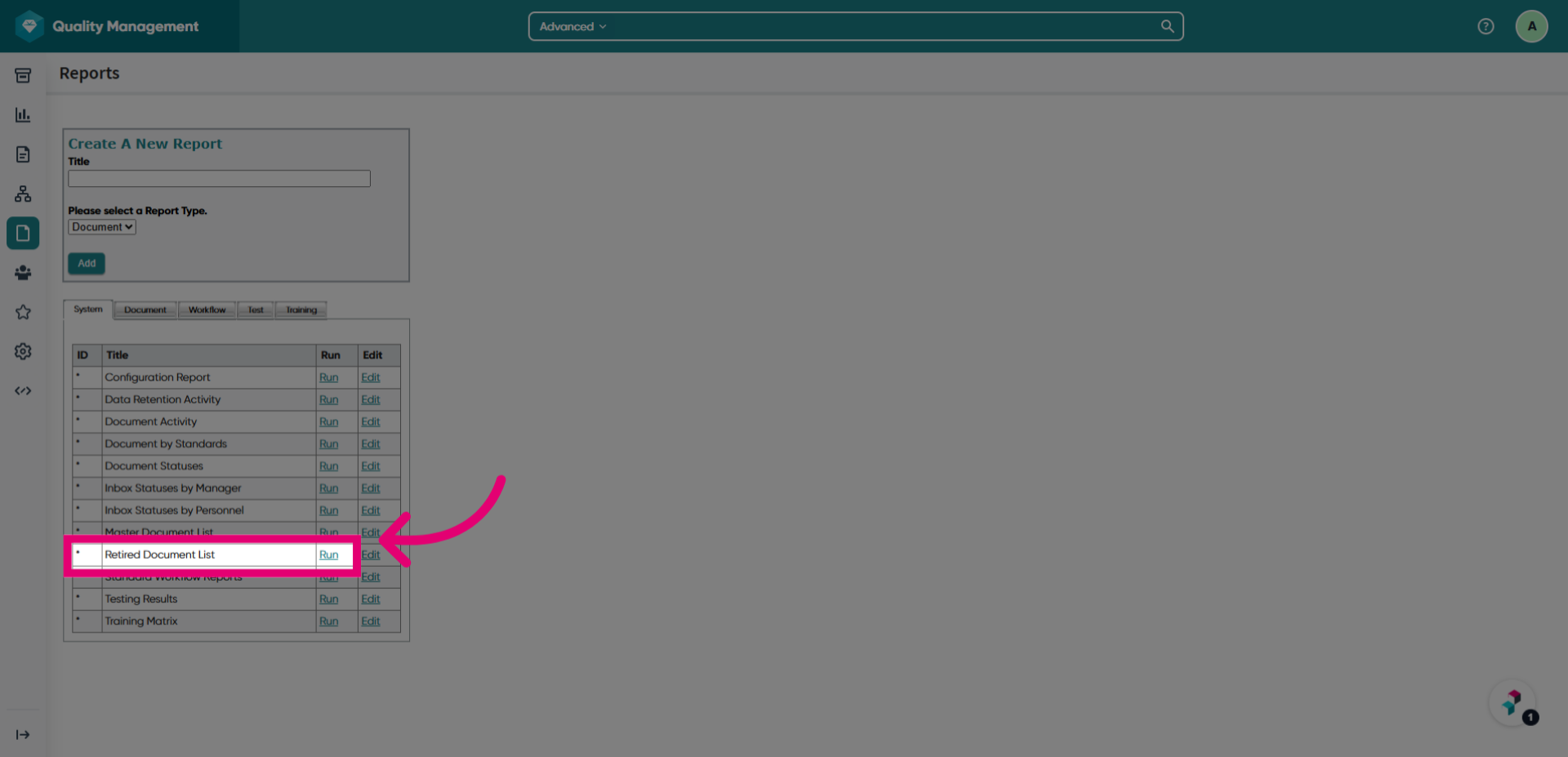
- Click Run next to the Retired Document List report.
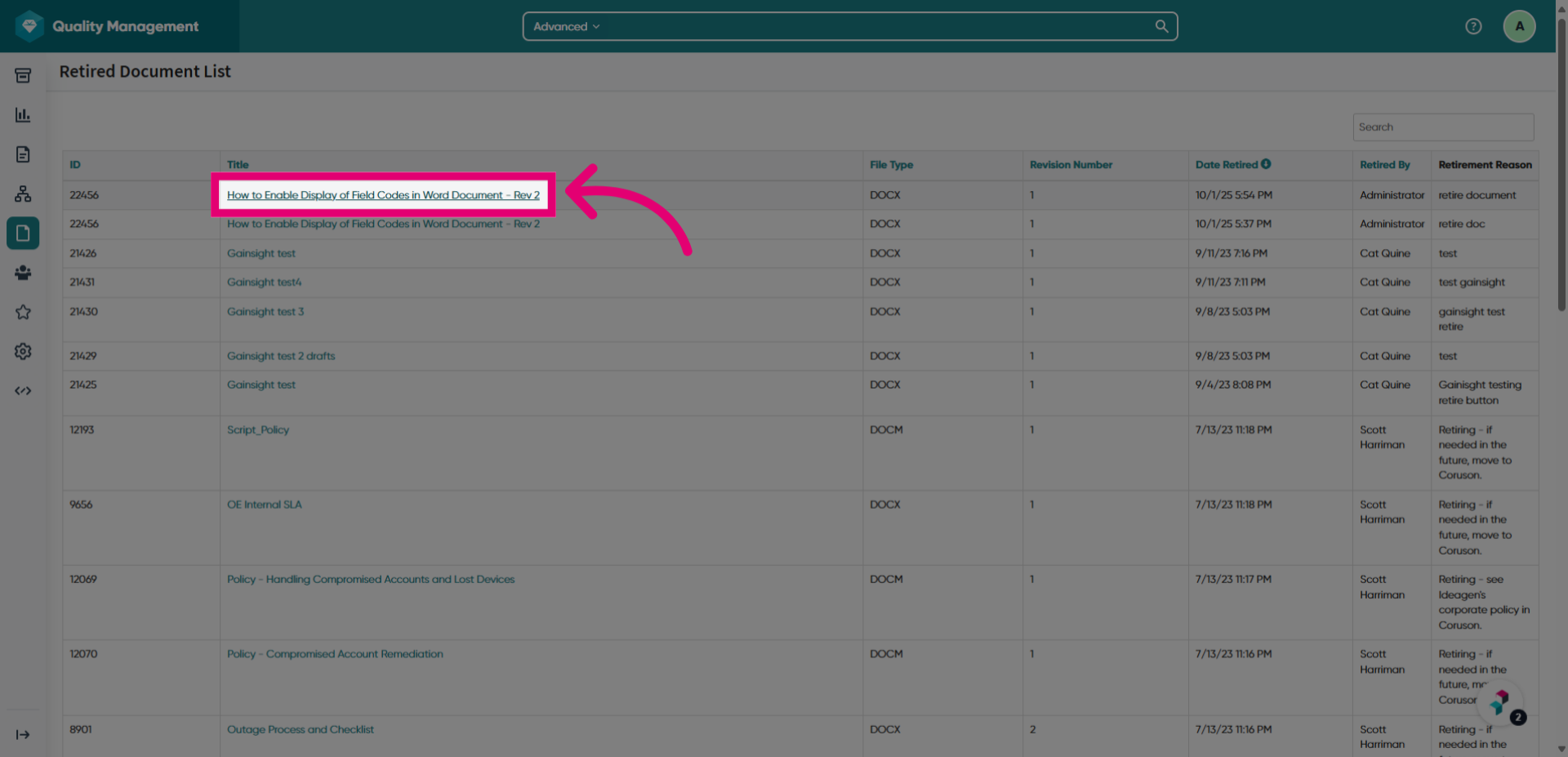
- Open the document you want to restore.
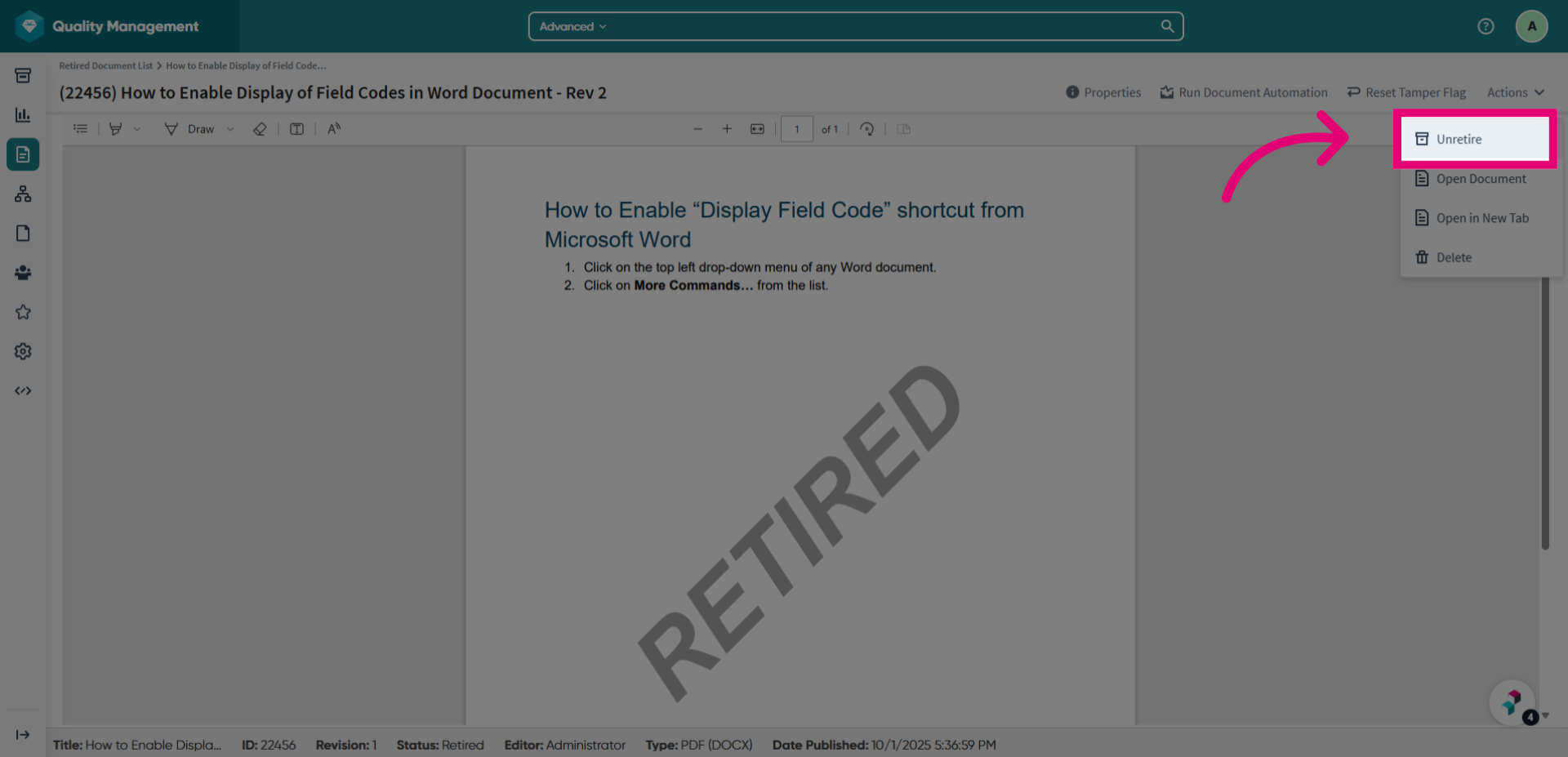
- Open the Actions menu.
- Click Unretire.
- Add a comment or reason for unretiring the document.
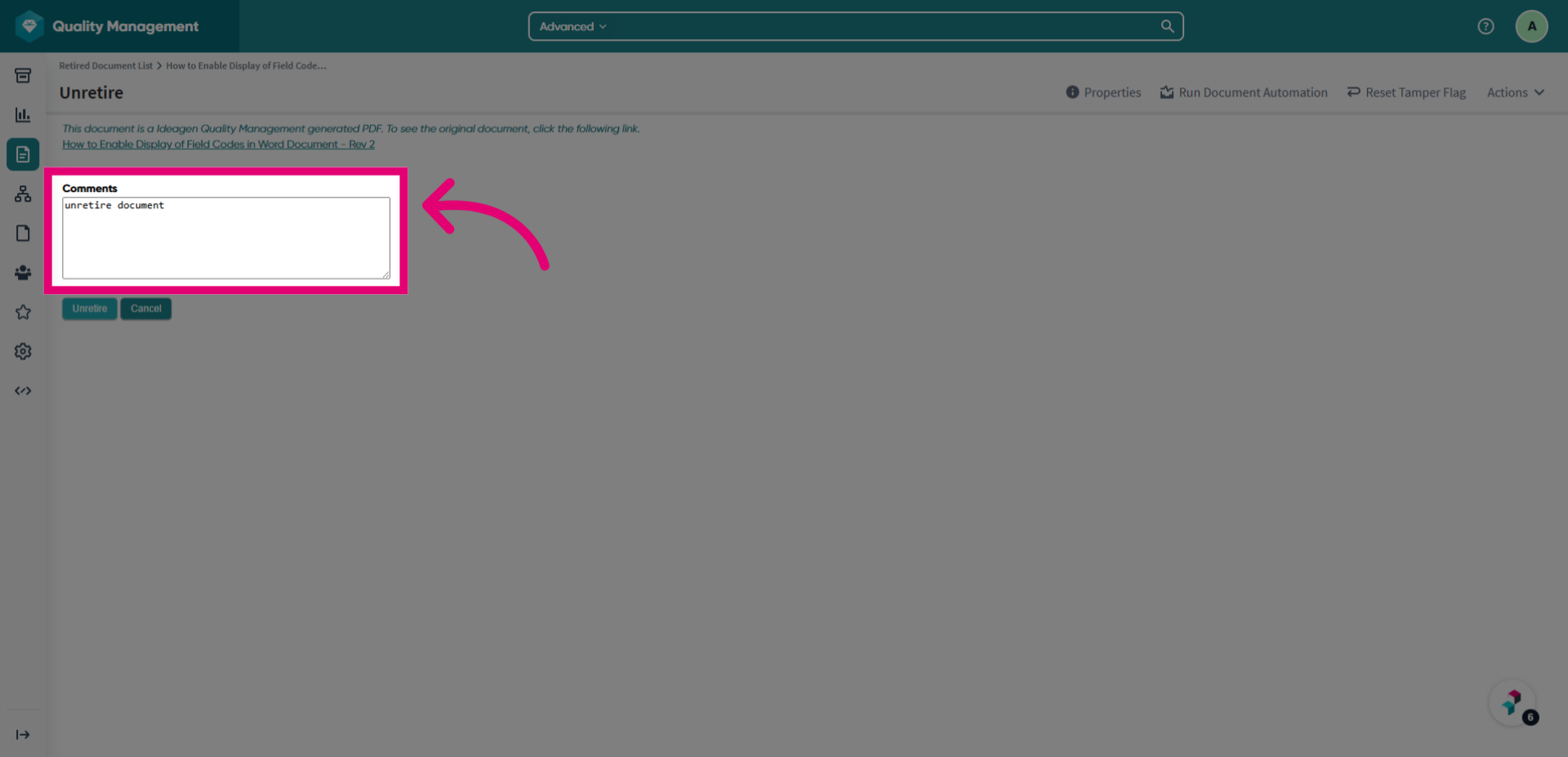
- Click Unretire.
2. Viewing an unretired document
To view an unretired document:
- Access the Document module.
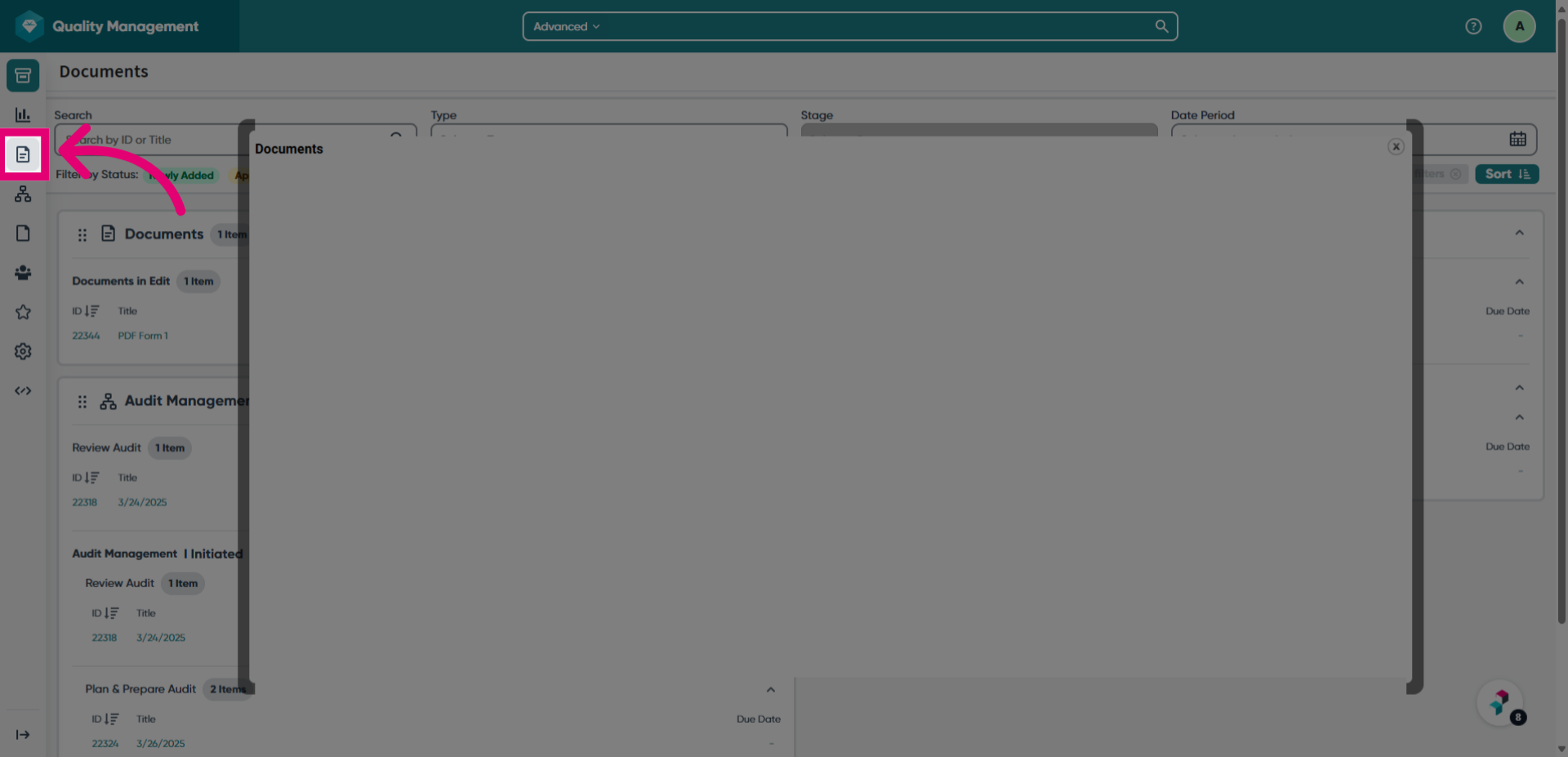
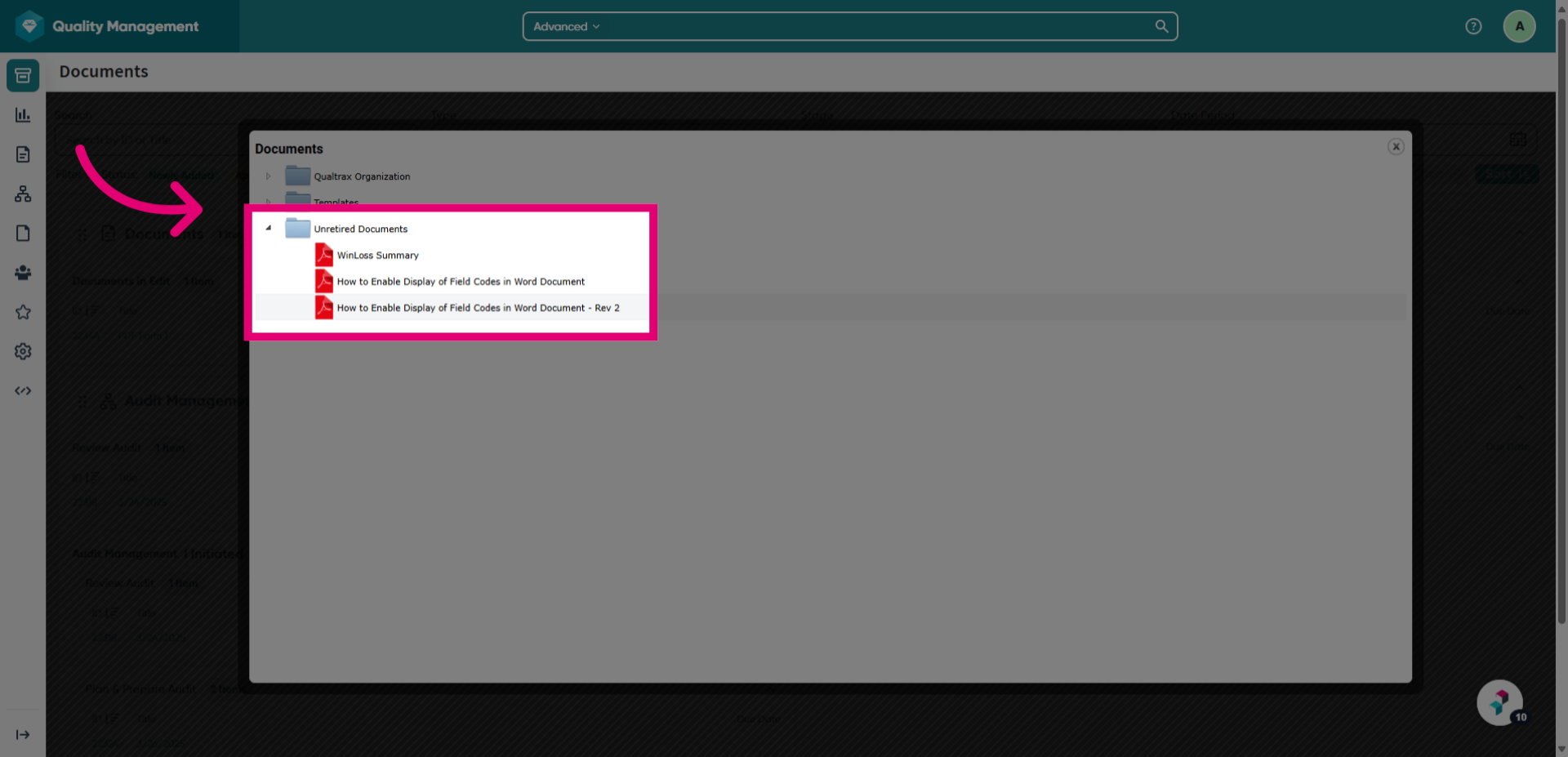
- Expand the Unretired Documents folder.
Managing unretired documents effectively
This folder acts as a temporary holding area for unretired documents. We recommend moving these documents to a more appropriate folder, as this one has limited functionality.
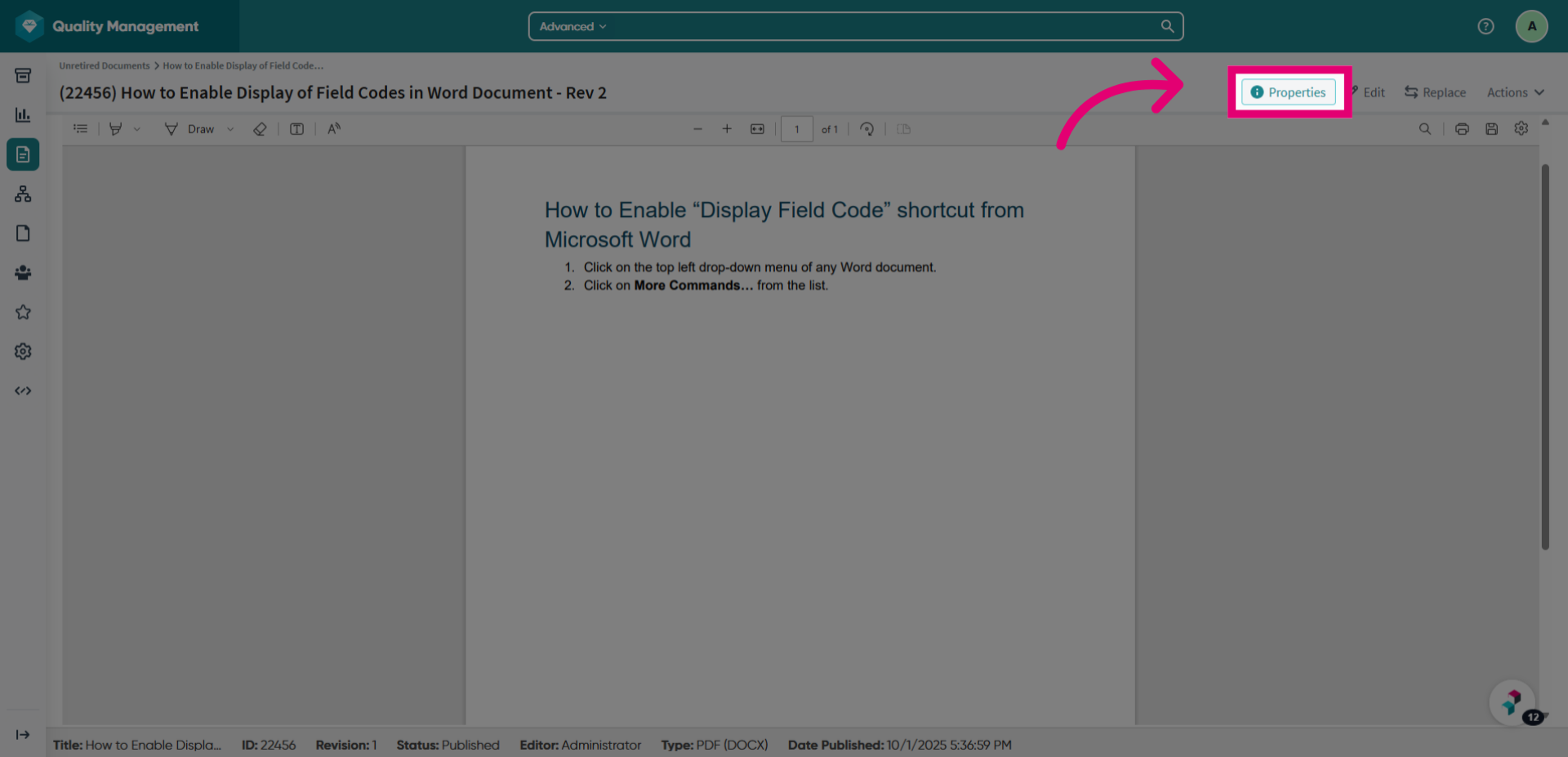
- Click the document title to open it.
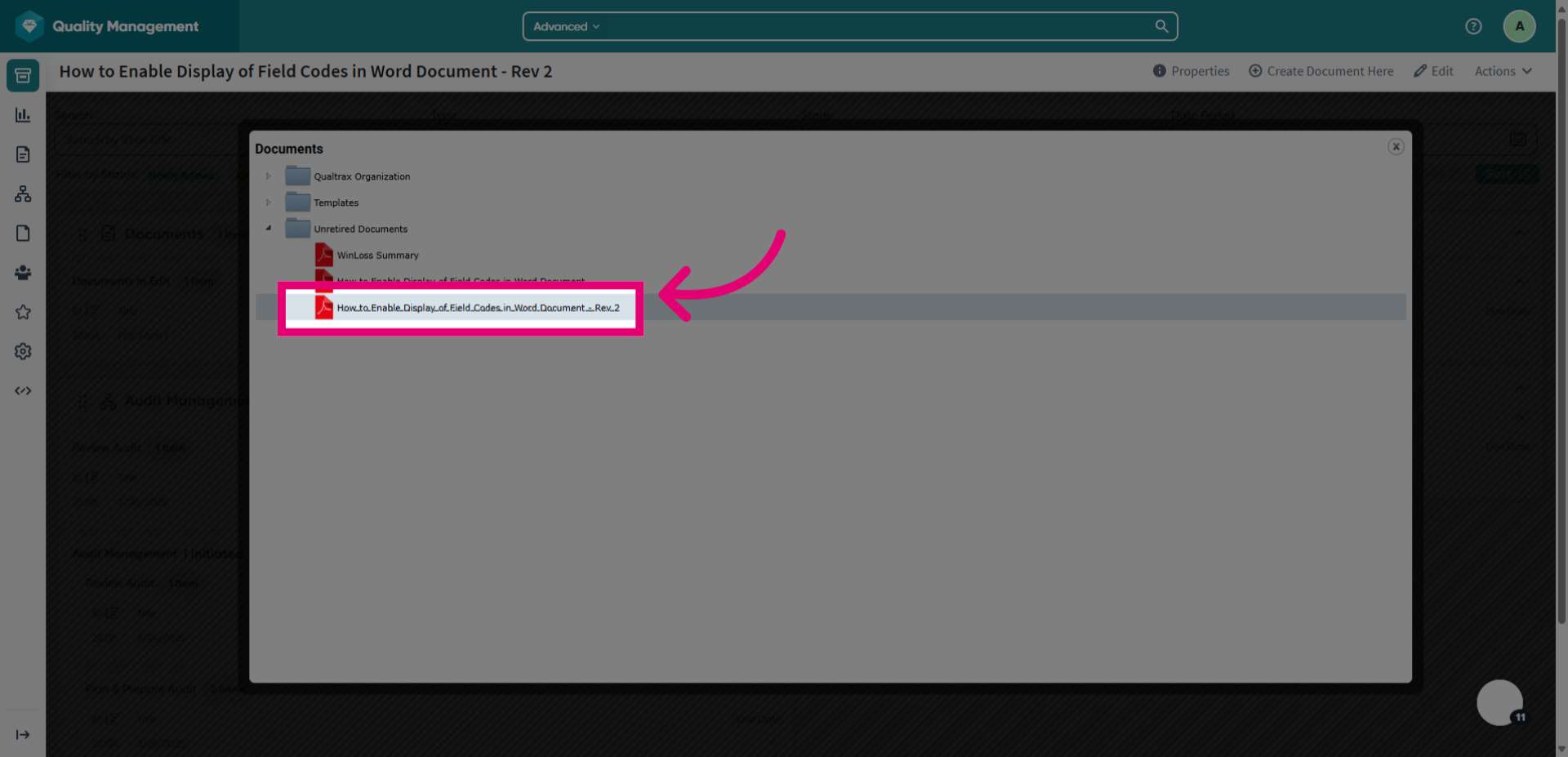
- Click Properties.
This will take you to a view with detailed information about the document.
- Ensure the status is listed as Published status.
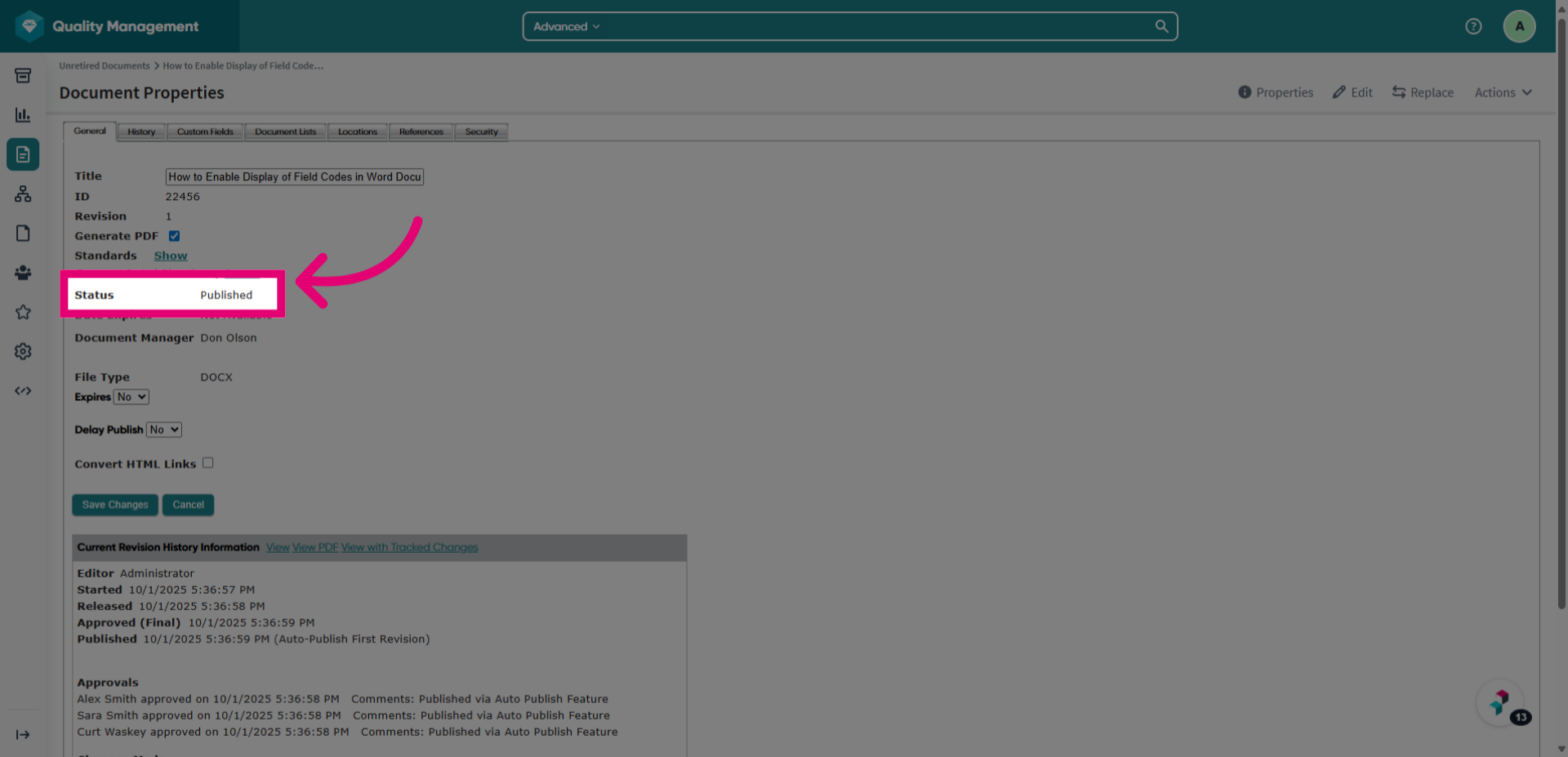
Other properties are affected as follows:
- Document Publish Date remains unchanged from the original publication
- Revision Number remains the same.
- Expiry Date remains as originally configured. The document will move to Edit status once the next expiration checker task is ran.