


New article
Recently updated
Creating a test from an existing definition

Who is this article for?
Administrators responsible for test management.
Administrator or Create/Manage Tests permissions are required.
Cloning a test helps you save time when creating multiple tests with similar questions, instructions, or attached documents. After cloning, you can edit the new test as needed before assigning it to users.
This article walks you through the process of creating a test from an existing one.
1. Creating a test
To create a test from an existing one:
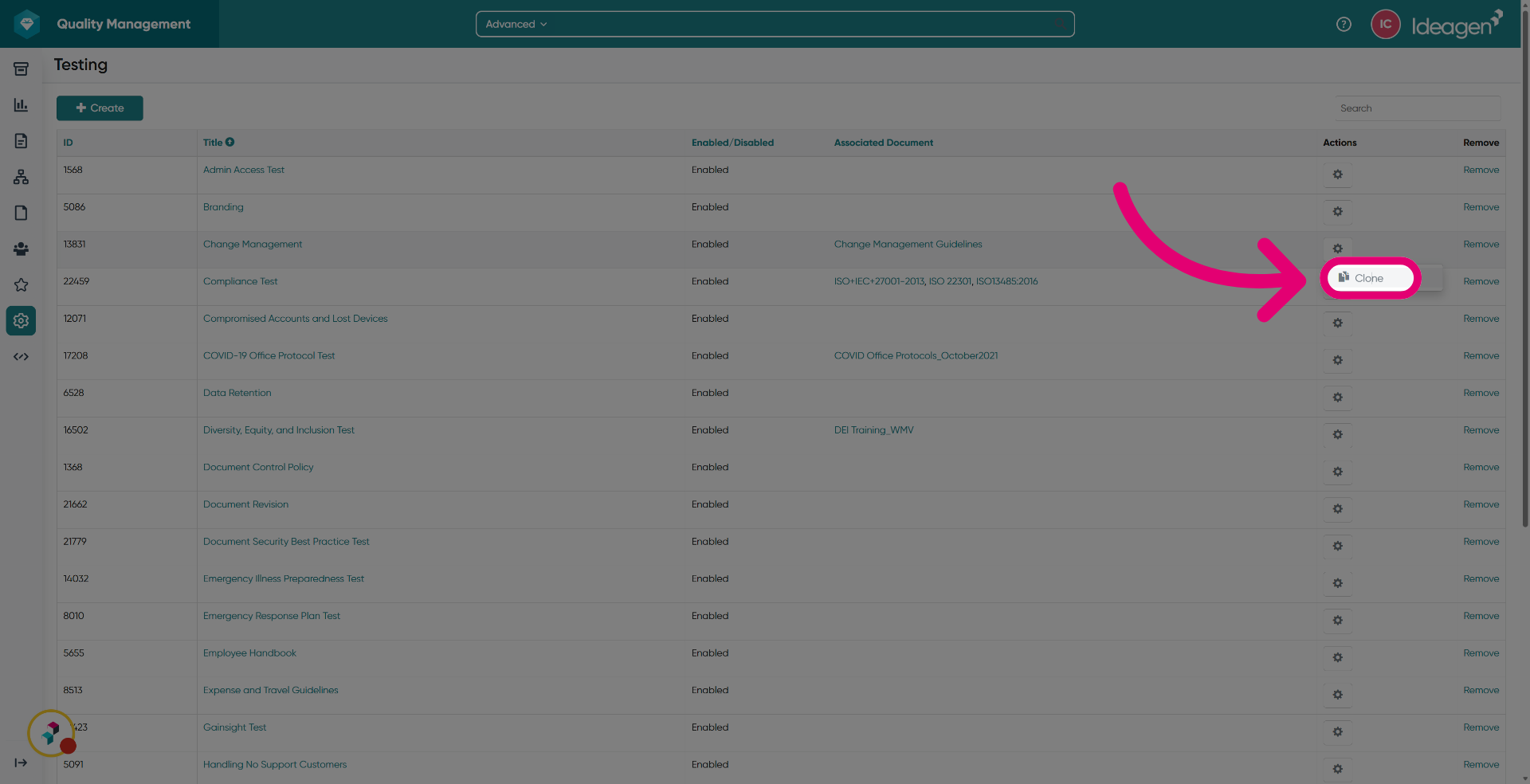
- Navigate to the Testing list.
- Click Clone next to the test you want to duplicate.
- Enter a Name for the new test.
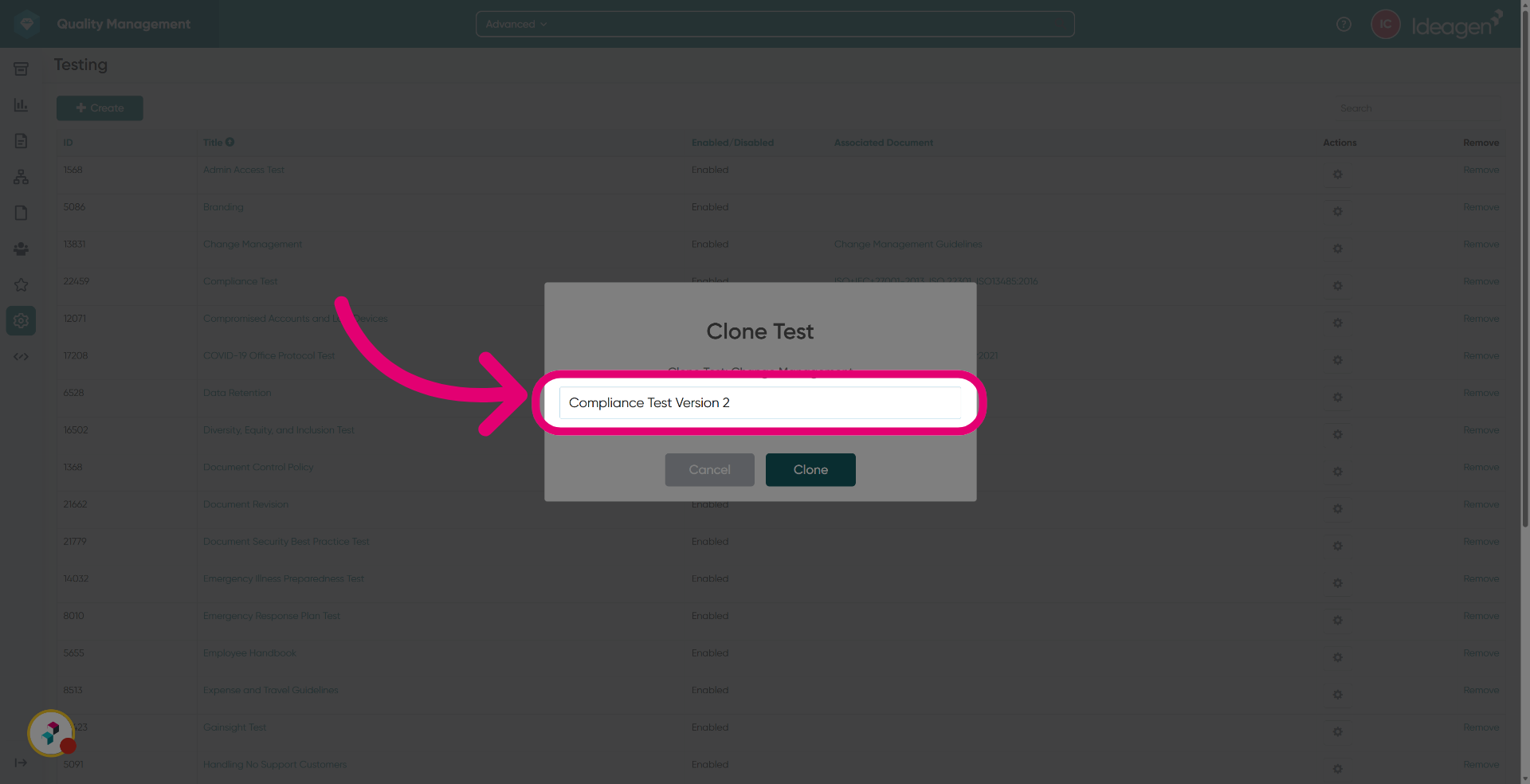
- Click Clone to confirm and create the new test.
A new test will be created using the selected test as a template, with most details copying over.
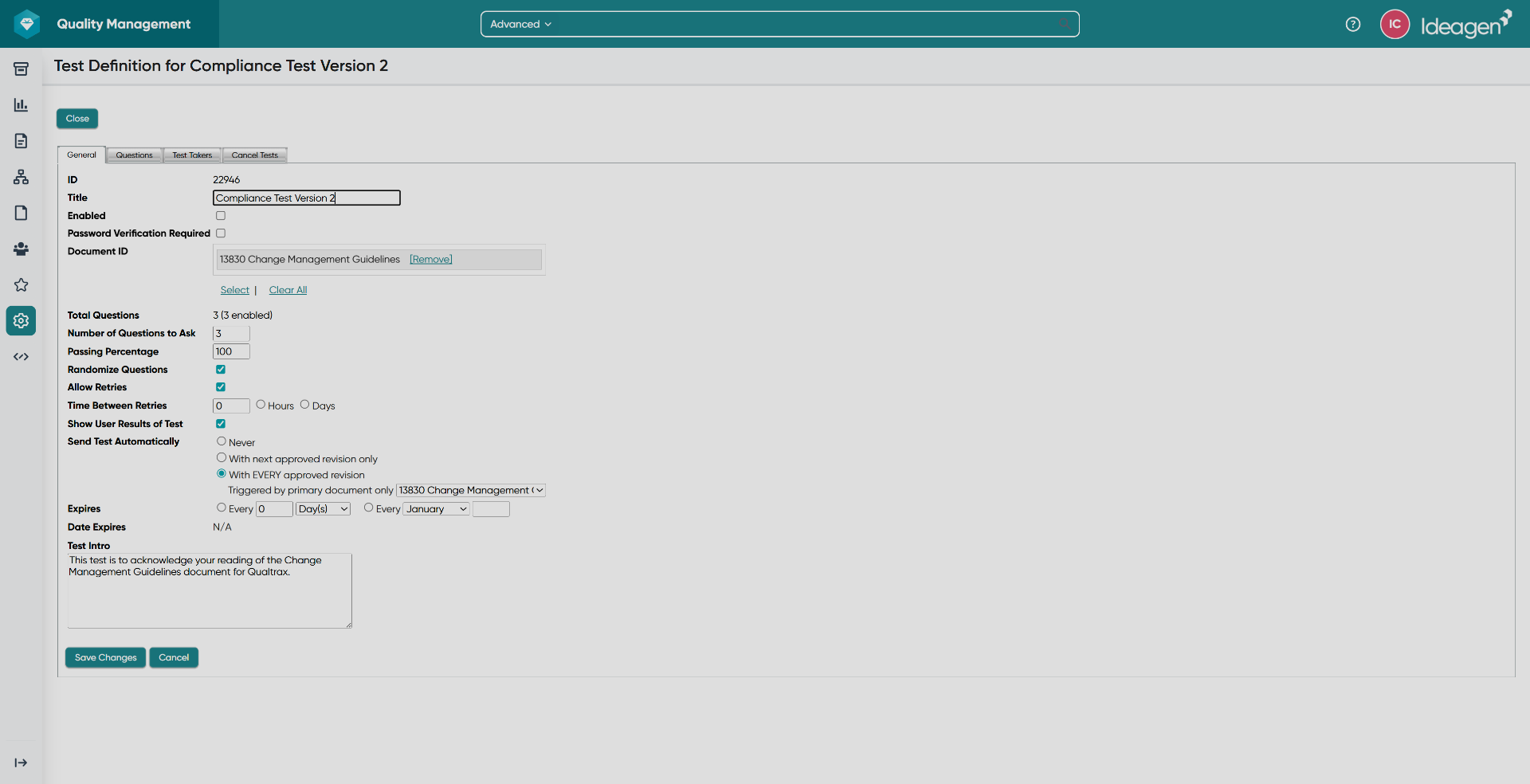
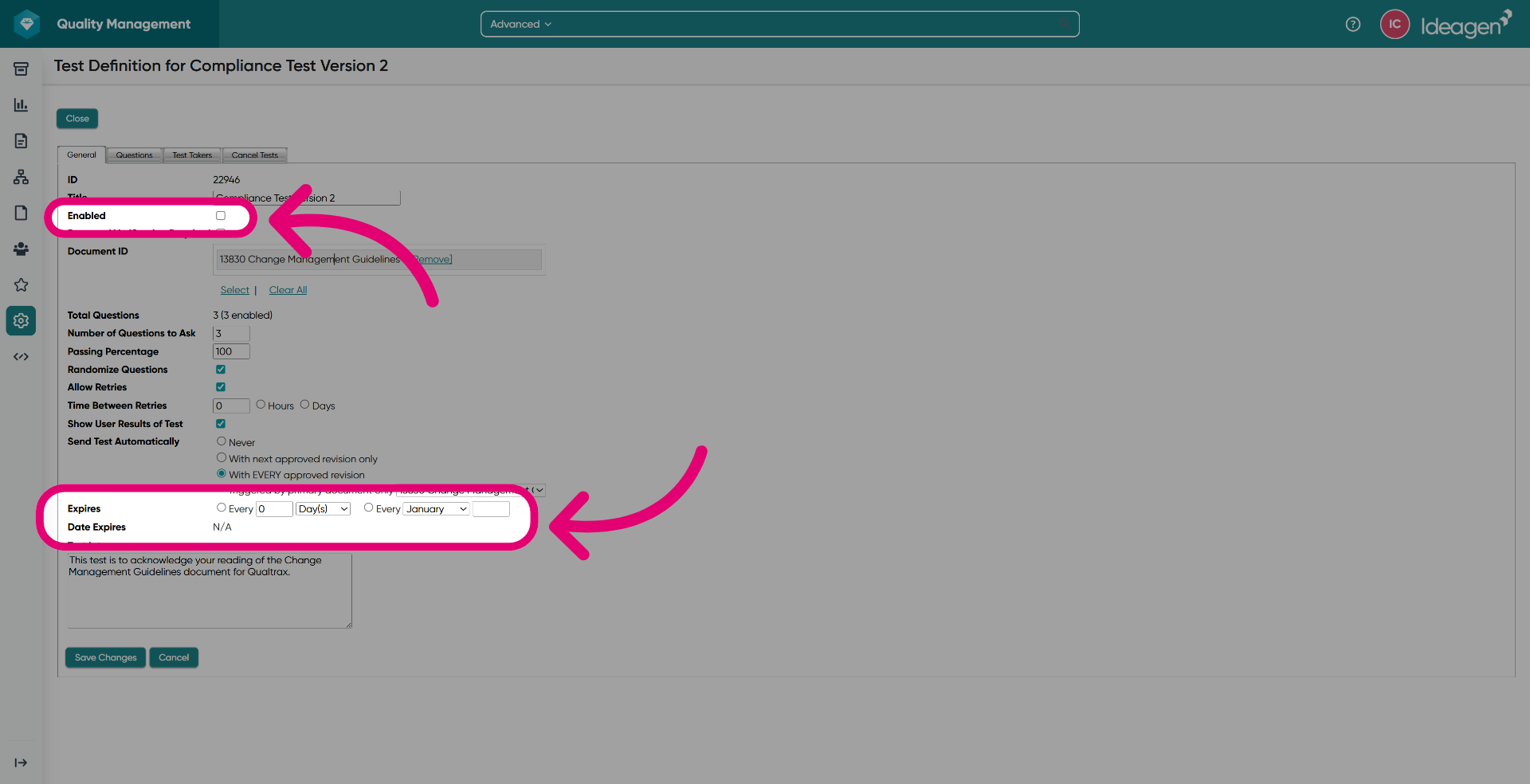
- Adjust settings that were not copied over.
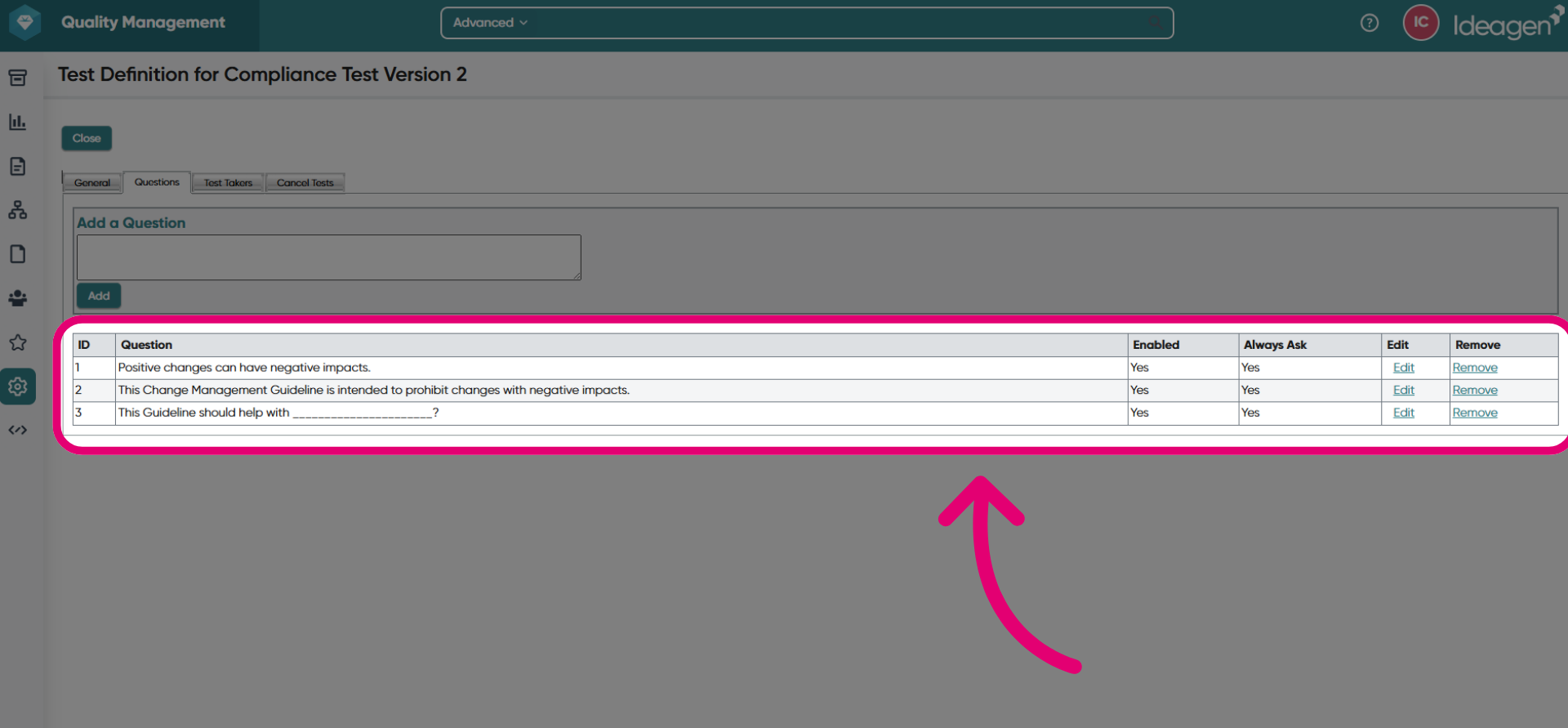
- Review the Questions.
These are also copied over to enable you to reuse the structure of an existing test without having to recreate the questions or supporting information.
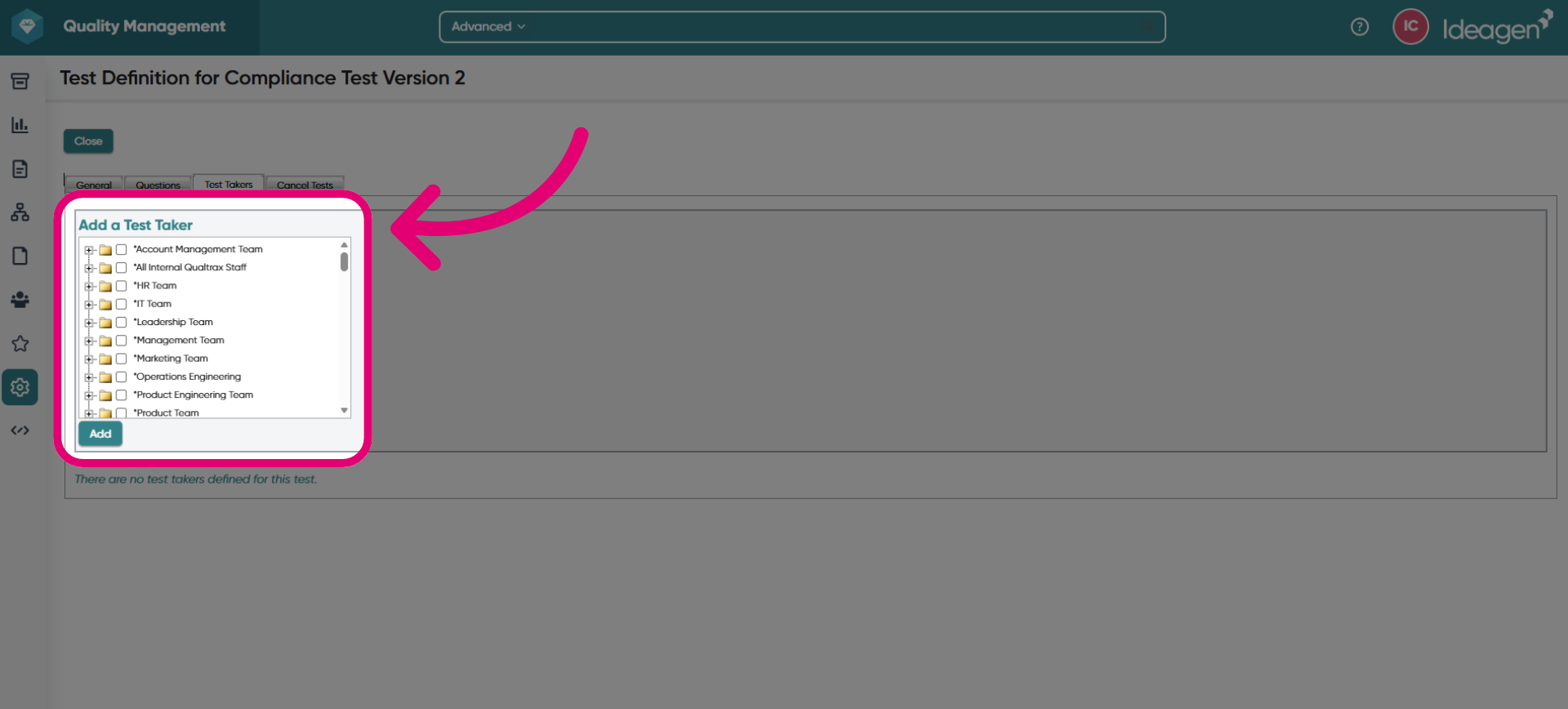
- Add Test Takers.
- Send the test.
A new Test ID is automatically generated for every cloned test.
2. Carrying over information
2.1. Copied
When you clone a test, the following information is copied to the new test:
- General details and setting
- Test questions
- Attached Document ID
This allows you to reuse the structure of an existing test without recreating the questions or supporting information.
2.2. Not copied
Some settings are intentionally not copied to prevent unintended assignments or test activity.
The following information will not be included in the cloned test:
- Cancelled Tests state
- Test state
- Assigned test takers
- Expiration settings
- Expires - Whether completed test instances expire and must be retaken. test instances, based on the current test definition at the time, are automatically resent if this is enabled.
- Date Expires - Calendar date of the test's next expiration.
- Enabled test (defaults to unchecked)