


New article
Recently updated
Attaching certificates to completed training instances

Who is this article for?
Trainees who submitted a training instance before uploading their certificate or supporting document.
System administrator access is required.
When you complete a training assignment in Ideagen Quality Management Core, you can attach a certificate or supporting document directly on the training instance form before selecting Training Completed. If you submitted the training without doing this, the record is locked immediately and can no longer be edited by you. This article explains why that happens, what your administrator can do to resolve it, and how to make sure it does not happen again.
Understanding how attachments work on a training instance
If your administrator has enabled Allow Attachments on the training definition, you will see an Attach a Document field on your training instance form. This is where you upload a scanned certificate, attendance sheet, or any other supporting document before submitting.
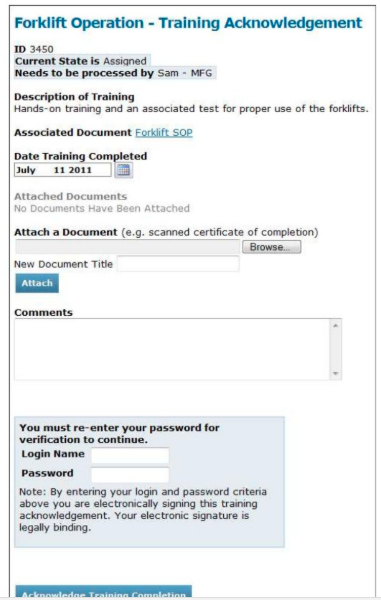
Important: Once you select Training Completed, the training instance is marked as complete and locked. It is no longer accessible from your Inbox and cannot be edited or resubmitted. This is by design to maintain audit and compliance integrity.
Note: The Attach a Document field only appears if your administrator has enabled the Allow Attachments option on the training definition. If you do not see this field, attachments are not configured for this training — contact your administrator.
Resolving a submission without the certificate
You cannot reopen a completed training instance yourself, and Ideagen Support cannot attach a certificate to your existing record on your behalf. The correct path is to contact your system administrator or training coordinator and ask them to reassign the training to you.
What the administrator needs to do
To resend the training:
- Go to Administration.
- Select Training Administration.
- Open the relevant training definition.
- Use the Send Training option to send a new instance to you.
This creates a fresh training instance in your Inbox, which you can complete again — this time with the certificate attached.
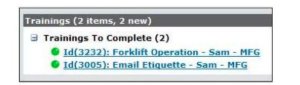
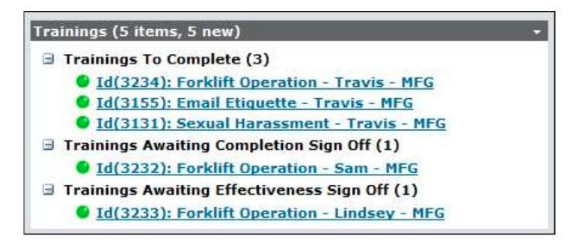
Note: When the new instance is sent to you, it will appear in your Inbox under Trainings To Complete. Complete it as normal, attaching your certificate before selecting Training Completed.
Understanding the version field
The version shown on a training instance corresponds to the revision of the Associated Document that was current at the time the training was sent. This is set by the system automatically — it is not a field you choose when submitting.
If you were uncertain whether you selected the right version, you do not need to worry: the version is determined by the document linked to the training definition at the point the training was issued, not by any selection you made during submission. If there is a concern that the training was based on an outdated document version, your administrator can verify this by checking the Associated Document field on the training definition.
Avoiding this in future
To attach your certificate before submitting:
- Scroll down to the Attach a Document field.
- Select Browse.
- Locate your certificate file.
- Enter a document title.
- Select Attach.
- Confirm the attachment shows under Attached Documents before proceeding.
- Select Training Completed (or Acknowledge Training Completion if password verification is required).
Tip: If the Attach a Document field is not visible on your training form, ask your administrator to enable Allow Attachments on the training definition. Without this setting enabled, the field will not appear for any trainees on that training.