


New article
Recently updated
Removing outdated approvers from approval lists

Who is this article for?Administrators and users with the Alter Tree (Documents and Folders) permission who need to update approval lists.
Folder Properties edit access is required to update the folder-level list.
When a document is released for approval, the approvers shown are drawn from the Folder Properties > Document Lists tab (the default inherited list) and the Document Properties > Document Lists tab (the document-specific override). If an outdated user or group keeps appearing as an approver, it is because they are still configured in one of these two places.
Understanding how approval lists are inherited
The Document Lists tab in Folder Properties defines the default approval, review, and notify lists for all documents created in that folder. These settings are automatically applied to any newly created document and inherited by child folders unless overridden.
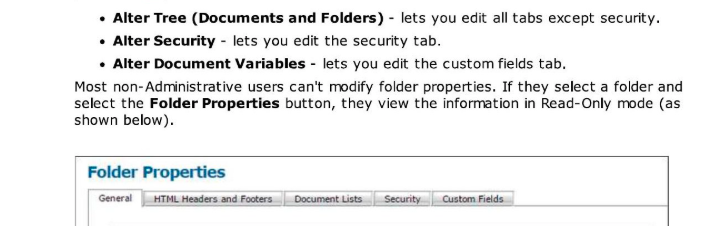
Each entry in the approval list shows the group or individual name, their Approvers setting (which also controls the serial approval order), and a Remove link. The number in brackets next to the Approvers value (e.g. Yes (1)) indicates the position in the serial approval sequence.
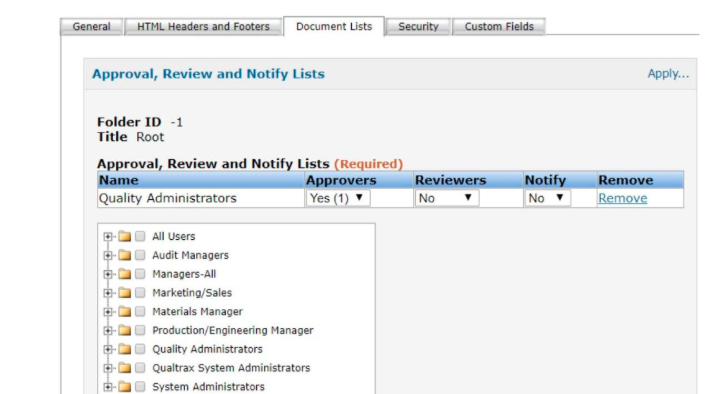
Note: Removing an approver from the folder's Document Lists tab affects newly created or revised documents going forward. It does not automatically update documents that already exist or are currently in workflow. See the section on updating documents already in workflow for how to handle those.
Removing the outdated approver from Folder Properties
To remove an outdated approver from the folder level:
- Navigate to the folder containing the affected documents in the Documents Tree.
- Select the folder.
- Choose Folder Properties from the Context Menu.
- Select the Document Lists tab.
- In the Approval, Review and Notify Lists section, locate the outdated approver or group.
- Select Remove next to their name.
- If you need to add the replacement approver (for example, the Chemical Hygiene Officer group), tick the checkbox next to the group name in the picker below the list, set the Approvers value as required, and select Add Users/Groups.
- Select Save Changes.
Tip: Use the Users on List — Approvers link at the bottom of the Document Lists tab to see exactly which individuals will be required to approve documents in this folder. This is especially useful when a group contains multiple members and you want to confirm only the correct people are listed.
Applying the change to existing documents and subfolders
After saving, select Apply… in the Approval, Review and Notify Lists area to push the updated list to existing documents and child folders. Choose the option that matches the scope of your update:
| Apply option | What it updates |
|---|---|
| Apply changes to this folder only | Updates the folder display only. Does not affect documents or child folders. |
| Apply changes to this folder and all folders within it | Updates the folder and child folders at the immediate level below. |
| Apply changes to this folder and all documents within it | Updates the folder and its immediate child documents (not subfolders). |
| Apply changes to this folder and all folders and documents within it | Updates the folder and all immediately contained folders and documents. |
| Include all sub-items and items that do not inherit (combined with above) | Pushes the change all the way down the branch, including items that have been individually customised. |
Important: Using Include all sub-items and items that do not inherit will overwrite approval lists that have been individually customised on specific documents or subfolders. Only use this option if you are certain all items in the branch should use the same list.
Updating the approval list on a document already in workflow
If a document has already been released for approval and still shows the outdated approver, the approval list must be updated at the document level. The editor or an approver can do this while the document is in edit or approval status.
To update the approval list on a document in workflow:
- Open the document from the Documents Tree.
- From the Context Menu, select Edit Lists (available to editors while in edit status, and to approvers while the document is released for approval).
- The Document Lists tab opens in edit mode.
- Locate the outdated approver or group and select Remove.
- Add the correct approver or group using the picker below the list and select Add Users/Groups.
- Select Save Changes.
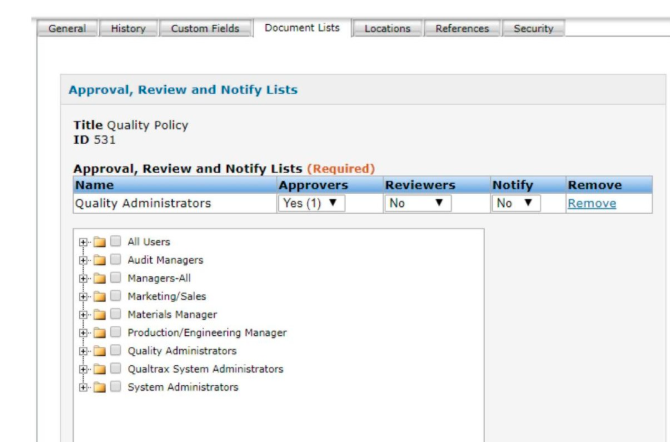
Note: Changes made to the document-level approval list override the folder default for that document only. Other documents in the same folder are not affected. To update all future documents, update the folder-level list as described in the section on removing the outdated approver from Folder Properties.
Example: A folder has two groups in its approval list: Chemical Hygiene Officer (approver 1) and a former staff member added individually (approver 2). New documents keep inheriting both approvers. Removing the former staff member from the folder's Document Lists tab, then applying the change to all documents within the folder, removes them from both future and existing documents in one step.