


New article
Recently updated
Configuring expiration settings for documents and folders

Who is this article for?Users who need to set or modify expiration settings on documents or folders in Ideagen Quality Management Core.
Edit permission on the document required.
Expiration settings in Ideagen Quality Management Core ensure documents are periodically brought back for review, helping your organisation stay on top of document lifecycle management and compliance.
Understanding the expiration fields
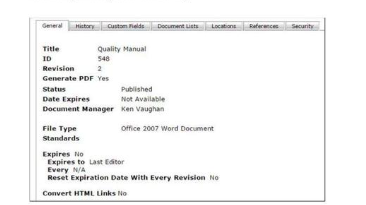
The expiration fields are found on the General tab of Document Properties. They control whether a document periodically comes up for review and what happens when it does.
| Field | Description |
|---|---|
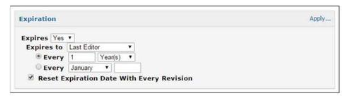
| Expires | Sets whether the document periodically comes up for review. Options are Yes or No. When set to Yes, the Every fields become active. |
| Every (interval) | Defines the frequency of expiration — a number combined with a unit (Days, Months, or Years). For example, 1 Year(s) means the document expires annually. |
| Every (month anchor) | When using a month-based cycle, this sets the specific month the expiration resets to each cycle (e.g., January). |
| Expires To | Determines whose Inbox the expired document appears in — either the Last Editor or a user in the approval list who holds the Document Manager permission. |
| Reset Expiration Date With Every Revision | When enabled, the expiration timer resets each time the document is edited. This is useful for documents that are frequently revised and should not expire mid-revision cycle. |
Note: The Date Expires field shown in read-only view displays the calculated next expiration date based on the settings above. It will show Not Available if Expires is set to No.
Editing expiration fields on a document
Important: To modify expiration fields on a document, you must have both the Edit permission on the document and the Edit Document Properties personnel permission. Without both, the General tab will be available in read-only mode only.
To configure the expiration settings for a specific document:
- Navigate to the Documents Tree.
- Locate the document you need to update.
- Click on the document to open it.
- Select Properties from the document toolbar (or right-click the document and choose Properties from the context menu).
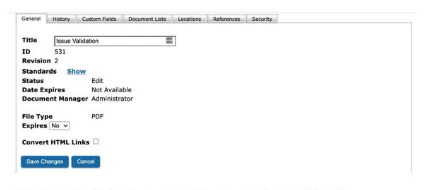
- In the Document Properties window, click the General tab.
- Locate the Expires dropdown and set it to Yes.
- Configure the Every field — enter a number and select the unit (Days, Months, or Years) to define the expiration interval.
- Set the Expires To field to either Last Editor or Document Manager depending on whose Inbox should receive the expiration notification.
- Tick Reset Expiration Date With Every Revision if you want the expiration timer to restart each time the document is edited.
- Click Save Changes.
Tip: If you want the document to expire on a fixed calendar month each year (e.g., always in January), set the interval to 1 Year(s) and use the second Every field to select the target month.
Setting expiration defaults at the folder level
Rather than configuring expiration on each document individually, you can set default expiration settings at the folder level. These defaults apply automatically to any newly created document within that folder, though they remain modifiable at the document level afterwards.
To set folder-level expiration defaults:
- In the Documents Tree, select the folder you want to configure.
- Click Folder Properties (from the toolbar or context menu).
- Go to the General tab.
- Scroll to the Expiration section.
- Set Expires to Yes.
- Configure the Every interval and unit.
- Set Expires To to Last Editor or Document Manager.
- Tick Reset Expiration Date With Every Revision if required.
- Click Apply… next to the Expiration section heading to choose how the settings should be applied across existing content.
Apply options
When you click Apply… in the Expiration section, you are given the following options for how far to push the changes:
| Option | What it does |
|---|---|
| Apply changes to this folder only | Updates the defaults for the current folder. Affects only new documents created here going forward. |
| Apply changes to this folder and all folders within it | Pushes the settings to this folder and direct child folders, but not to their subfolders. |
| Apply changes to this folder and all documents within it | Applies to the current folder and its immediate child documents, but not to documents in subfolders. |
| Apply changes to this folder and all folders and documents within it | Pushes the settings to the entire branch — the current folder plus all folders and documents contained within it (but not sublevel items within those folders). |
| Include all sub-items and items that do not inherit | When used with one of the options above, this extends the change all the way down the branch, including items that have been configured to not inherit from their parent. |
Example: Your organisation wants all policy documents in the Compliance folder and every subfolder underneath it to expire annually in January. Select the Compliance folder, go to Folder Properties → General → Expiration, set Expires to Yes, Every to 1 Year(s), the month to January, then click Apply… and choose Apply changes to this folder and all folders and documents within it. Tick Include all sub-items and items that do not inherit to ensure nothing is missed. Click Save Changes.
Permissions reference
The table below summarises the personnel permissions that affect a user's ability to view or edit expiration settings:
| Permission | What it allows |
|---|---|
| Edit Document Properties | Lets the user edit all Document Properties tabs except Security and Locations, including the expiration fields on the General tab. |
| Alter Tree (Documents and Folders) | Lets the user edit all Folder Properties tabs except Security, which includes the Expiration section. |
| Edit (document-level) | Required in addition to Edit Document Properties to be able to make changes to a specific document's properties. |
| Document Manager | Required for a user to appear as a selectable option in the Expires To field when routing expired documents to the approval list. |
Note: Users without the above permissions can still view Document Properties and Folder Properties — they just see the information in read-only mode and cannot make changes.