New article
Recently updated
Configuring modern standards

Who is this article for?
Administrators managing the system.
Personnel / Standards Administration permissions required.
This tutorial guides you through configuring standards within the Ideagen Quality Management system.
You will learn how to add, edit, and manage organizational standards effectively.
Overview
The Modern Standards module is the redesigned area for managing the compliance Standards used across Ideagen Quality Management Core. Standards you create and enable can be associated with documents and workflows — letting you categorise documents for auditing, locate every document linked to a Standard using the Advanced Search tool, and report on when, how and by whom those documents were created and processed. From a single listing page you can search, sort and filter Standards, add and edit them, and enable or disable them individually or in bulk.
Opening the Standards list
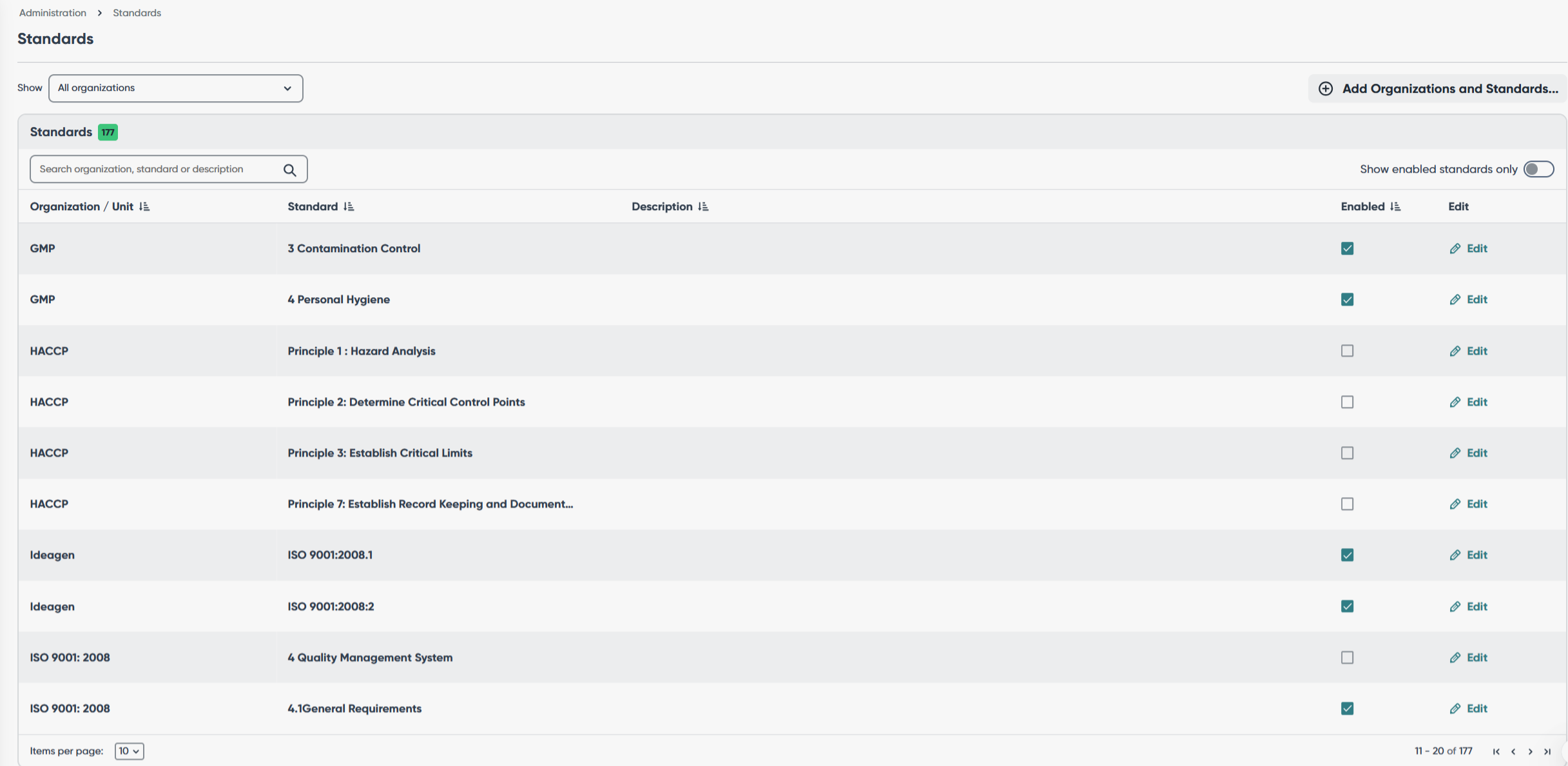
Navigate to Standards from the administration area. The listing page shows all Standards in a table, with the total number of Standards displayed.
Understanding the columns
- Organisation / Unit — the organisation the Standard is referenced from; the year is typically included (for example, “ISO:9001” or “ISO 17025:2005”).
- Standard — the specific section or clause from the organisation’s compliance manual. This is what users associate documents and workflows.
- Description — a brief explanation of what the Standard means or requires. Optional, and shown only on this page.
- Enabled — whether the Standard is active and available in the selection lists users see when adding Standards to documents and workflows.
- Rows per page. Choose 10, 25, 50 or 100 rows per page using the page-size selector.
- Sort. Click the sort icon on Organisation/Unit, Standard or Description to sort by that column. Only one column sorts at a time, the current sort is indicated on the column, and the order is kept as you page through the list.
Finding a Standard
- Search. Type in the search box to filter the standard list. The search applies to Organization, Standard title, and description column. The search is a "contains" match and is not case-sensitive.
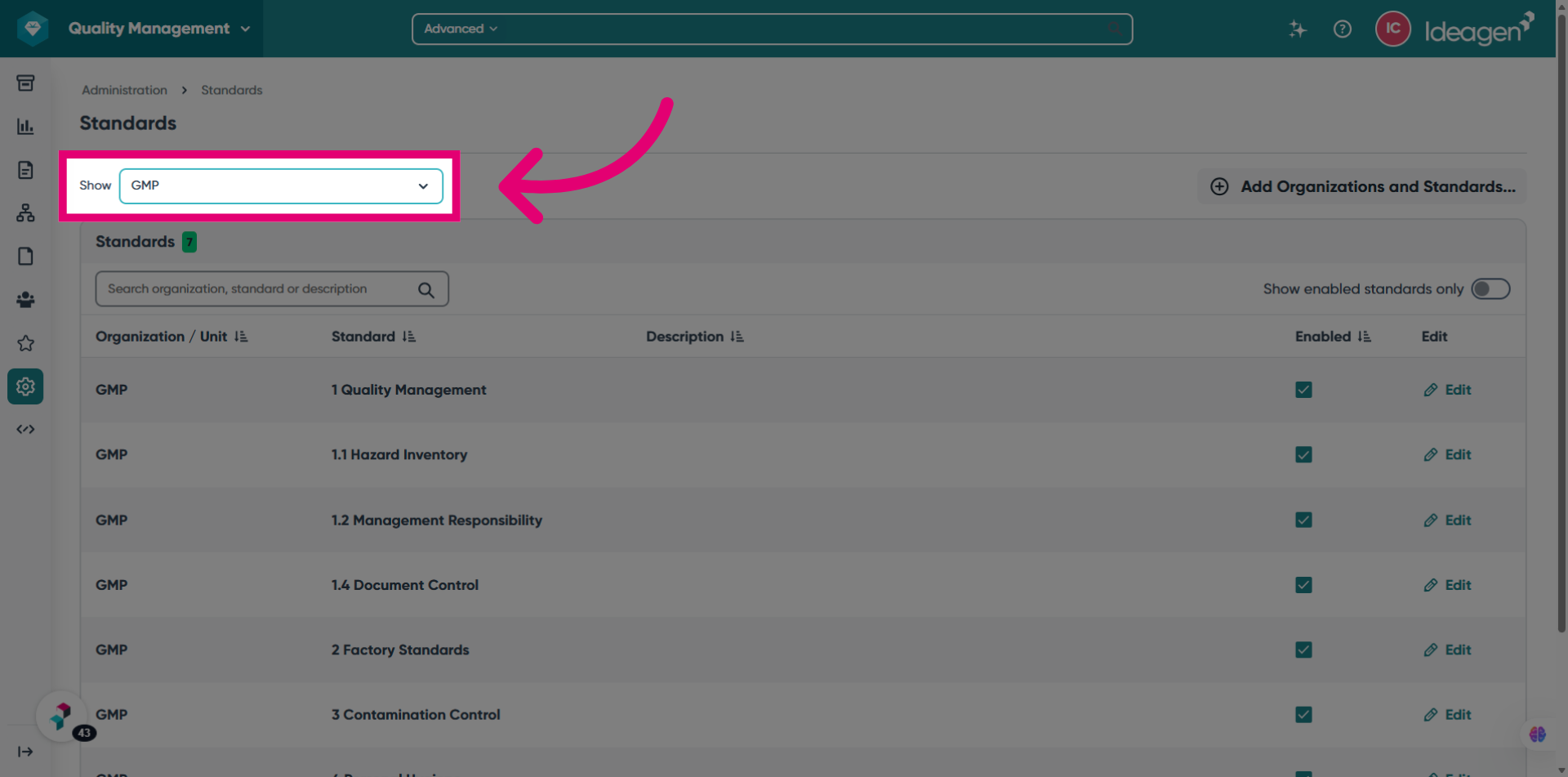
- Filter by organisation. Use the Organisation dropdown to show Standards for a specific organisation.
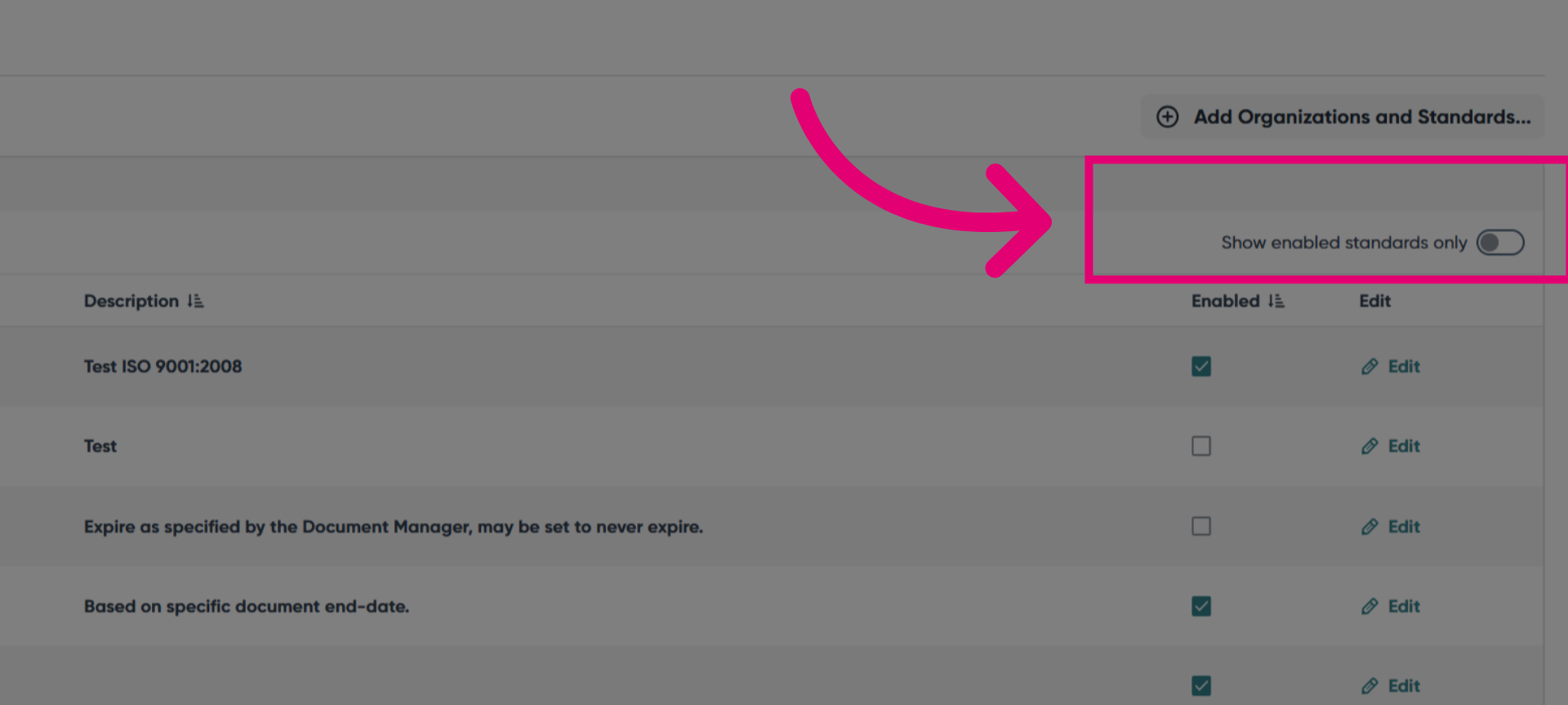
- Show enabled standard only. Toggling to the left will display only the enabled standard list. By default, it is set to toggle left, showing all standard lists.The filter applies across all pages.
Adding Organizations and Standards
To add an organization and standard:
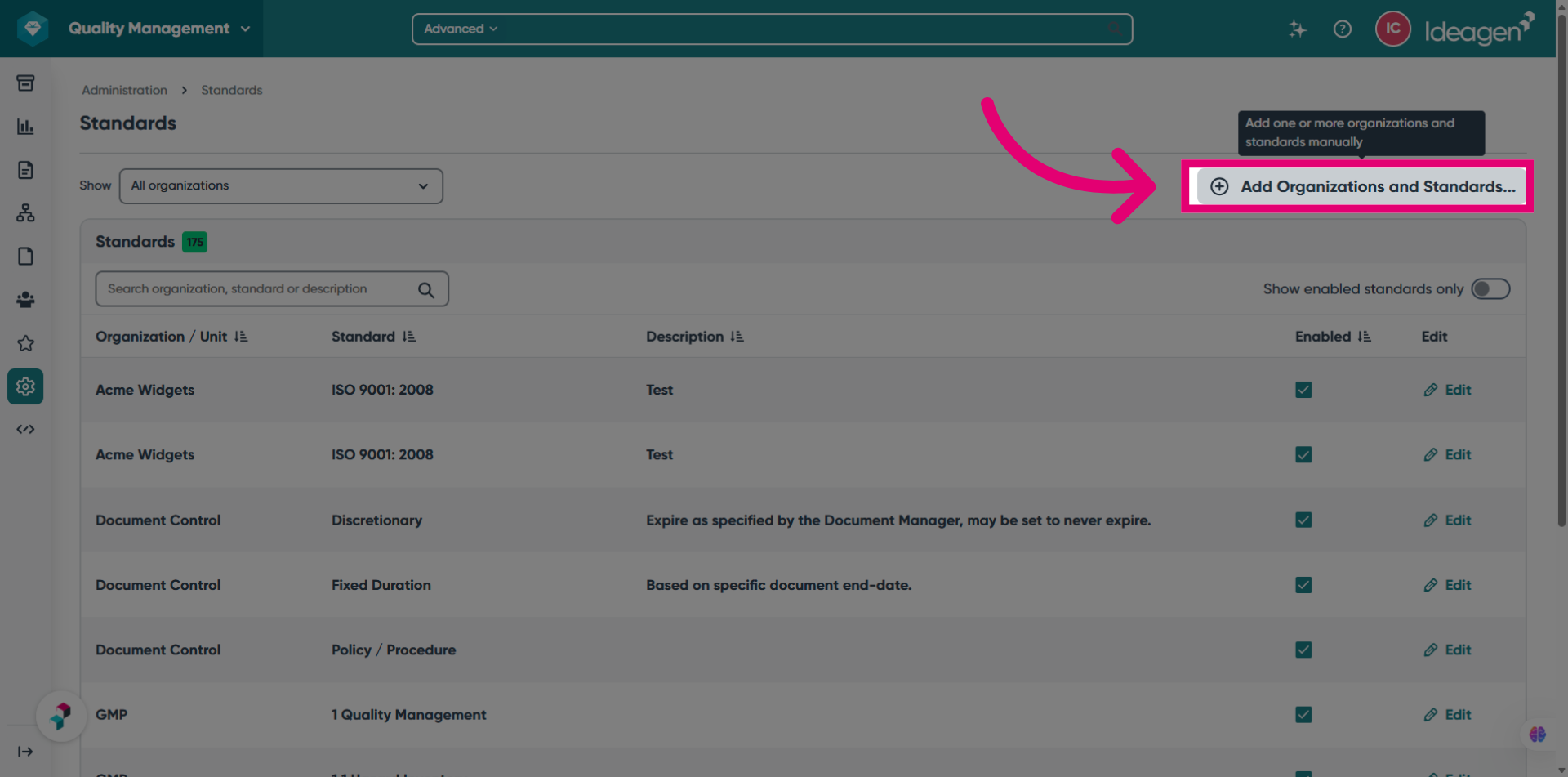
Click the Add Organizations and Standards button from the standards management section.
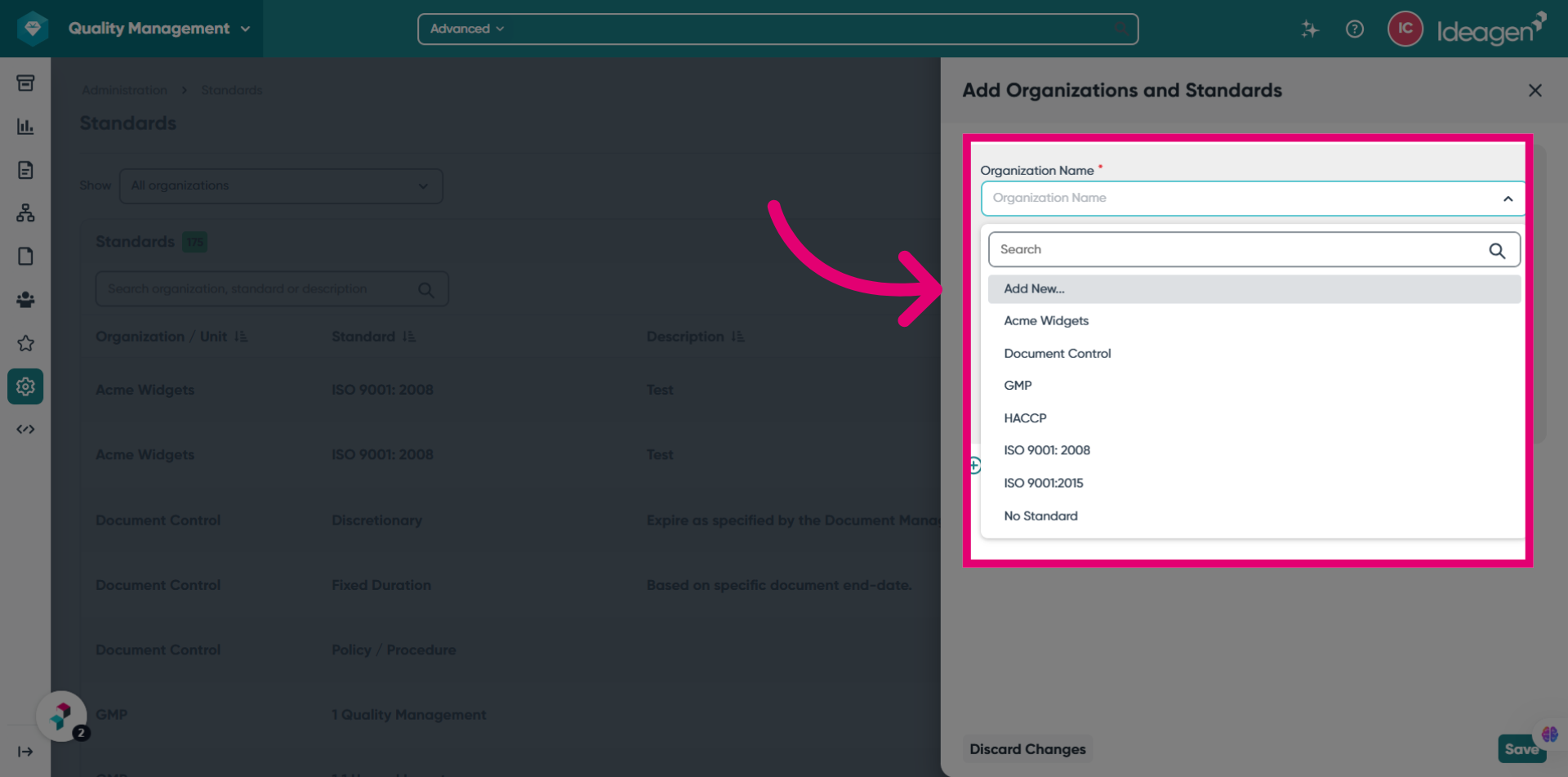
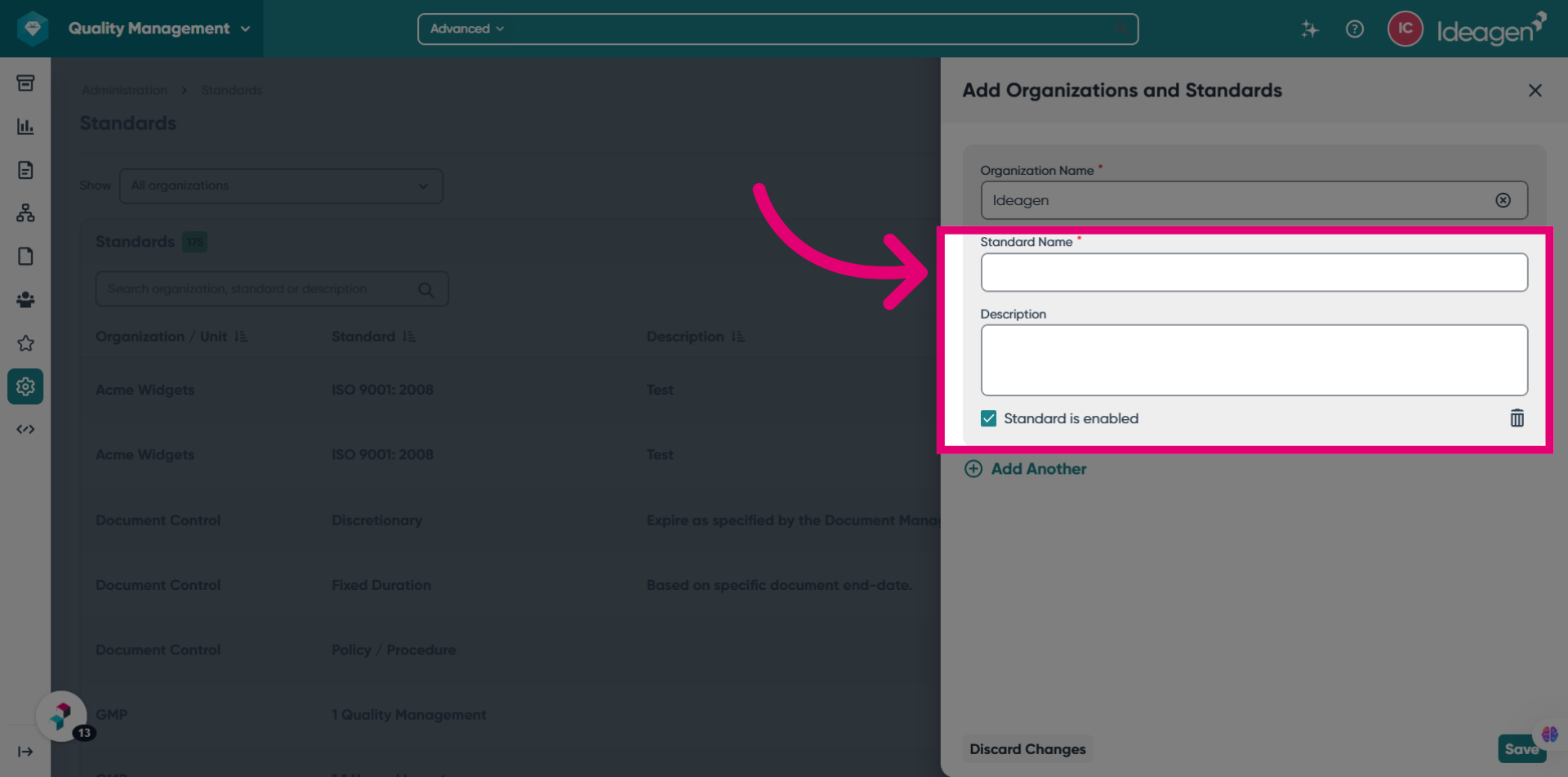
Select an existing organization or quickly add a new one. To create a new organization, simply click "Add New..." from the organization dropdown menu. To select an existing organization, just search for and select the desired organization.
Complete the Standard Name field with the correct name. Describe the purpose of the standard in the Description field. Set the standard to either enabled or disabled. Enabling it means it will be available for selection in the workflow or document.
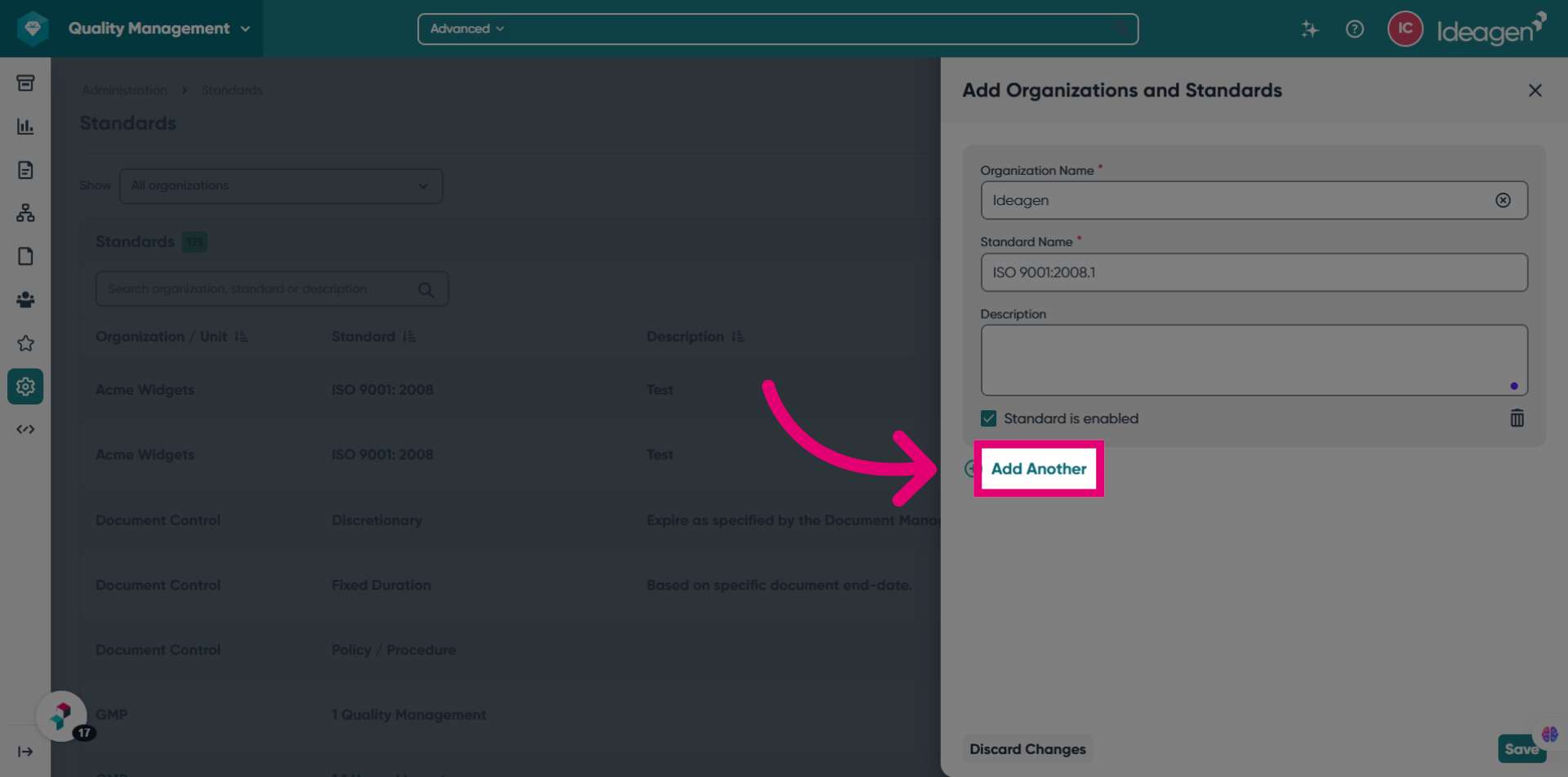
If required, click Add Another to add an additional standard.
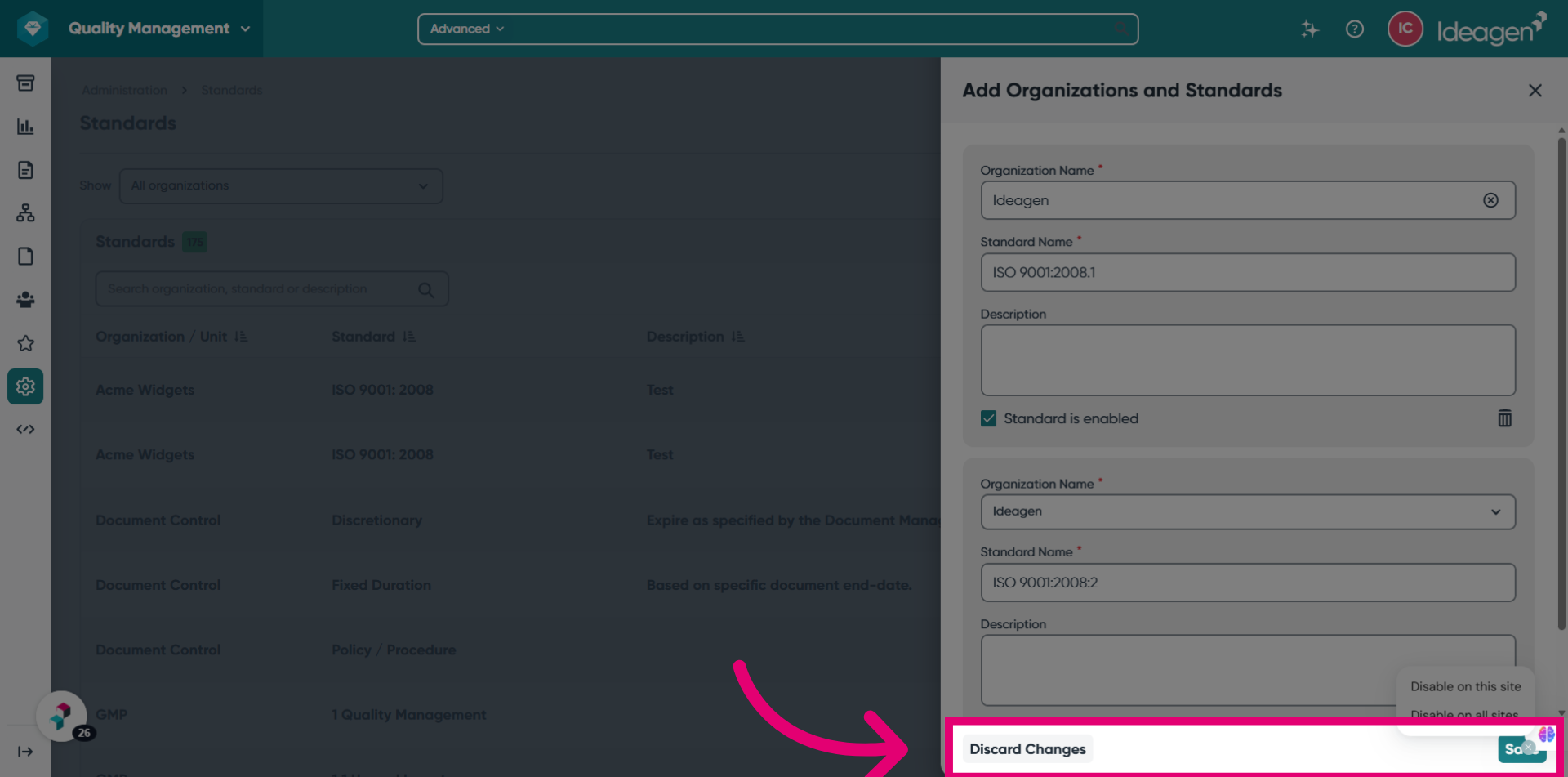
Click Discard Changes to remove any unrequired changes.
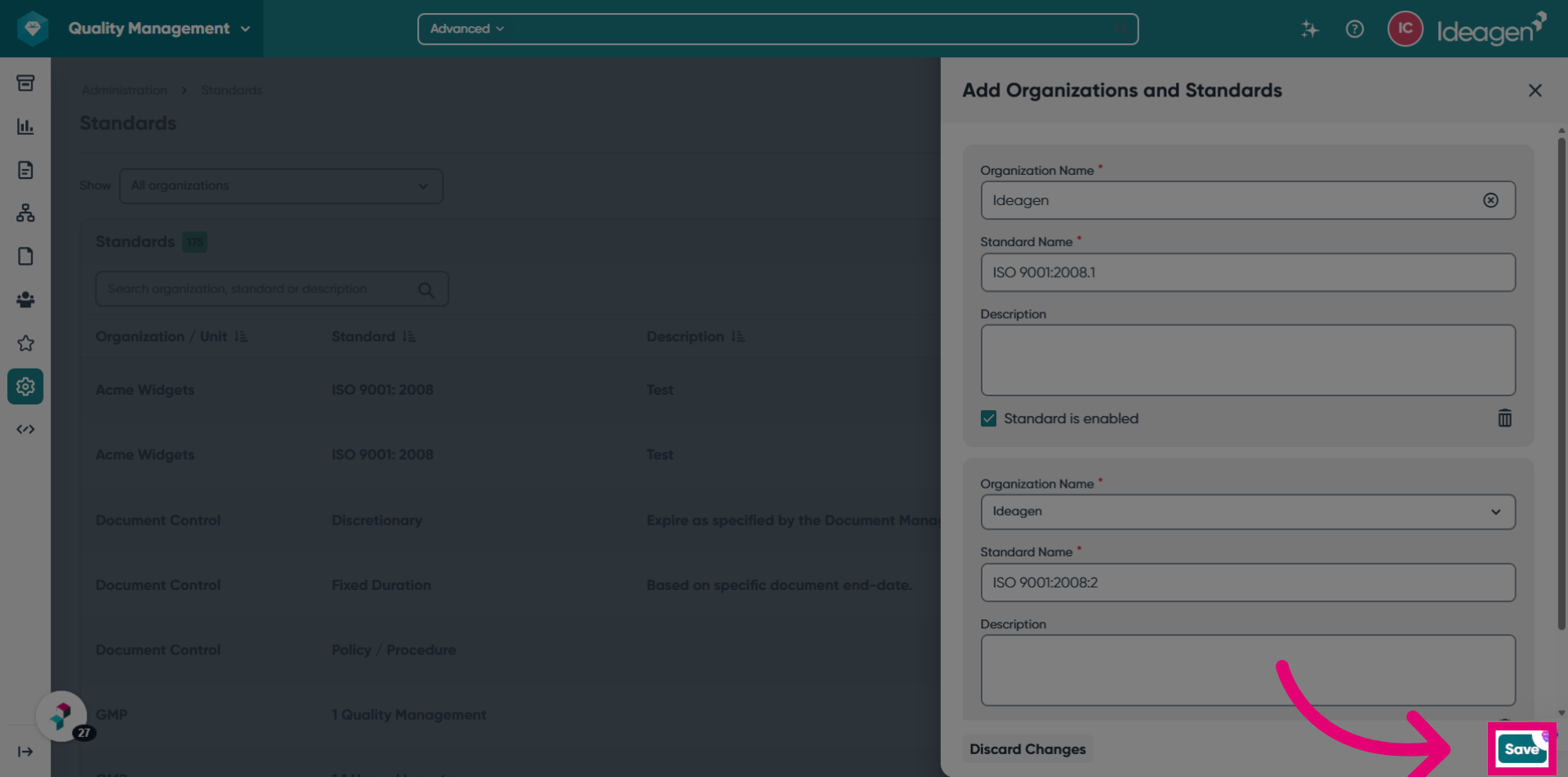
Click Save to save the new or updated standard entry.
Editing standards
To edit an existing standard:
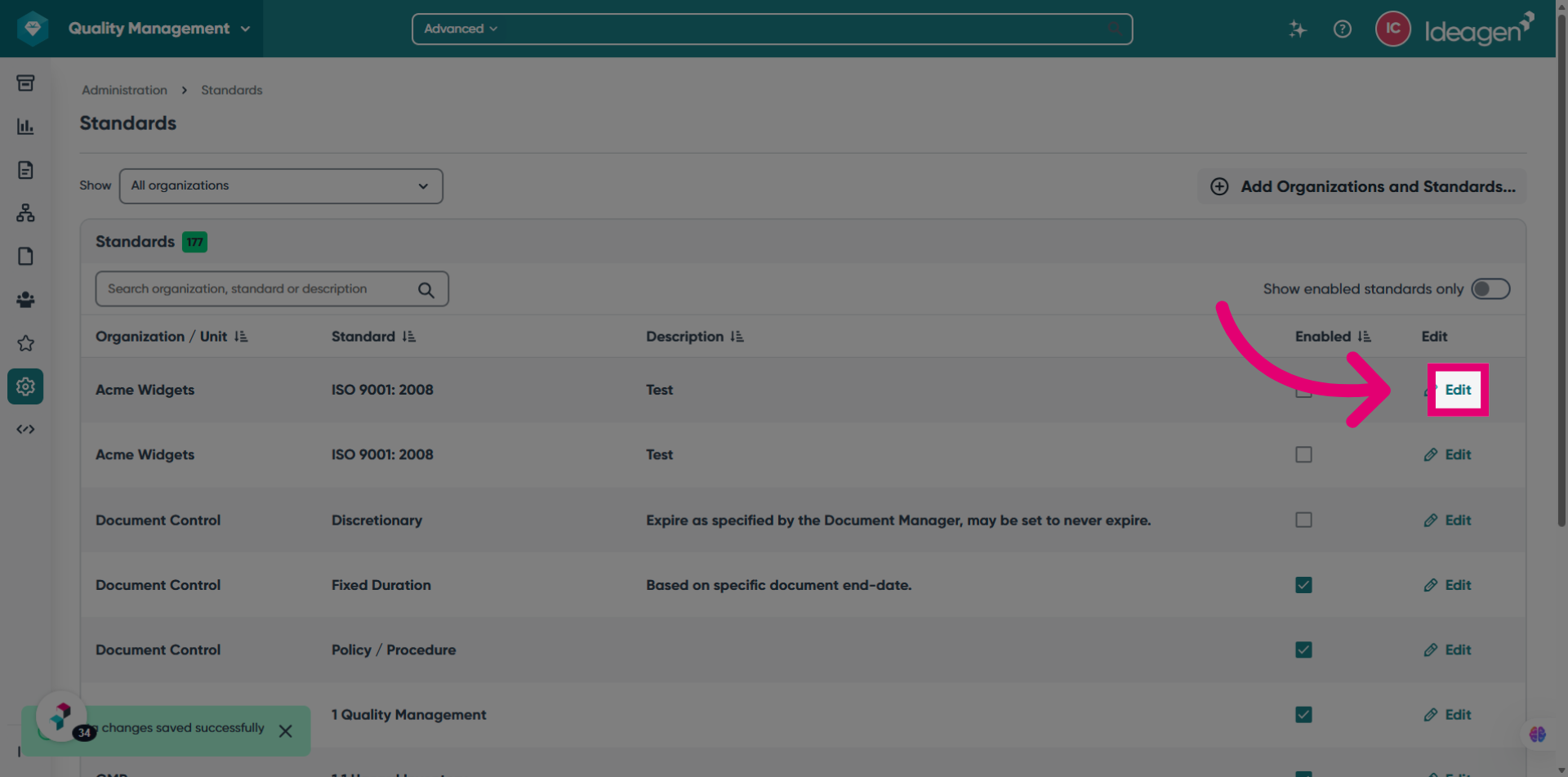
Click Edit for the required standard entry.
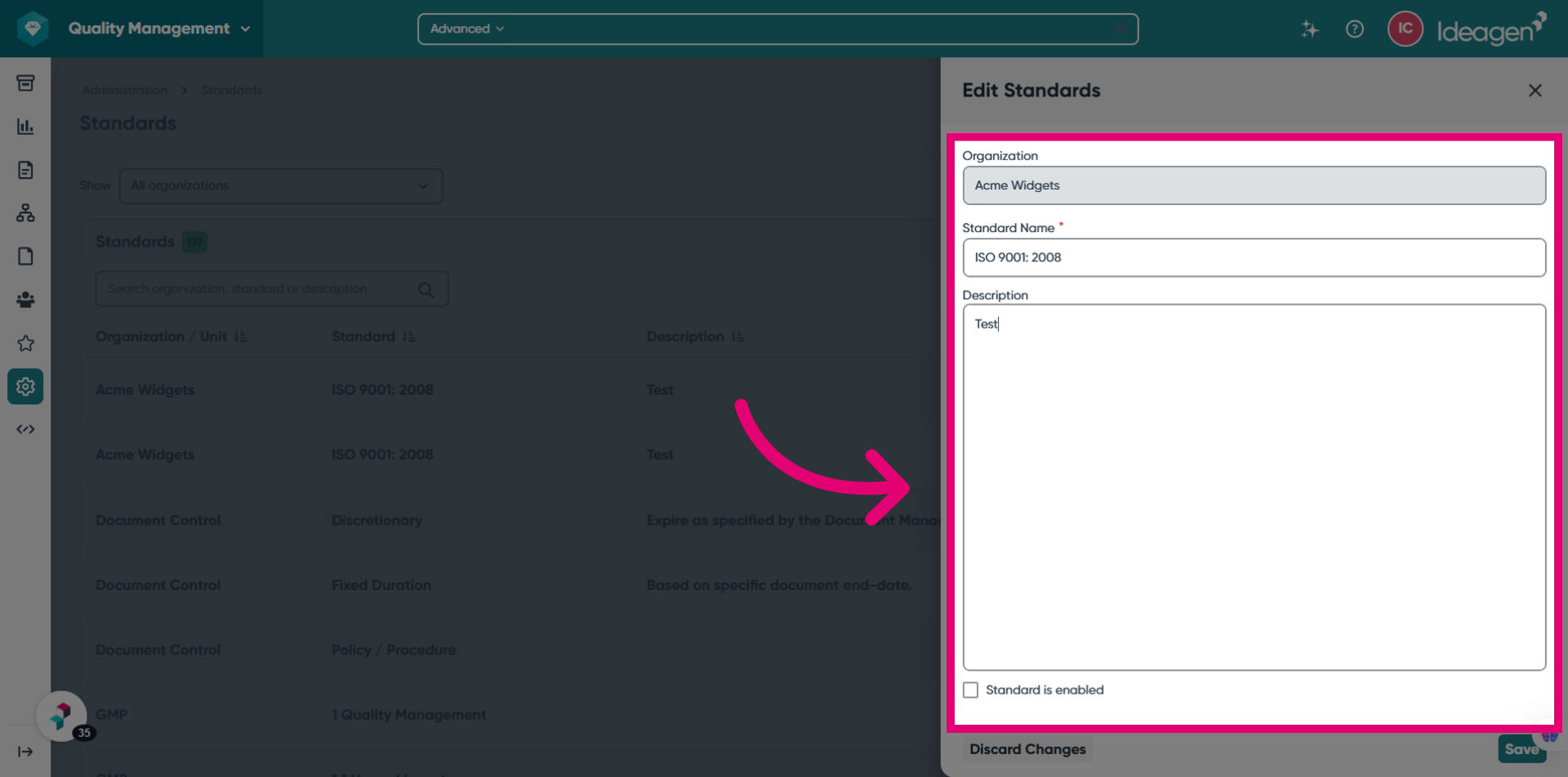
Update the standard name and description, as well as enable or disable the standard.
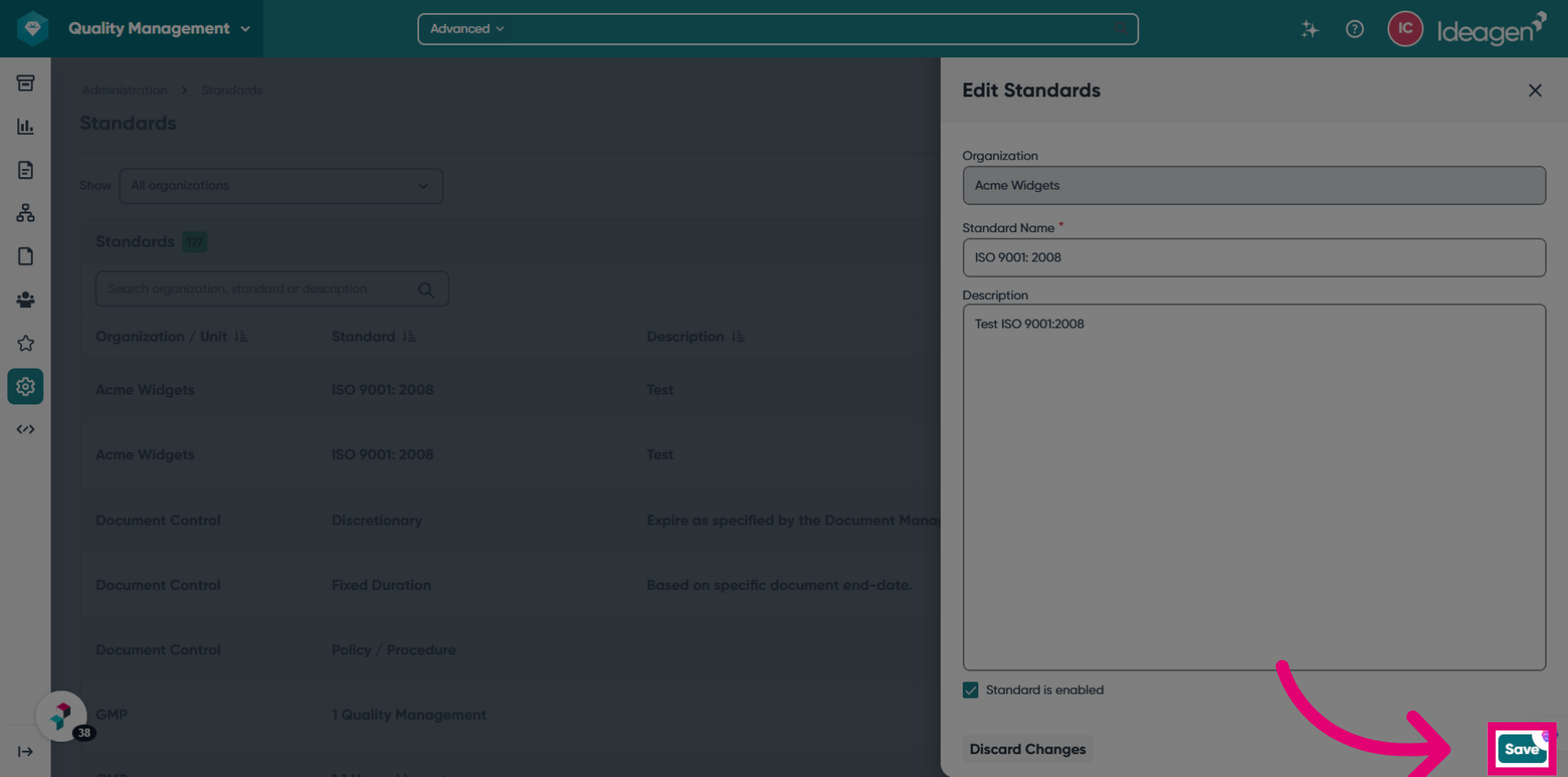
Click Save to save the updated standard information.
Searching standards
To search for a standard:
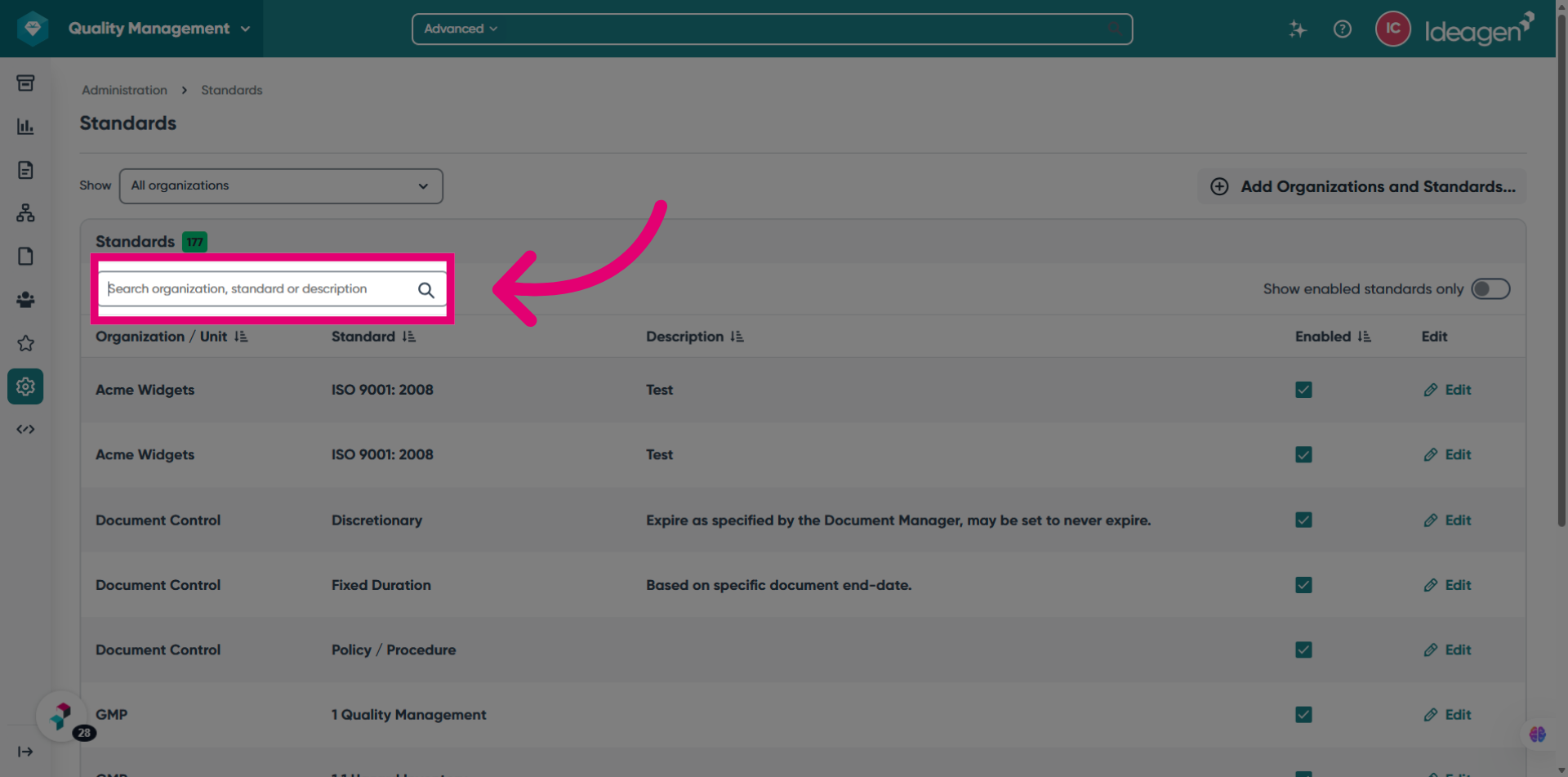
Type in the search box to filter the standard list. The search applies to Organization, Standard title, and description. The search is a "contains" match and is not case-sensitive.
Click the organization filter to filter the standard record by organization.
Use the Show enabled standards only toggle to display only active standards. By default, it is set to display all standards. The filter applies across all pages.
Enabling / Disabling standards
To enable or disable standards:
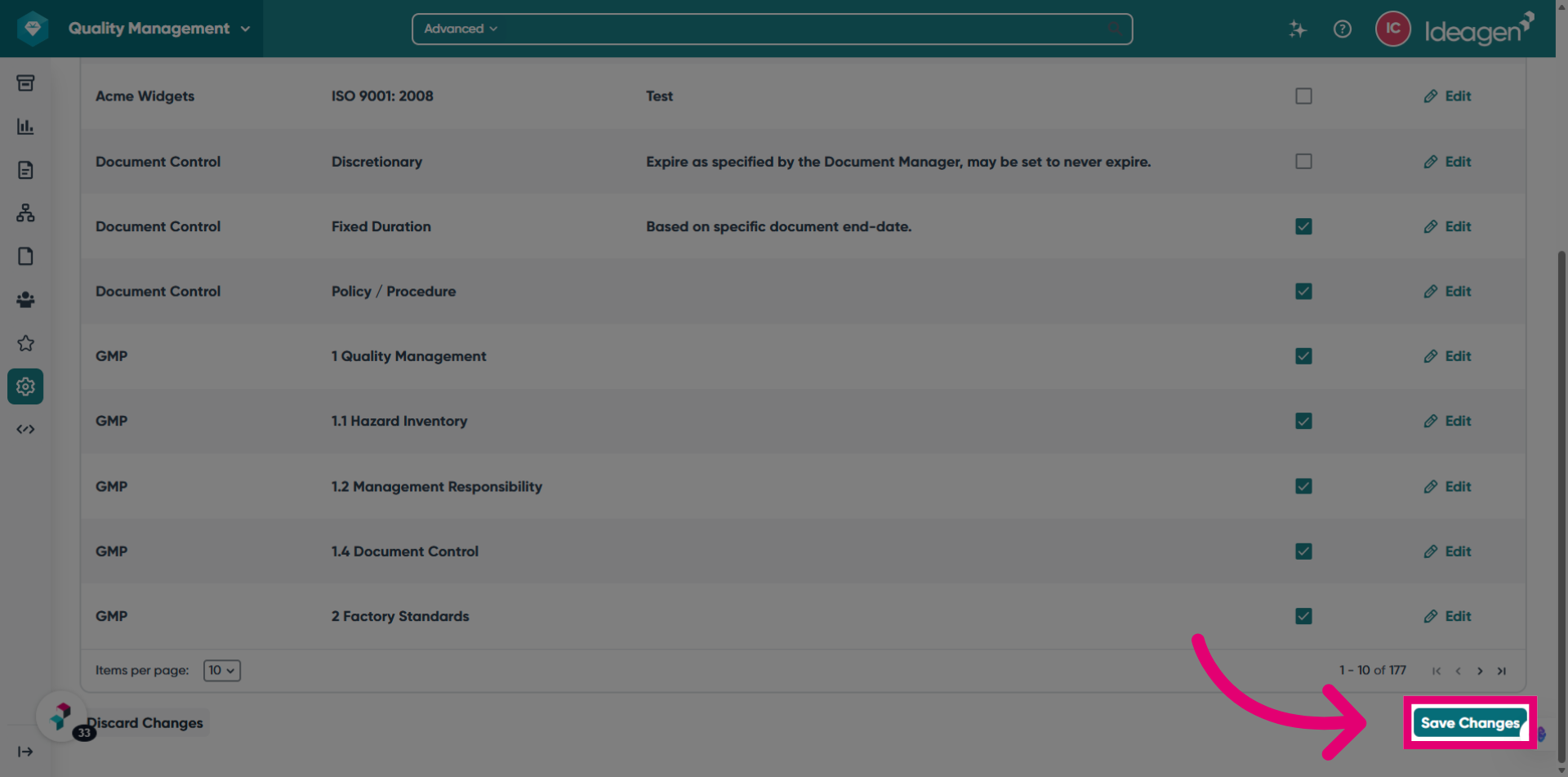
Click the Enabled checkbox for each record. You can select multiple standards using the row checkboxes.
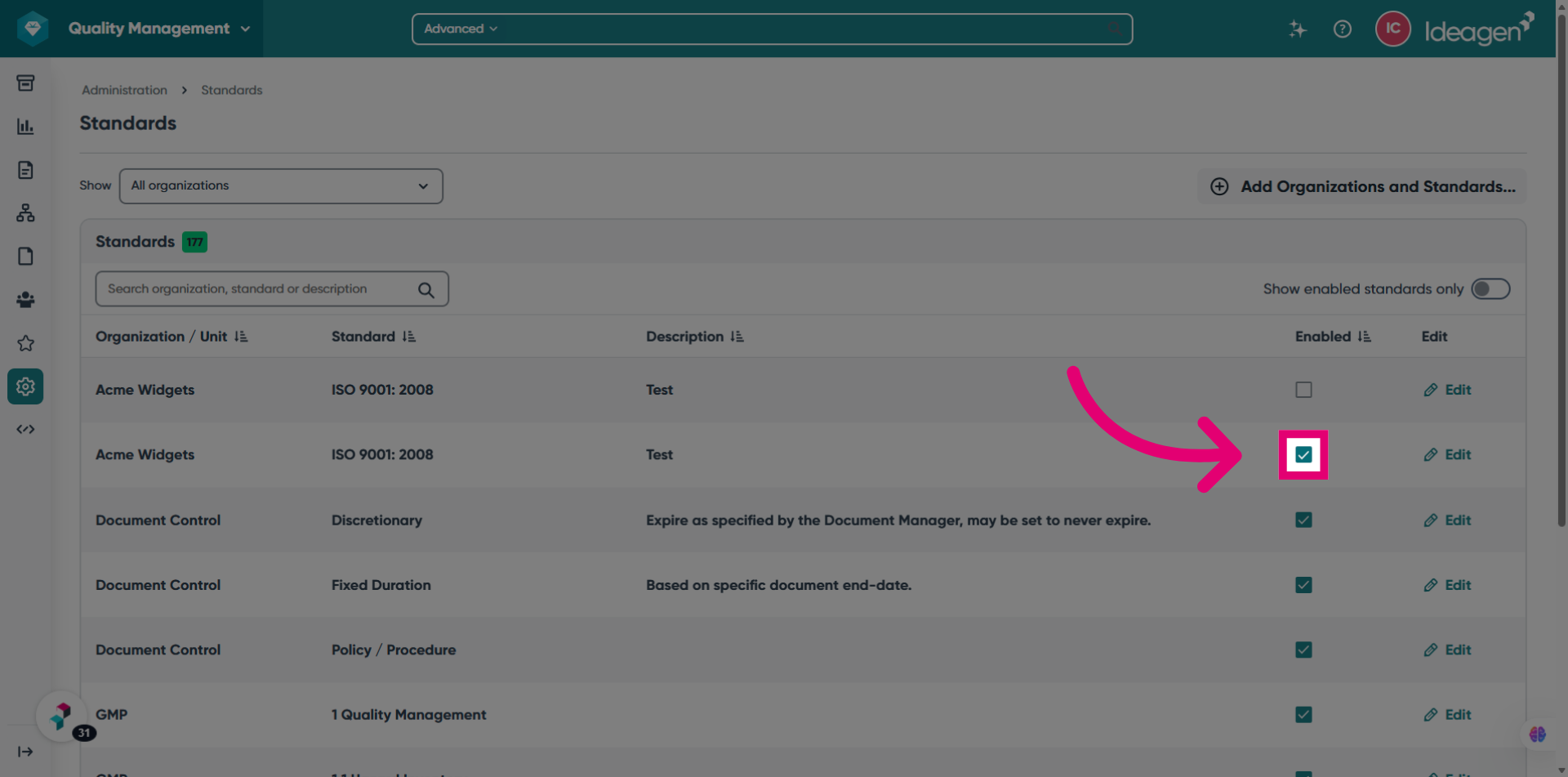
After making changes to enable or disable the standard, click Save Changes to apply all modifications.