


New article
Recently updated
Understanding accessible PDF conversion

Who is this article for?
Users and administrators interested in accessible PDF conversions.
Administrator permissions required.
PDF conversion has been enhanced in version 2026.9.0.0 to improve accessibility compliance and make failed conversions easier to diagnose.
Enabling accessible PDF conversion
Important: Accessible PDF conversion is off by default and must be turned on by an administrator in System Settings. Once turned on, it applies to Word, Excel, and PDF source files converted from that point forward — it does not backfill documents that were converted before the toggle was enabled.
To enable accessible PDF conversion:
- Go to System Settings.
- Locate the Accessible PDF conversion toggle.
- Turn the toggle on.
- Click Save Changes.
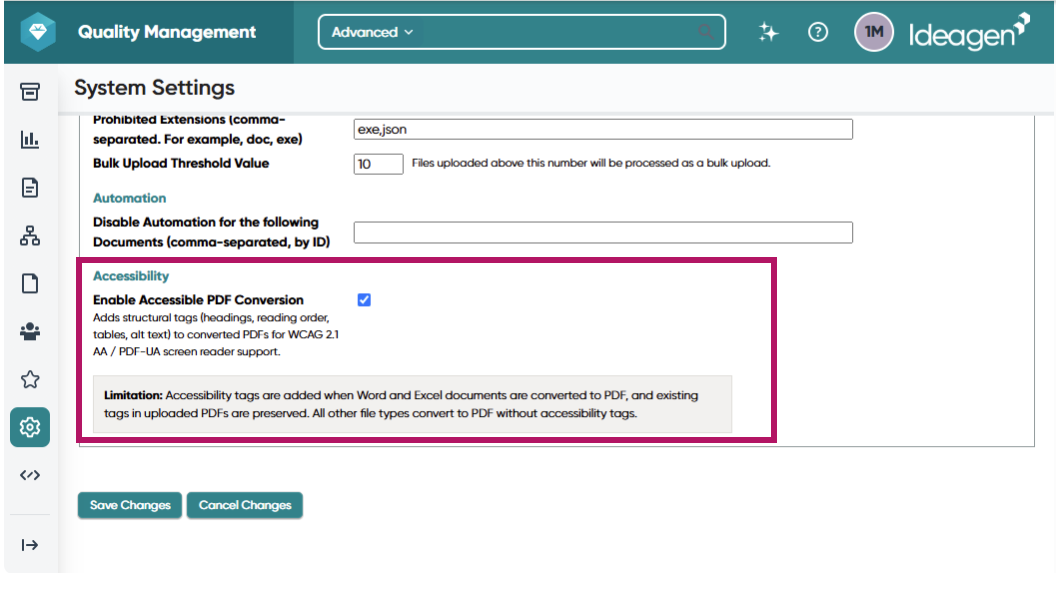
Note: Only users with Administrator permissions can enable this setting.
Understanding accessibility metadata and file type scope
When the accessible PDF conversion toggle is on, conversion metadata and heading, table, and image reading order are updated to improve the accessibility of generated PDFs. This processing applies to specific file types.
| Source file type | Accessibility remediation applied? |
| Word (doc, dot, docm, dotm, docx, dotx) | Yes |
| Excel (xls, xlsx, xlsm, xlsb, xltx, xltm) | Yes |
| Yes — see below, depends on whether the uploaded PDF already has accessibility tagging. | |
| Other file types | No — accessibility processing does not run against unsupported file types during conversion. |
Important: Converted PDFs for the supported file types carry corrected accessibility metadata, but only when the Accessible PDF conversion toggle is turned on in System Settings.
Understanding PDF uploads versus Word and Excel conversions
Word and Excel files are converted to PDF by Ideagen Quality Management Core, so accessibility tagging (headings, tables, image reading order) is built in fresh every time. An uploaded PDF is already a PDF, so Ideagen Quality Management Core can only work with whatever structure the file already has:
- Already tagged (for example, exported properly from another accessible source) — its existing headings, tables, and image reading order are carried through, and its accessibility metadata is updated
- Not tagged (for example, a scanned page or a photo of a document) — there is no underlying structure to build on, so accessibility tagging cannot be added. The file's accessibility metadata is still updated, but this does not make the file PDF accessibility compliant — a scanned or image-only PDF cannot be made fully accessible this way
For full accessibility remediation, upload a properly tagged PDF, or provide the original file as Word or Excel so Ideagen Quality Management Core can build accessibility tagging from scratch.