


New article
Recently updated
Creating reviews using the Ideagen Please Review integration

Who is this article for?
Users interested in the Ideagen Please Review integration.
Document edit rights required.
This article outlines how to create reviews in Ideagen Quality Management Core using the Ideagen Please Review integration.
The editor and every participant in the review must have active licences in both Ideagen Qquality Management Core and Ideagen Please Review.
Creating a document review
-
Open the document tree to view the document structure.
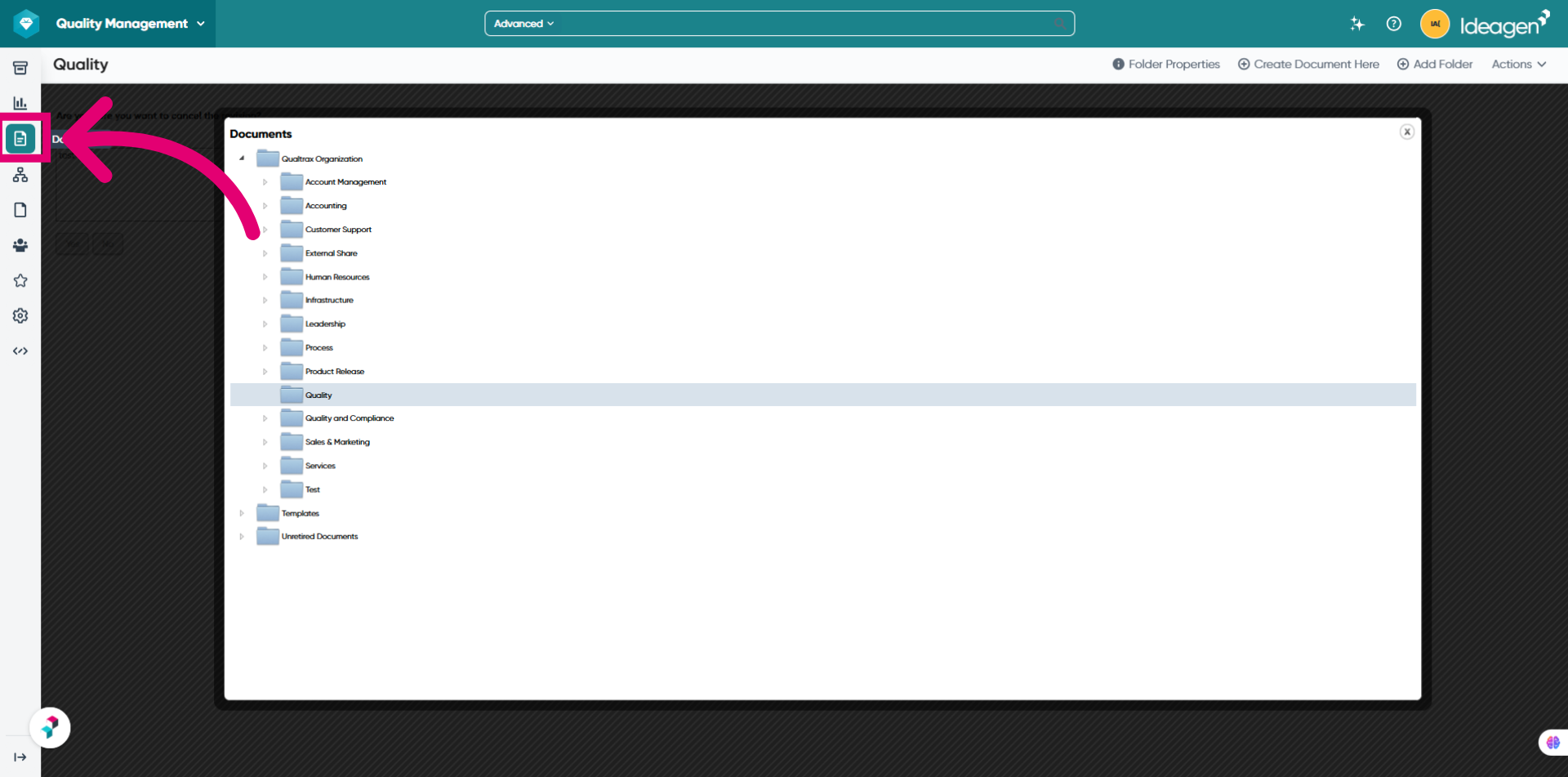
-
Select the required folder to add the new document to.
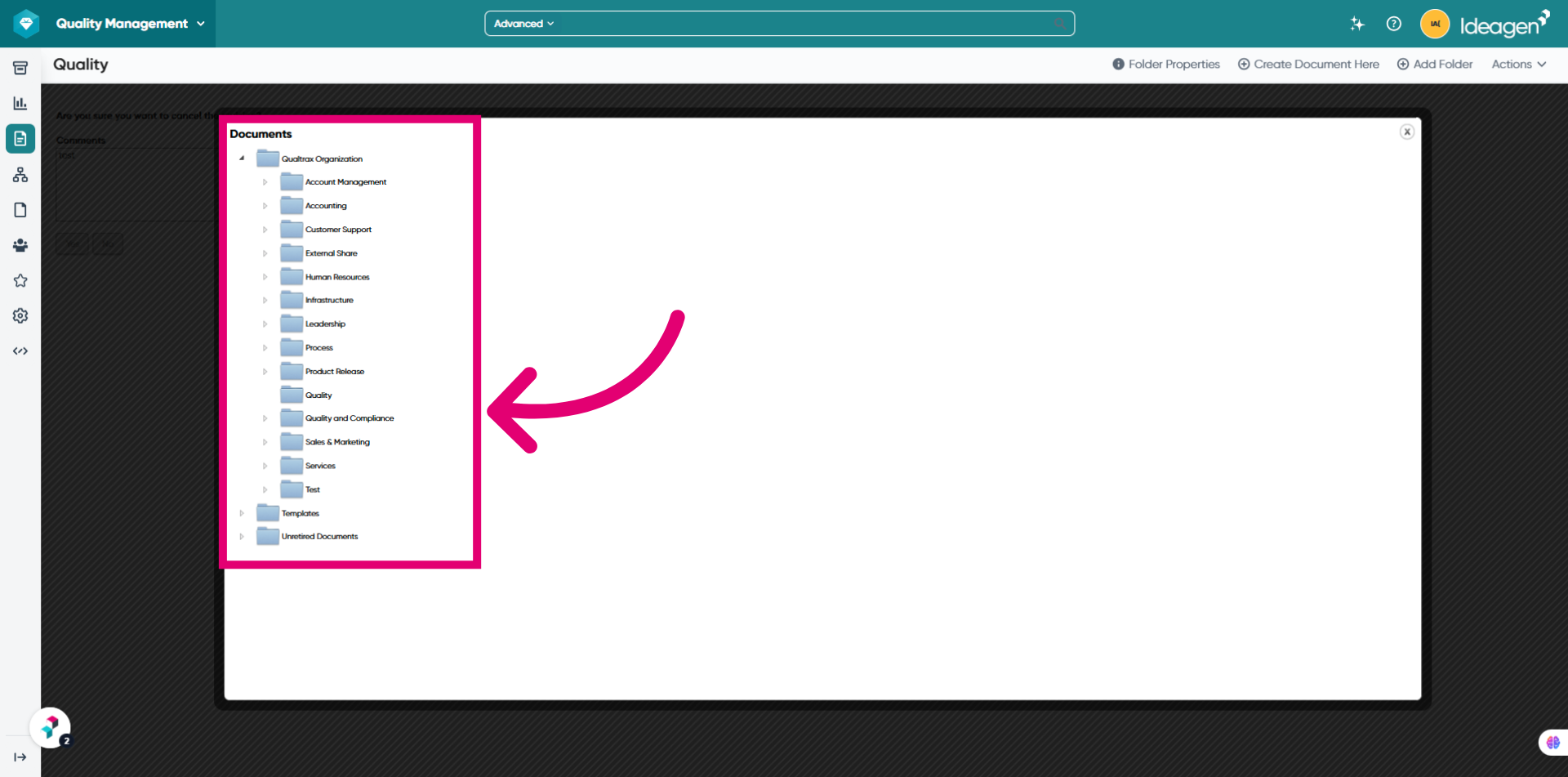
-
Click Create Document Here to begin creating a new document in the selected location.
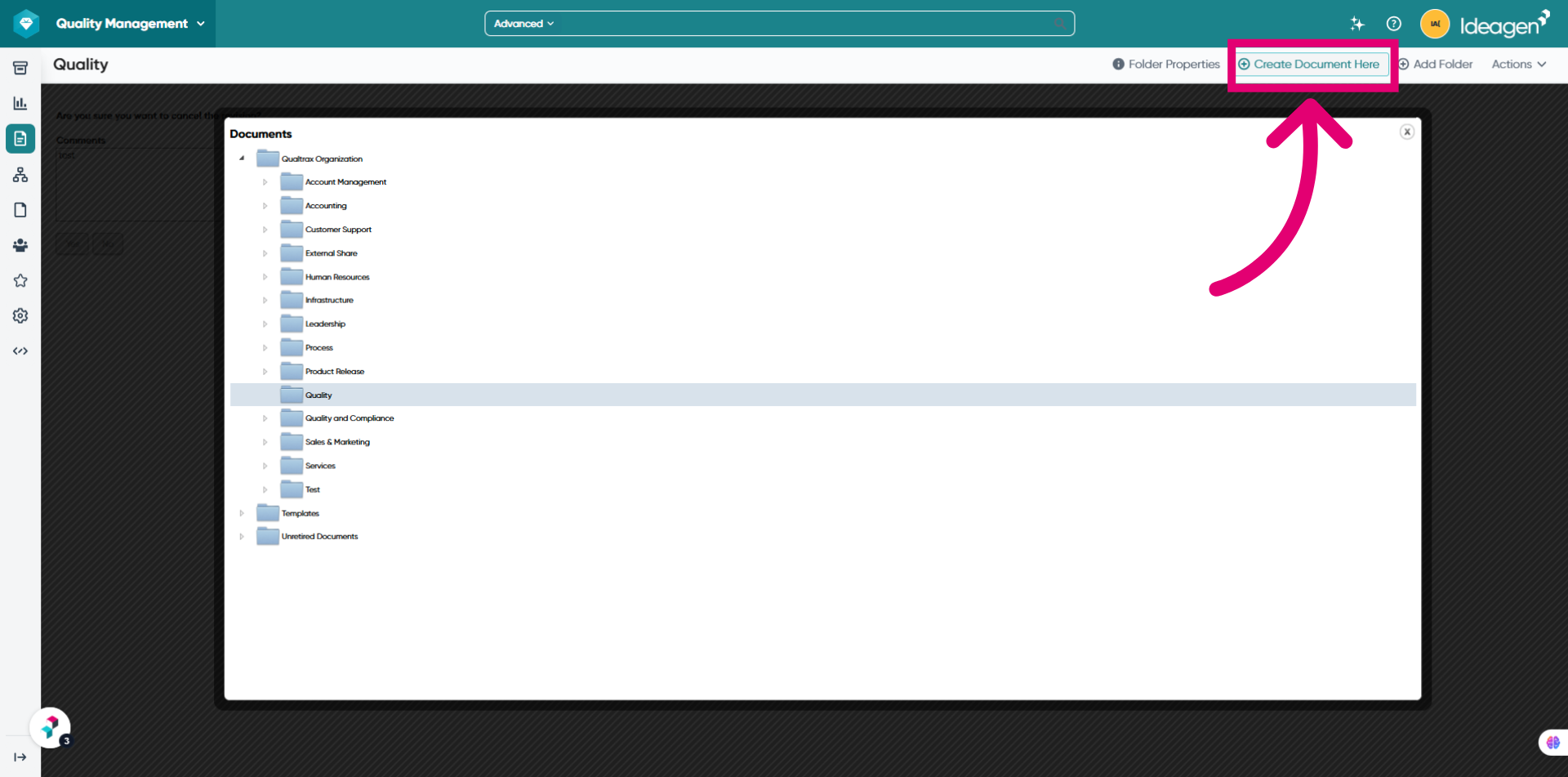
-
Click Choose Files to upload a document, then select the file from your computer to add it to the system.
File types supported for document reviews include: doc, docx, docm, dot, dotm, dotx, rtf, and pdf.
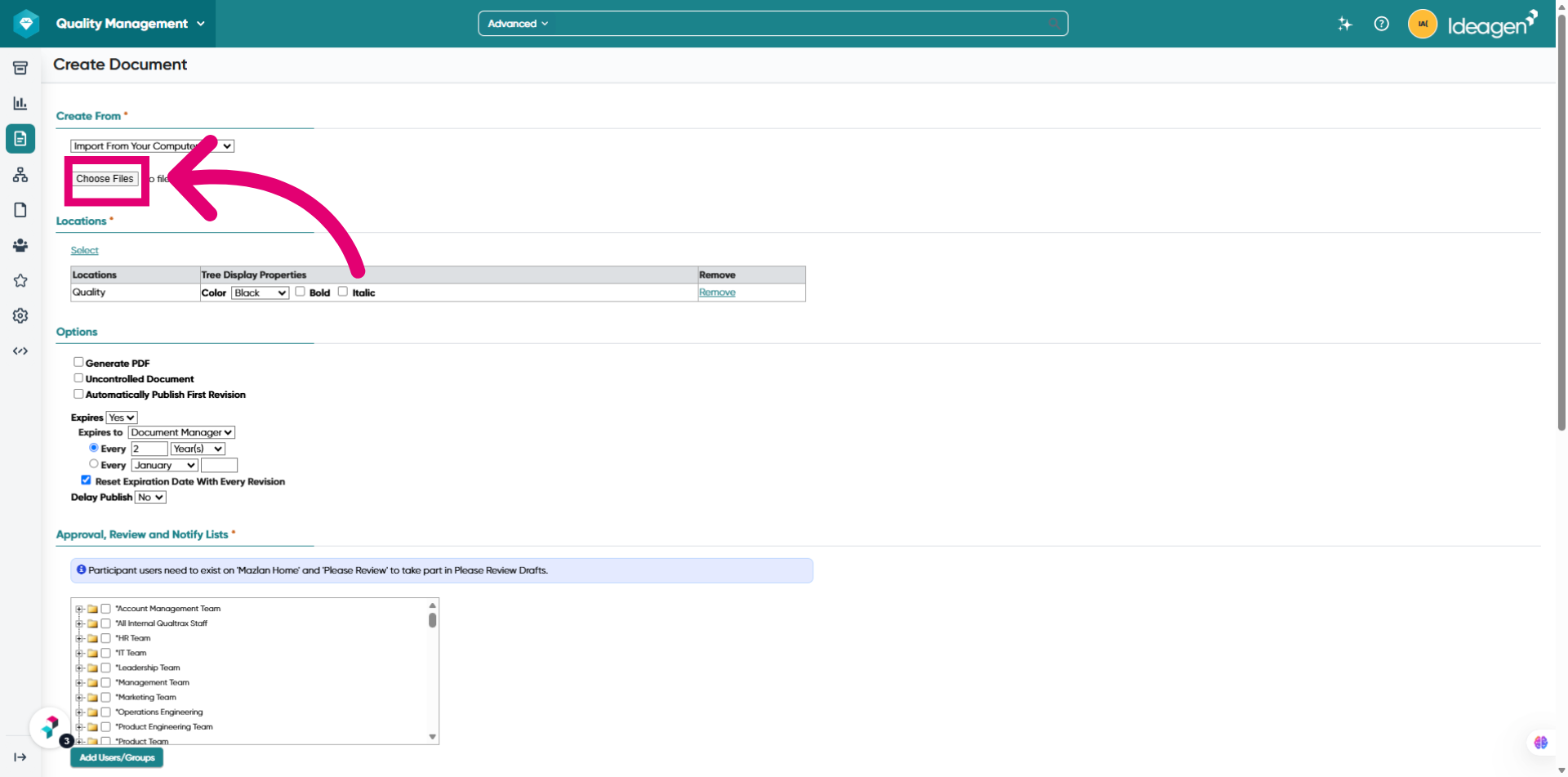
-
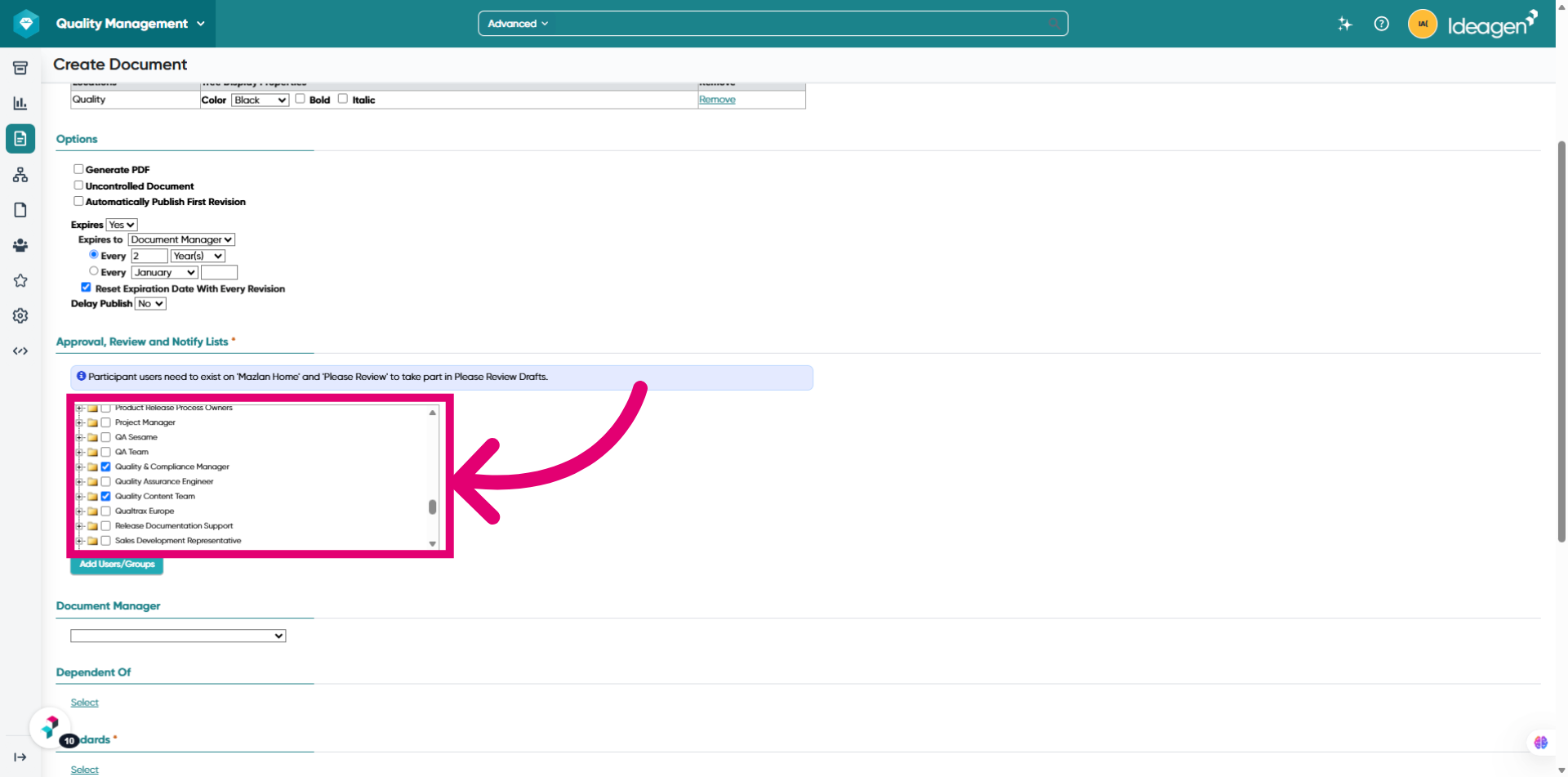
Select the required user groups for approval, review, notification, and participants.
-
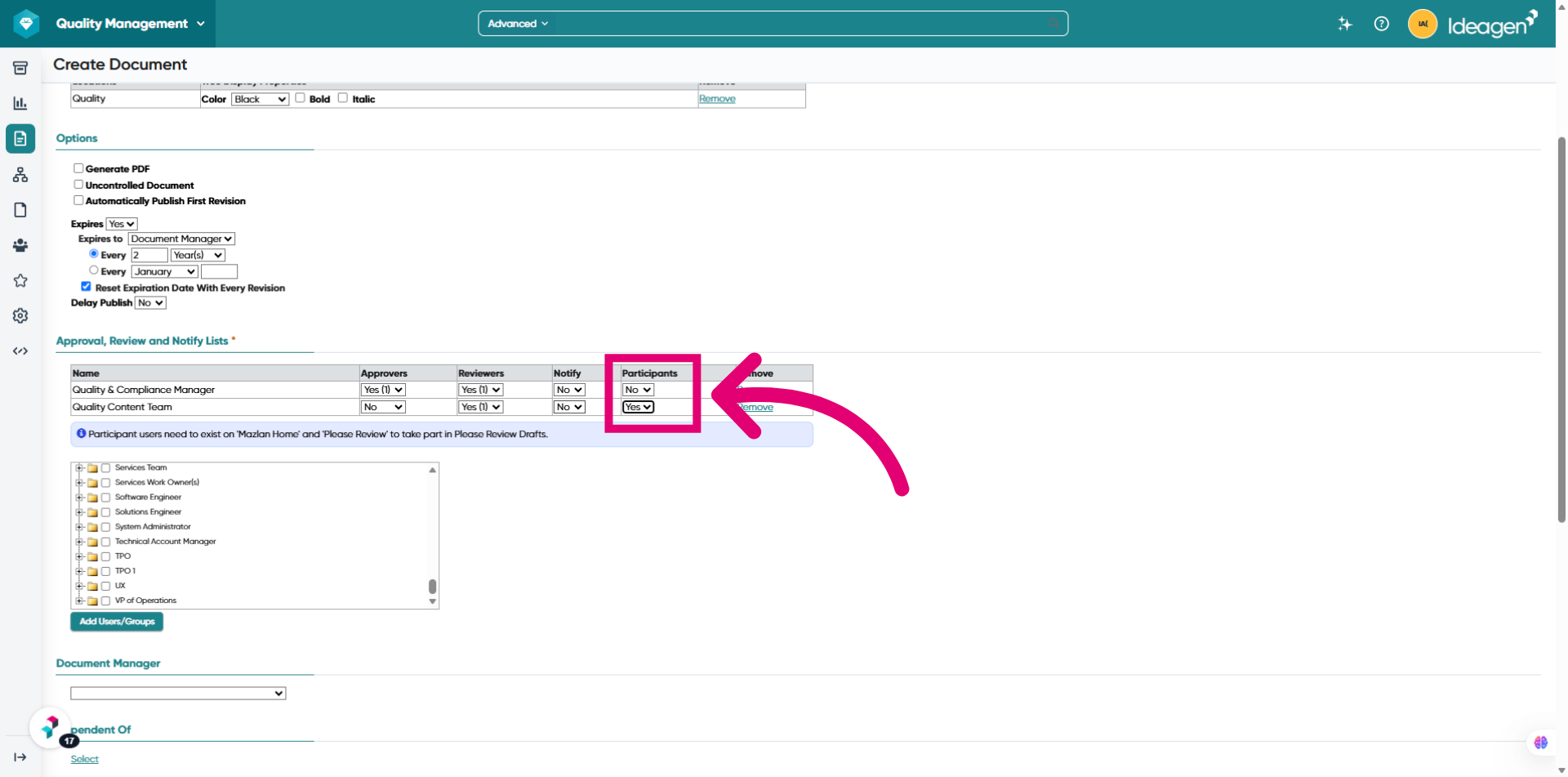
Click Yes to enable the group to participate in this document draft review. By default, participants will be assigned the reviewer role in Ideagen Please Review.
-
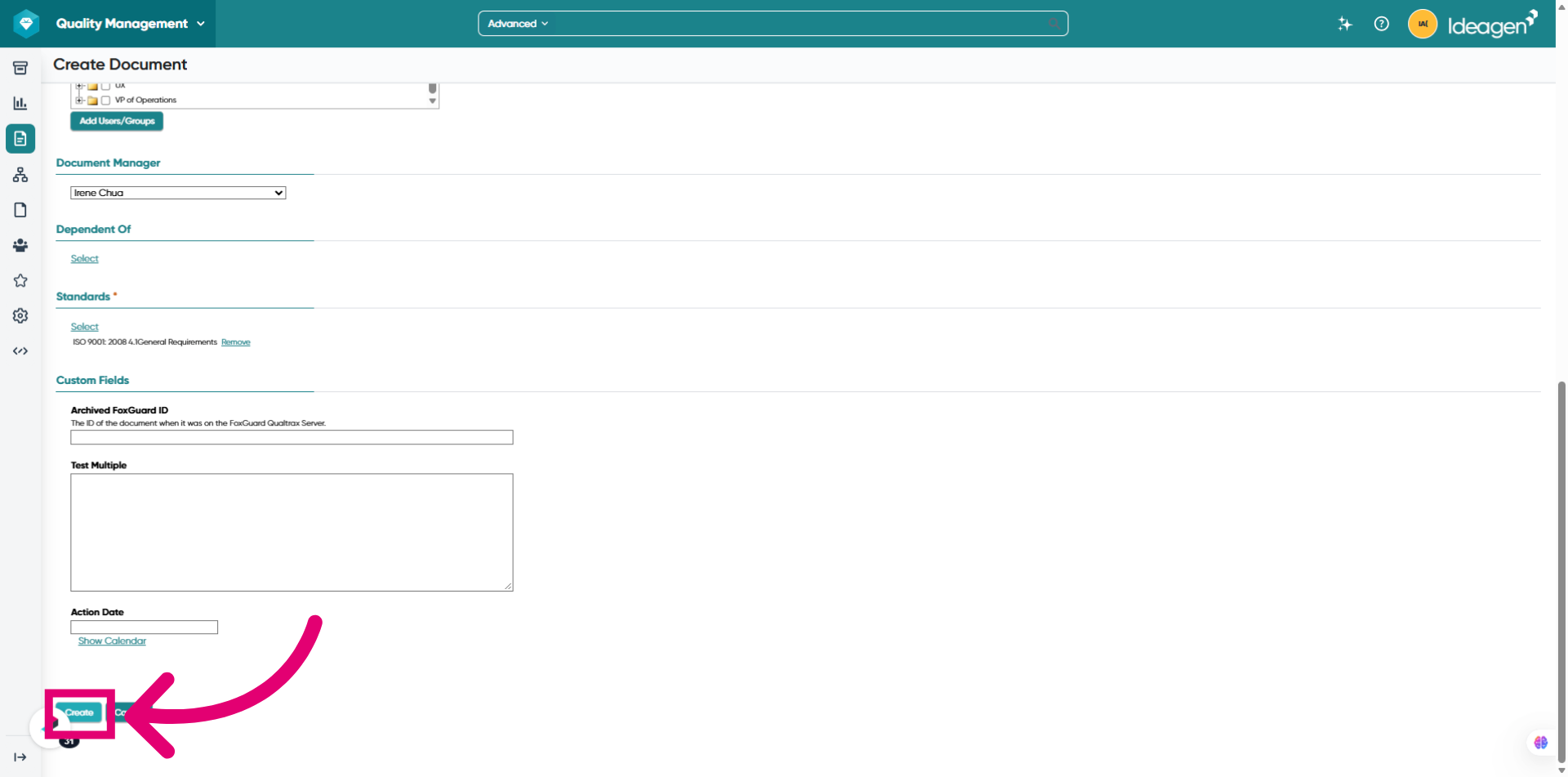
Click Create to add the new document to the system.
-
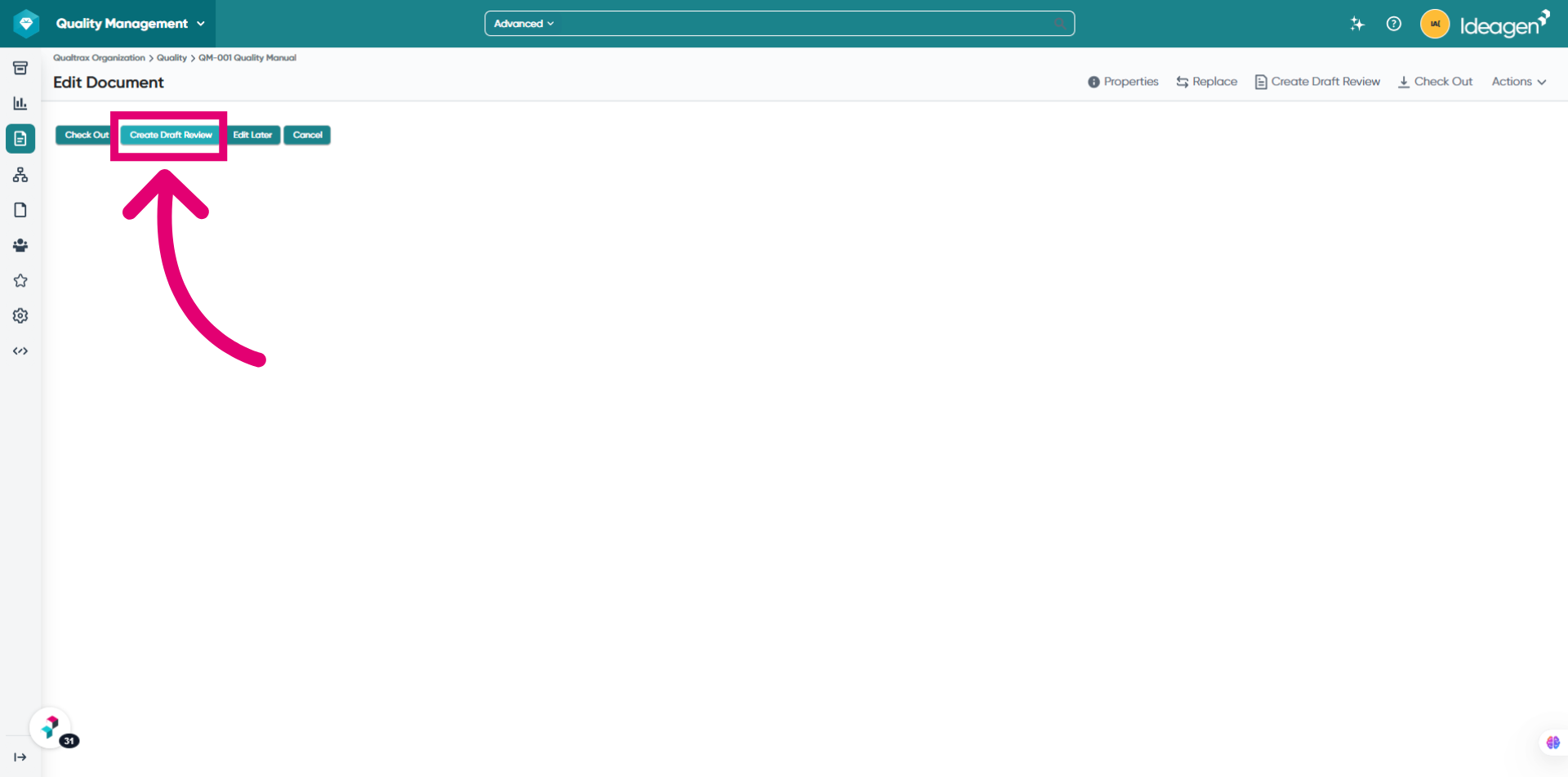
Click Create Draft Review to start the review process.
Create Draft Review is not offered when:
- The document is checked out, uncontrolled, in Review or Approval, awaiting publish, expired or retired.
- You don't have edit rights on the document or access to Ideagen Please Review.
- The file type is not supported.
- A review is already in progress — only one review runs on a document at a time.
-
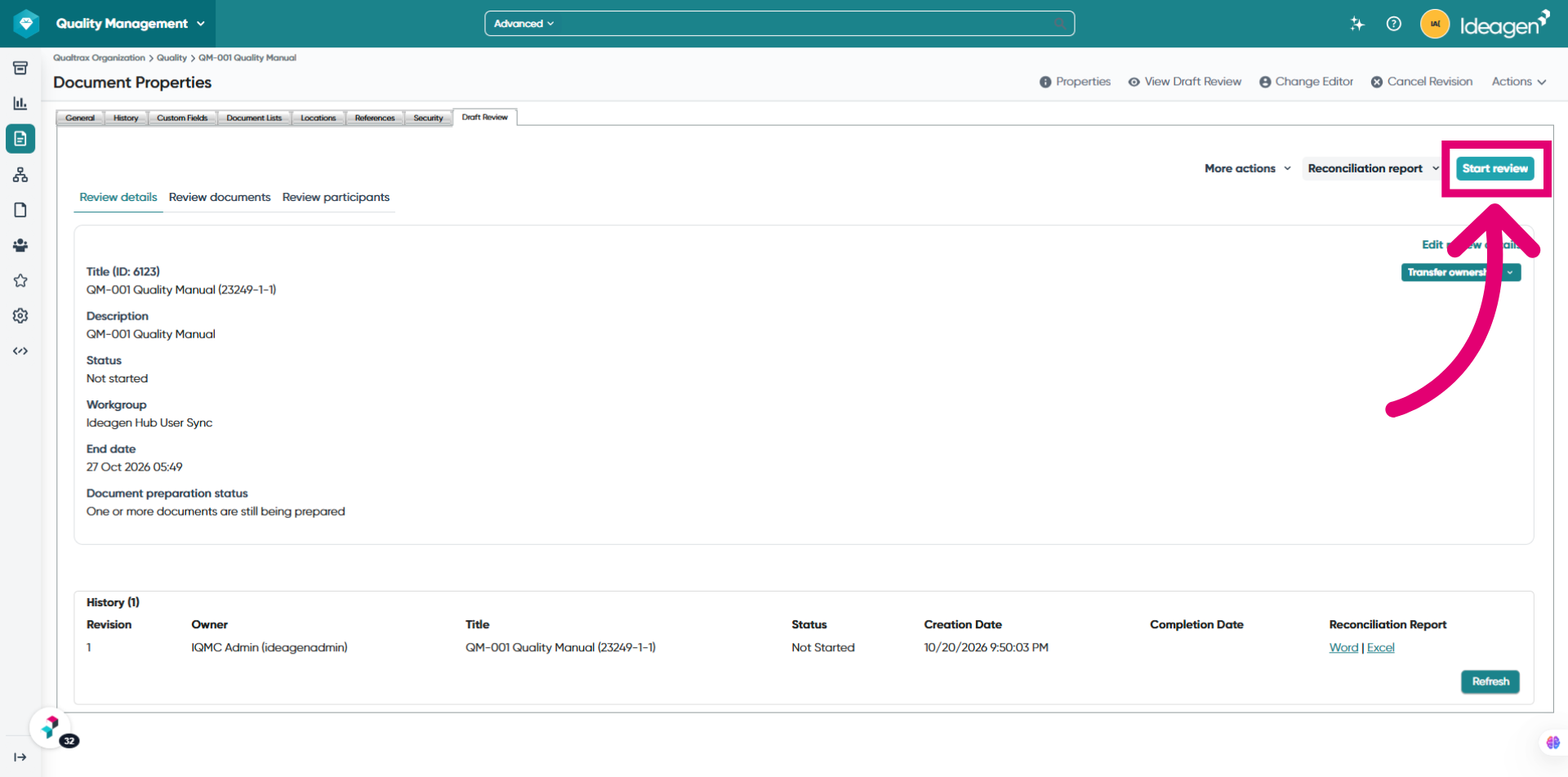
Click Start review to begin the document review workflow in Ideagen Please Review.
By default, the review name will be set to the document title, ID, revision and review number, for example: Quality Manual (1234-3-1). Before you start the review you can still change the title, description, end date and participant roles using the 'Edit review details' option.
There is no review order: all participants review at the same time.
-
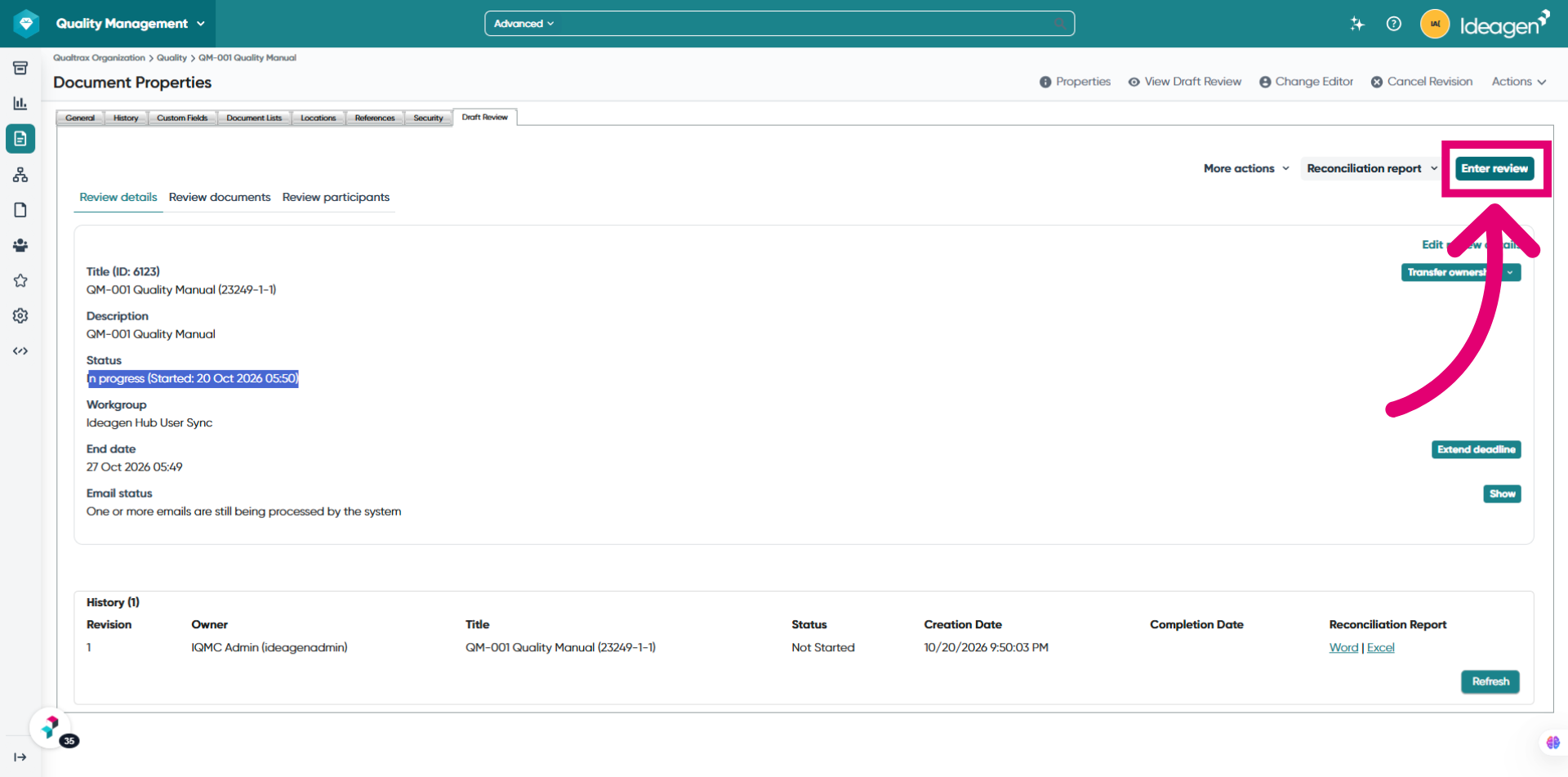
Click the Enter Review button to access the review. This will open the review document in Ideagen Please Review.
-
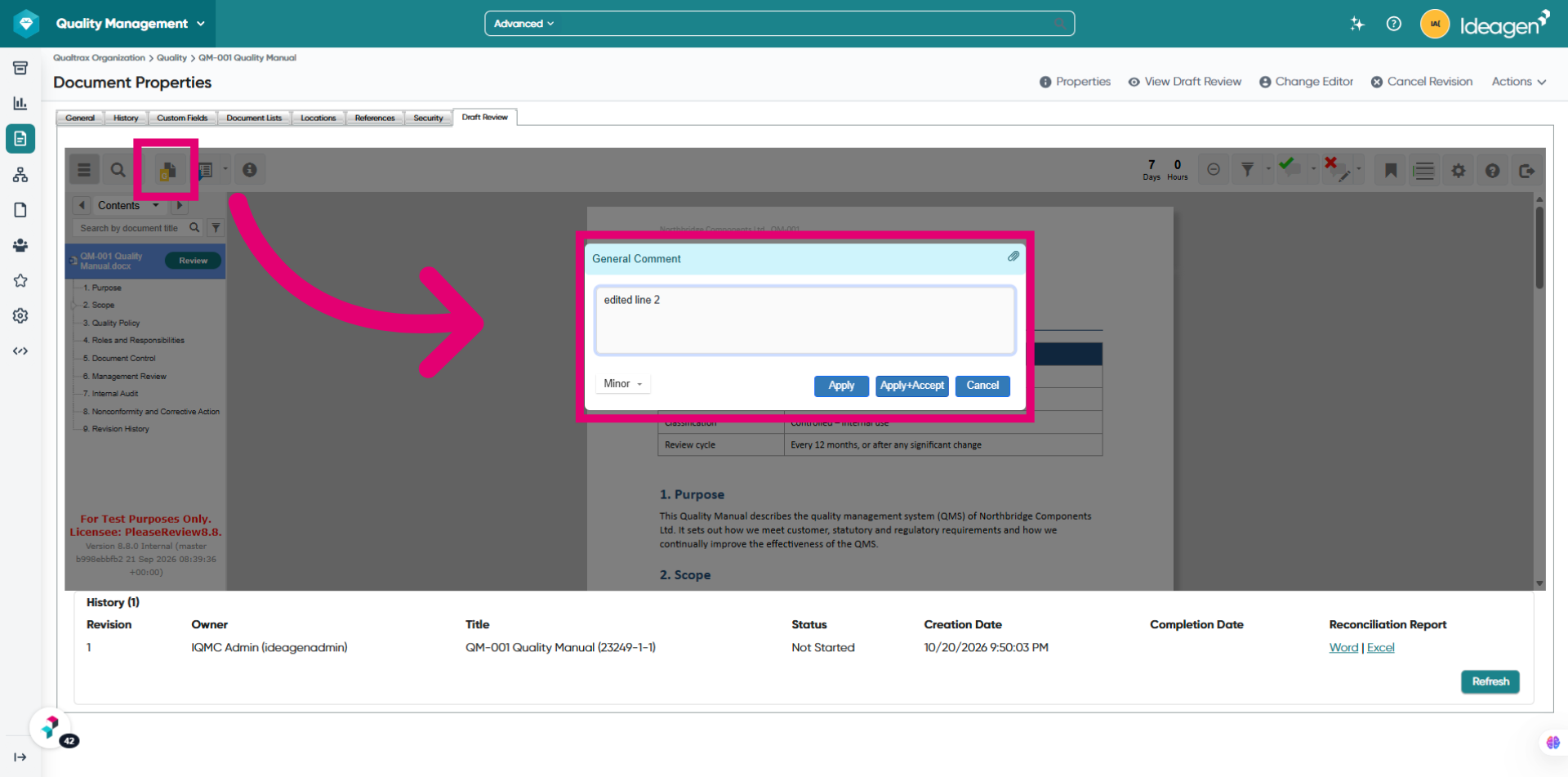
Add comments to the document as required.
-
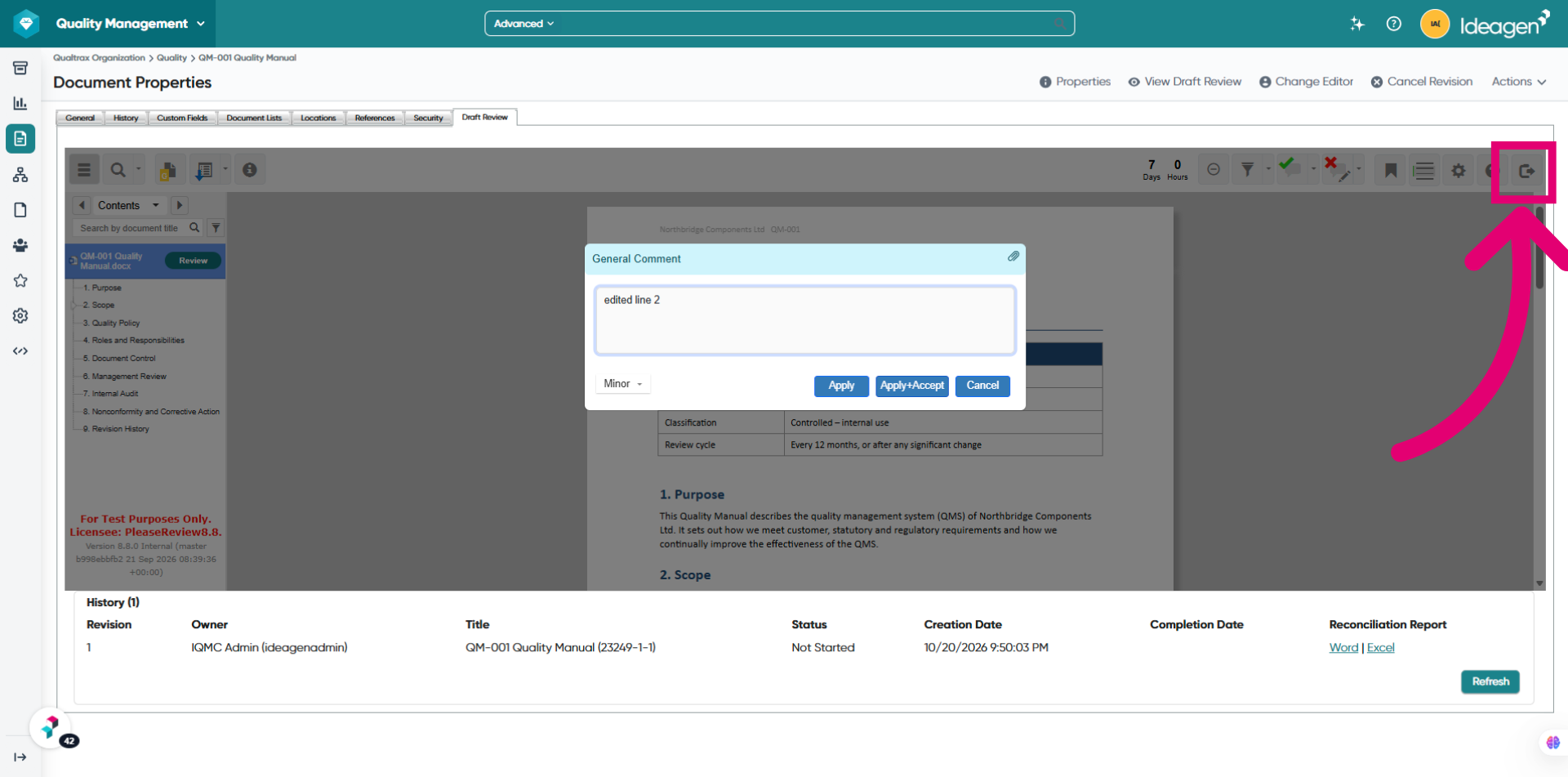
Click the Leave review icon in the top-right corner when you're ready to leave the review.
-
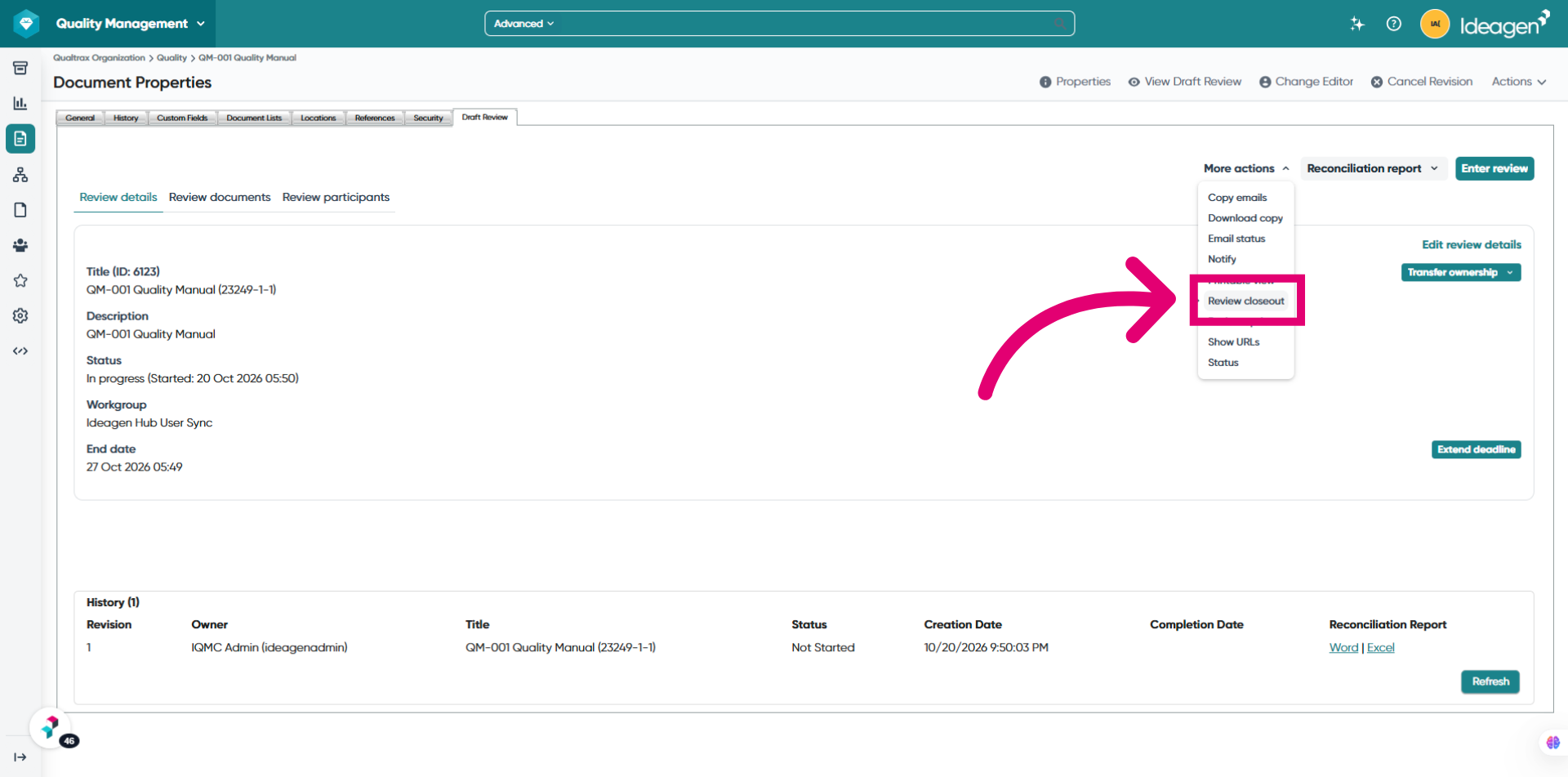
Once the review activity is complete, click the More actions button, and select Review closeout.
-
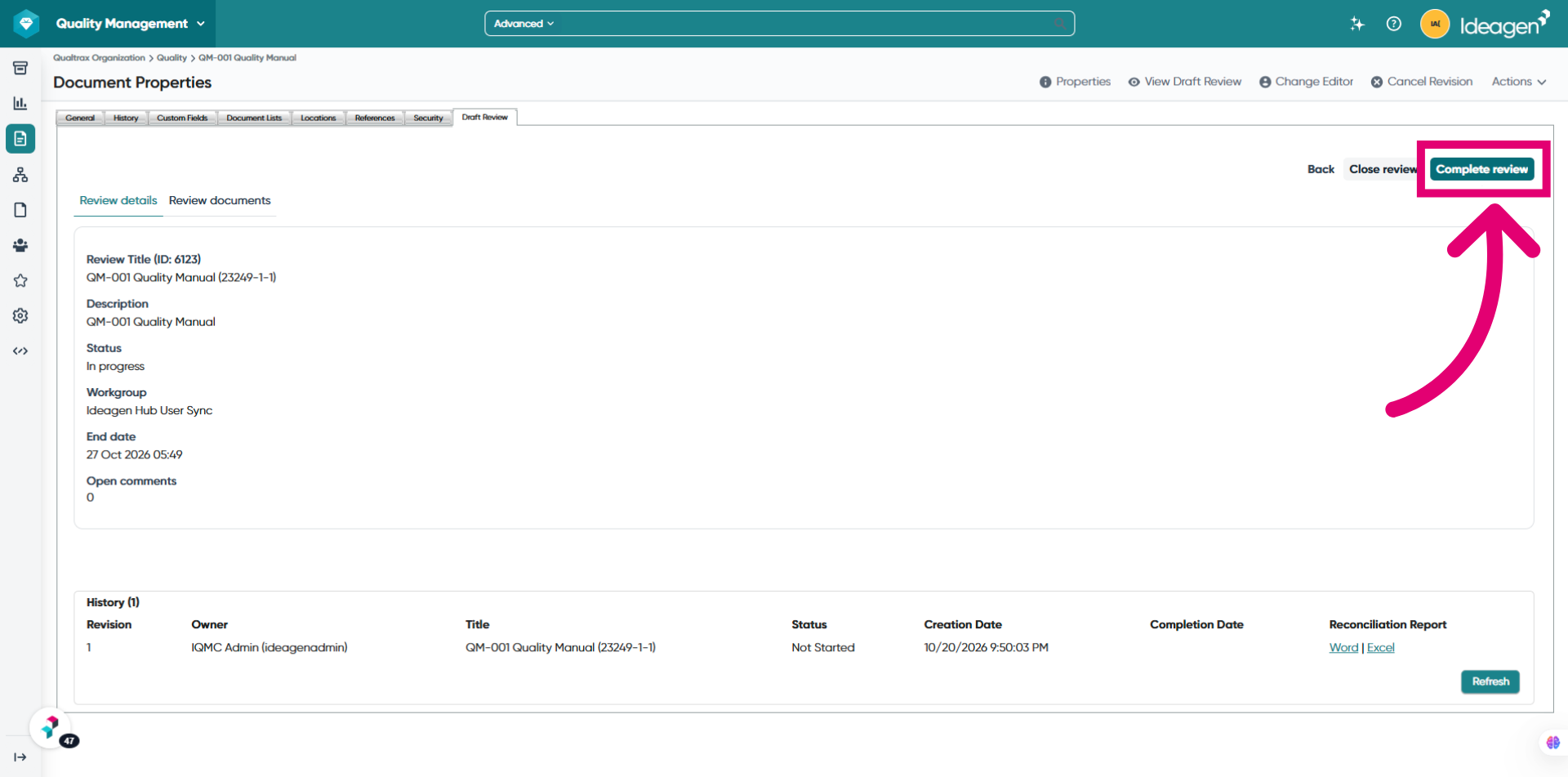
Click the Complete Review button to set the review status to Completed and save a record in the History section.
-
Click Confirm to verify the completion of the review.
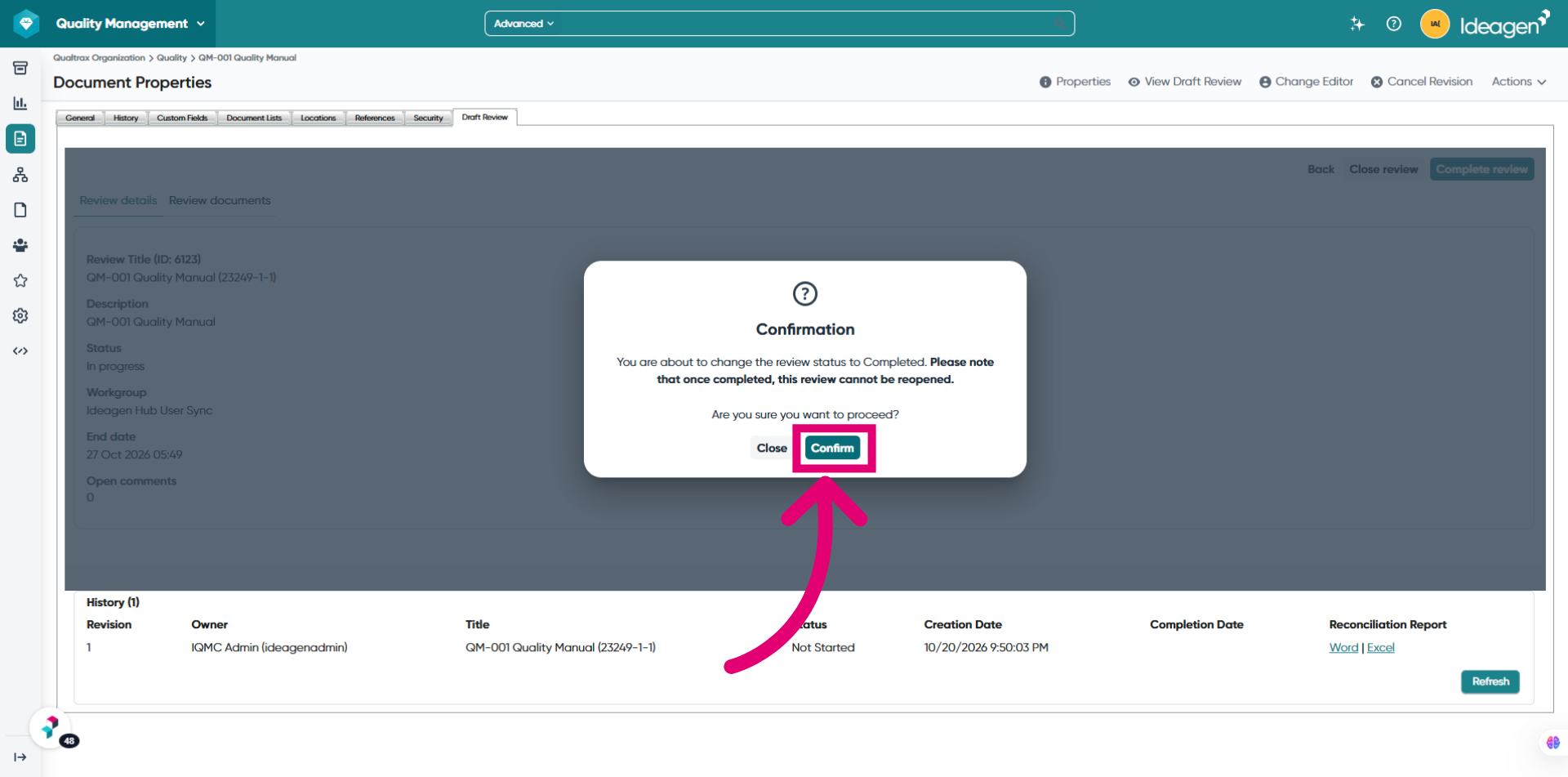
The reviewed file returns to Ideagen Quality Management Core and the document is unlocked so you can continue the revision (for example, release it for approval).
-
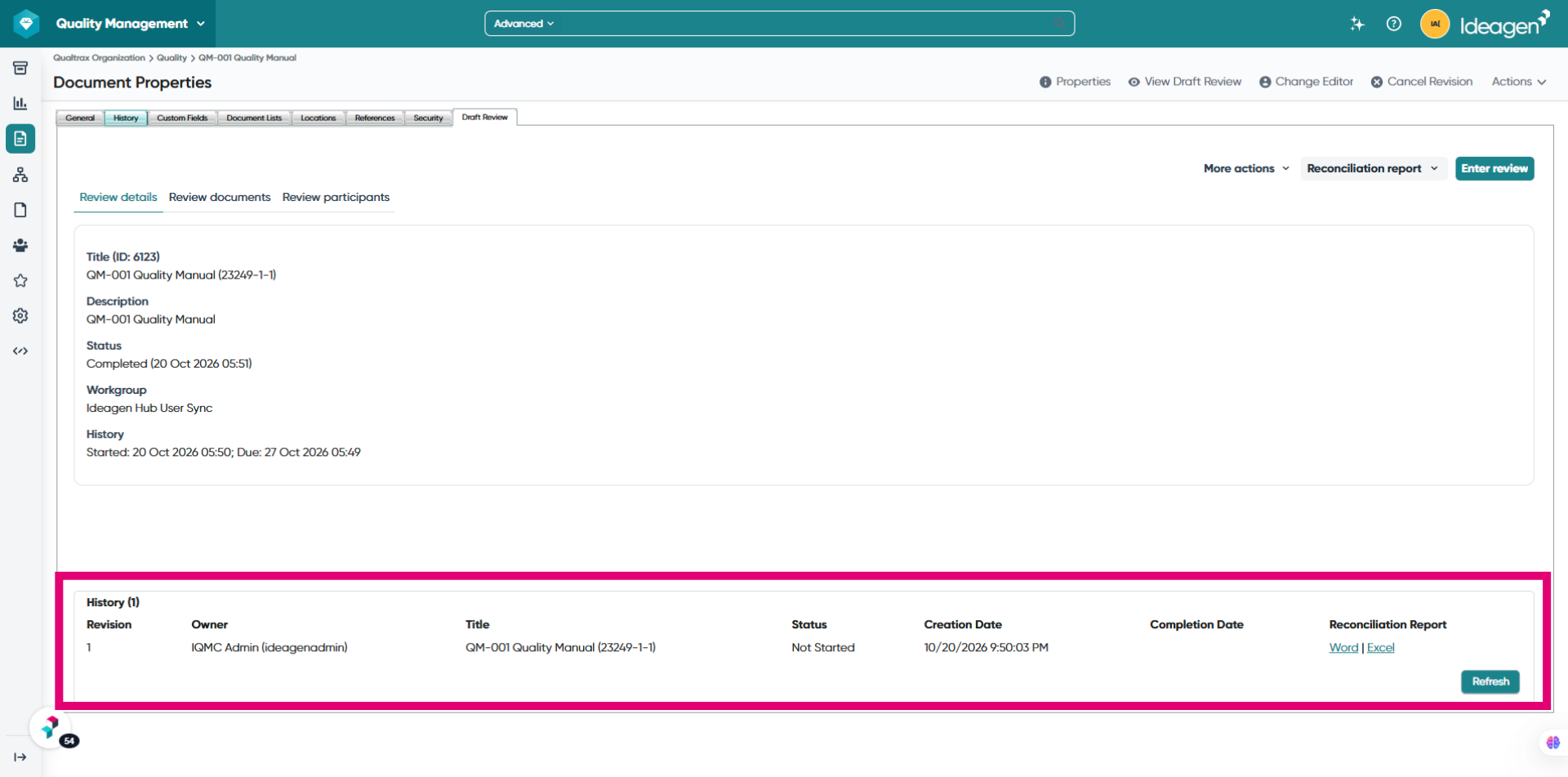
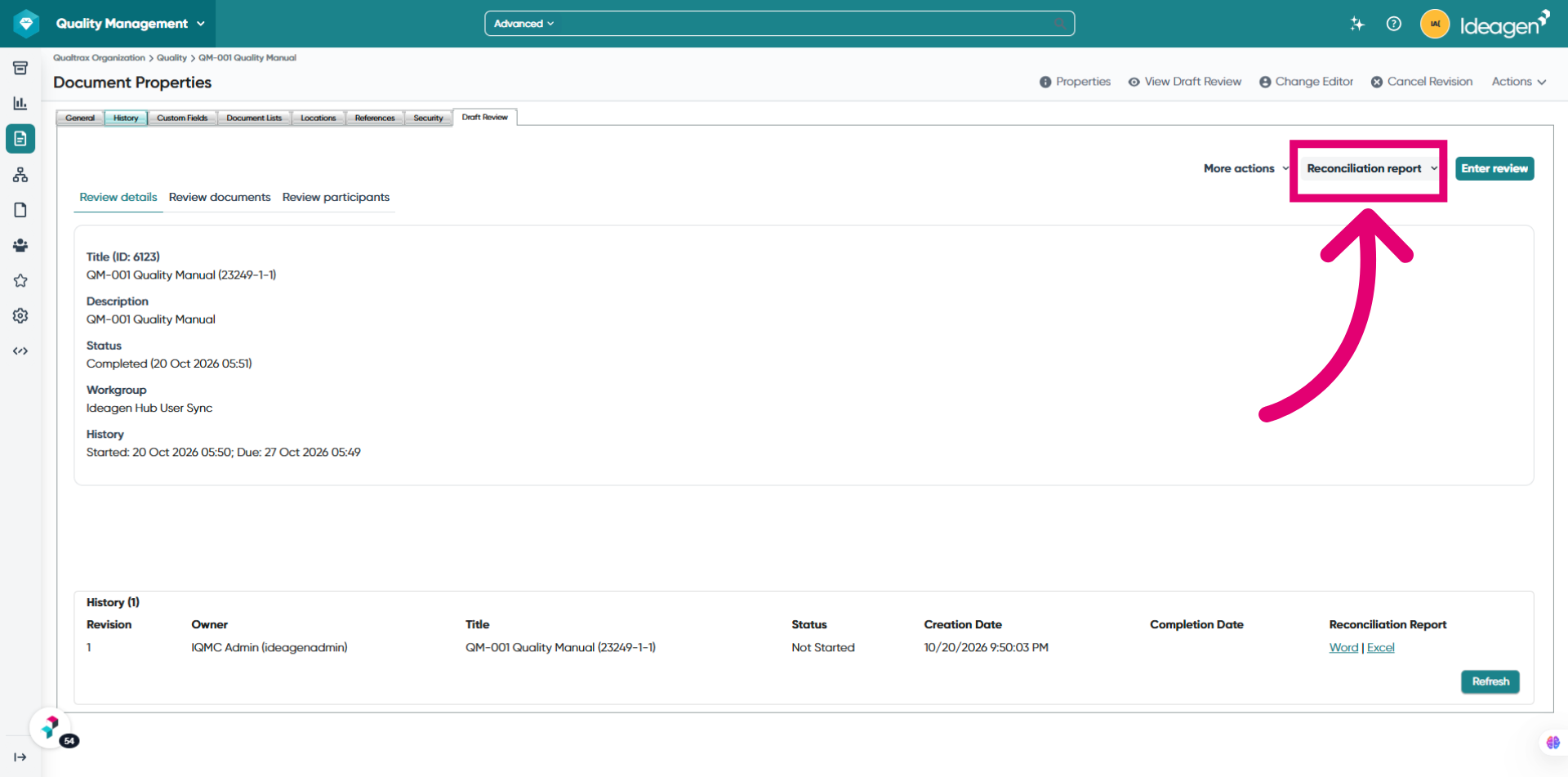
Open the History section within the Draft Review to view previous changes.
-
Download the Ideagen Please Review reconciliation report which provides a full audit trail of all comments and changes made during the review process.
Note:
A completed review cannot be reopened. Run a new review cycle if you need another round.
Until the reviewed file is back, the document stays locked. If it doesn't update, use Sync with Please Review.
Completing a review does not approve the document — sign-off always stays within Ideagen Quality Management Core.
Comments and mark-up are recorded in Ideagen Please Review, and can be accessed at any time from the Reconciliation Report. Comments and mark-up are not recorded in the Ideagen Quality Management Core audit trail.
Syncing documents with Ideagen Please Review
Ideagen Quality Management Core normally updates by itself: when the review status changes in Ideagen Please Review, Ideagen Quality Management Core is notified and, once the review is completed, brings the reviewed file back.
Sync with Please Review (Actions menu) is a manual “check now” for when that hasn't happened — for example, the Draft Review tab still shows the old status, or the document stays locked after the review was completed.
When you select 'Sync with Please Review', Ideagen Quality Management Core:
- Gets the latest review status from Ideagen Please Review and shows it on the Draft Review tab.
- If the review is completed and the reviewed file is ready, downloads it and replaces the draft file in Ideagen Quality Management Core, which unlocks the document.
The message at the top of the page tells you what happened:
| Message | Description |
|---|---|
| Synced from Please Review (status: …) | The status is up to date. If the review was completed, the reviewed file is now in Ideagen Quality Management Core. |
| Synced from Please Review (status: …). The reviewed file is not complete yet. | The status is updated, but Please Review hasn't finished preparing the reviewed file. Try again in a few minutes. |
| The reviewed file can only be stored while the document is in Edit. | The document is no longer in Edit, so the reviewed file can't be brought back automatically. Contact Ideagen Support. |
| Please Review could not be synced for this document. | Ideagen Quality Management Core couldn't reach Please Review. Try again later, or contact Ideagen Support if it keeps happening. |
Note:
- You must have edit rights on the document and an account linked to Mazlan Home to perform a sync.
- Syncing again after the reviewed file is already back does not download it a second time, so any changes you made to the draft since are kept.
While a review is in progress, Ideagen Quality Management Core hides actions that would change the document:
| Action | While a review is in progress |
|---|---|
| View Draft Review, Sync with Please Review, Delete Draft Review, Cancel Revision | Available |
| Create Draft Review, Release for Review, Release for Approval, Check Out, Check In, Publish, Edit, Edit in Microsoft Word, Replace | Hidden |
Review history and reconciliation report
The Draft Review tab on Document Properties shows the current review and a History table of past cycles (Revision, Owner, Title, Status, Completion Date).
A deleted review shows as Deleted.
Download Ideagen Please Review's reconciliation report (what was raised and accepted) in Word or Excel for the current and past cycles.
Deleting or canceling a draft review
| Action | What it does |
|---|---|
| Delete Draft Review (Actions menu) | Deletes the review in Ideagen Please Review. The document and revision are unchanged, and you can create a new review. |
| Cancel Revision | Deletes the review in Ideagen Please Review, then returns the document to its last published state. If the review can't be deleted, you will see a warning — delete the review in Ideagen Please Review to avoid using participants' licences. |
Important considerations
- If a participant doesn't have an active Ideagen Please Review account, the review will not be created and an Ideagen Please Review error is shown.
- If you run out of Ideagen Please Review licences, new reviews cannot be created until a licence is released.
- Moving, retiring or unretiring a document does not update its participants. Check them in Document Lists.
- Changing the editor during a review is not synced to Ideagen Please Review. If you change the document editor in Ideagen Quality Management Core while a draft review exists, the review owner in Ideagen Please Review stays the same. After changing the editor in Ideagen Quality Management Core, transfer ownership of the review to the new editor in Ideagen Please Review as well.
Further reading