


New article
Recently updated
Setting up a Form Filler with Ideagen Mazlan

Who is this article for?
Users looking to set up a form filler with Ideagen Mazlan.
Ideagen Mazlan access is required. Workflow permissions are required.
A Form Filler automatically populates a Word template with workflow information and saves the completed document in Ideagen Quality Management Core, such as when a corrective action report fills itself in at the Close step.
Important: This is a pilot feature that is only available to selected pilot customers. Your Ideagen contact needs to turn it on for you.
Understanding Form Fillers with Mazlan
With Ideagen Mazlan, you set up a Form Filler through a guided chat. Mazlan asks one question at a time and suggests what goes where. You check and confirm each step. Nothing changes until you confirm, and Mazlan only creates the Form Filler when you say "Create it". Your existing Form Fillers continue working as before.
This short video shows the whole setup in three stages: set up in Mazlan, check the workflow and see the result.
Checking prerequisites
To verify you have everything ready before you begin:
- Confirm you can use Mazlan:
- You sign in to Ideagen Quality Management Core through Mazlan Home
- Your Ideagen contact has turned on Mazlan AI for your site
- Ensure your Word template is ready:
- Upload your Word template to Ideagen Quality Management Core as a document
- The template sets the layout of the finished document
- The template needs named fields (content controls) where the workflow information goes
- Clear names, such as
ClosureDateorRootCause, help Mazlan fill more of the template
- Ensure your workflow is ready:
- You have edit rights on the workflow
- The workflow is offline (you can only add a Form Filler to an offline workflow)
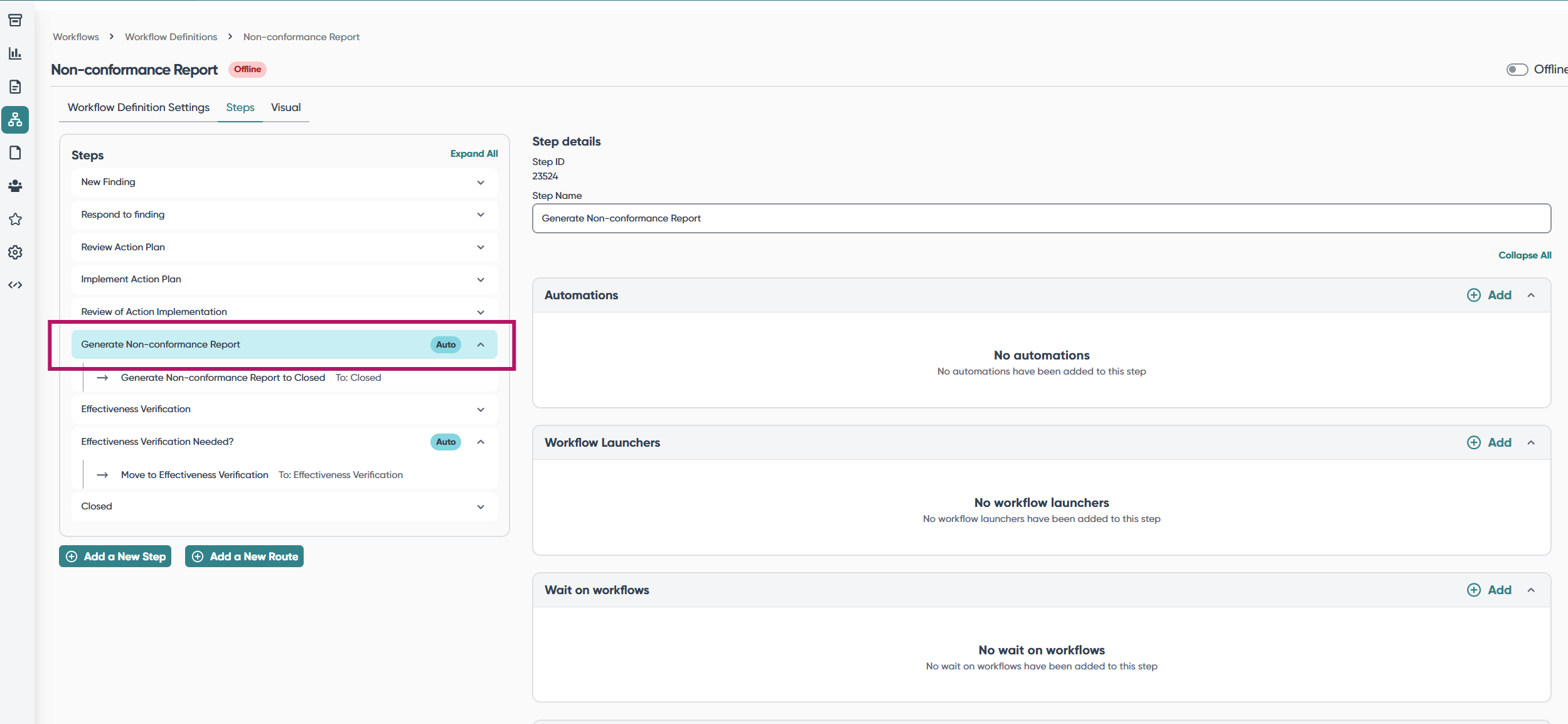
- The workflow has an automation step where the document is made
- Confirm there is a place to attach the document:
- The workflow needs a Document or External File field
- Each finished document is attached here
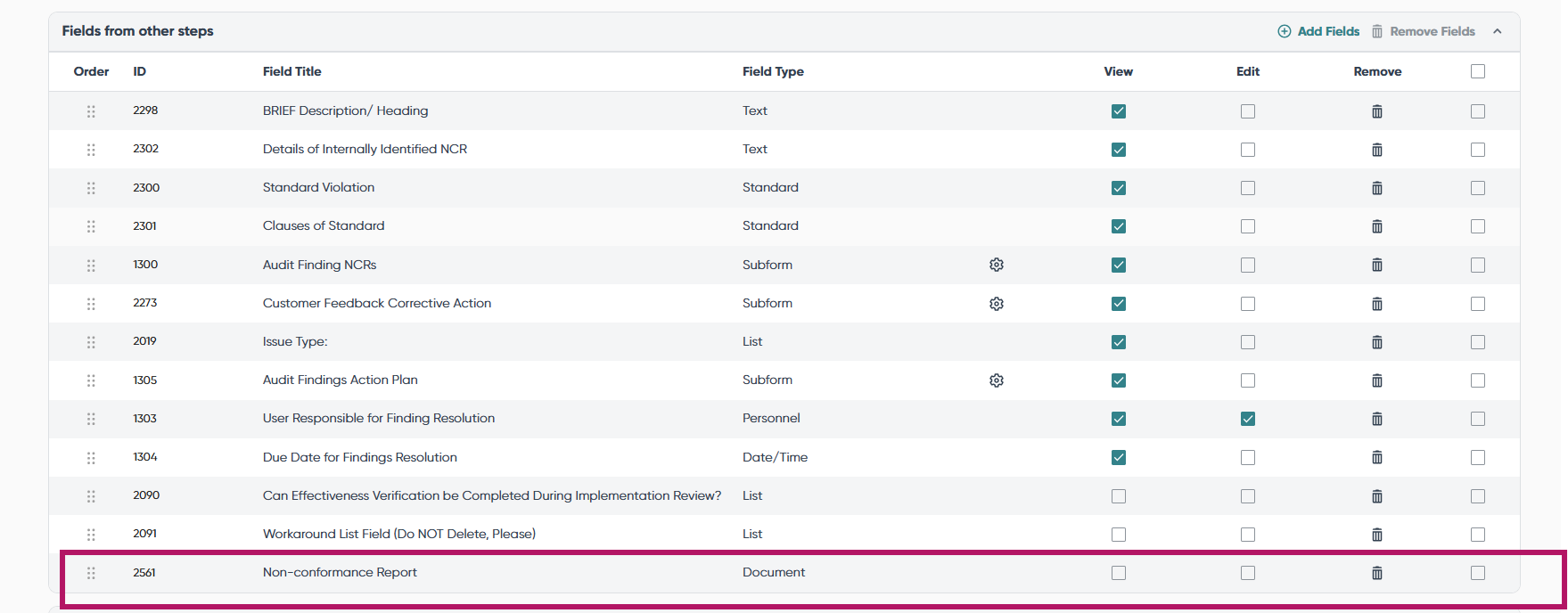
Tip: Missing the automation step or Document field? That's fine. Mazlan can add them for you during the chat. It only does this after you say "go ahead".
Setting up a Form Filler
To set up a Form Filler with Mazlan:
- Click the Mazlan button in the top bar.
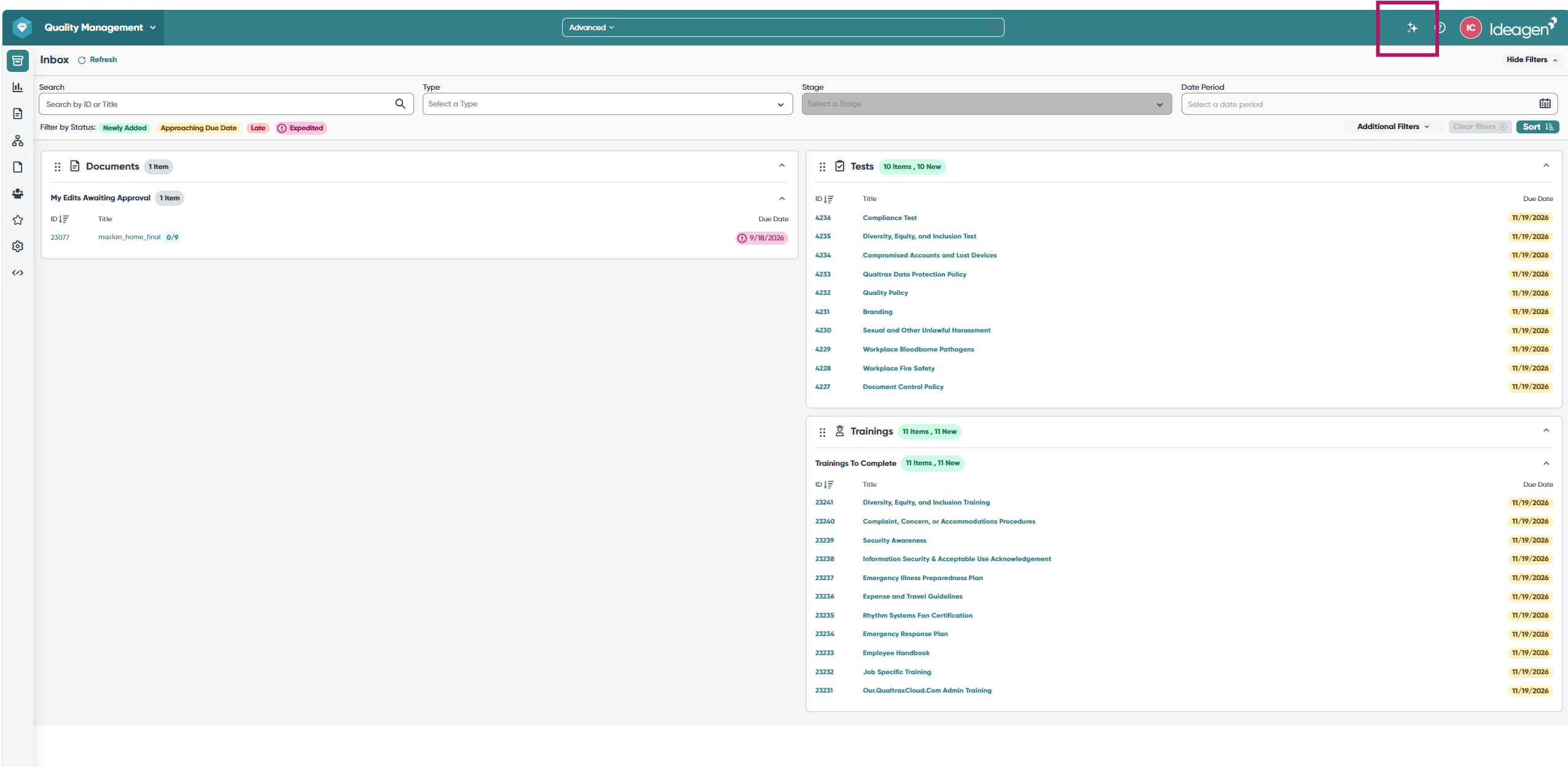
Note: Can't see the Mazlan button? It hasn't been turned on for your site yet. Contact your Ideagen Customer Success Manager.
- Type your prompt (for example, "create a form filler").
Tip: Include the workflow name, so Mazlan doesn't need to ask. For example, "I want to create a Form Filler for the Non-conformance Report workflow".
- Answer Mazlan's questions. Mazlan takes you through these steps in order, and skips any step it doesn't need. You can answer with a number, a name or in your own words.
| Mazlan asks you to | What to do |
|---|---|
| Choose a workflow | Pick the workflow you want documents for. Mazlan only asks if you didn't name it. Say "more" to see more workflows. |
| Choose the automation step | Pick the step where the document should be created. Not listed? Say "add a new step". |
| Choose a Word template | Pick the template to fill in. The best match is listed first, with how many fields it can fill, for example "fills 18 of 19". Say "more" to see other templates. |
| Review the matched fields | Check that each template field gets the right workflow information. Mazlan groups them as Filled, Please check (always check these) and Left empty. Say what to change in plain words, then say "Looks right, carry on". |
| Set the document name | Pick a suggested name or type your own. Every new document gets this name, so include the run number to keep each one unique. The document is also attached to the workflow's Document field. Say "no field" if you only want it saved in the folder. |
| Choose a folder | Tell Mazlan where to save the documents. Type part of the folder name, or paste its link or number. |
| Check the summary | Read the summary of your settings and any warnings. Nothing is created yet. Choose "Preview first", "Create it" or "Edit something". |
| Preview (optional) | Pick a recent workflow run to see a filled-in example, then open the link to check the document. Mazlan lists any blank fields. The preview doesn't change your workflow. |
| Create it | Say "Create it" to save the Form Filler. Then click View workflow definition to check it. |
Checking the workflow
To verify the Form Filler is set up correctly:
- In the chat, click View workflow definition.
- Open the automation step you chose. The Form Filler is listed under Automations.
- Put the workflow back online (Mazlan reminds you if it's still offline).
The Form Filler runs from the next time the workflow reaches this step.
Viewing the result
To see the completed document:
- Open the workflow task from your Inbox.
- Complete it as usual.
- When the workflow reaches the automation step, the Form Filler runs.
- Go to Documents.
- Open the folder you chose.
- Locate the new document, filled in with that run's information.
The document is also attached to the workflow's Document field. This happens every time the workflow reaches the step.
Understanding key points
- Check the suggestions: Fields under Please check are suggestions, not confirmed matches
- Preview before you rely on it: Unclear template field names or missing workflow data can leave fields empty
- Offline only: The workflow must be offline while you set up or change a Form Filler
- English only: The chat currently works in English
Frequently asked questions
Will Mazlan change my workflow without asking?
No. It only adds a step or field after you say "go ahead". It only creates the Form Filler after you say "Create it".
Why does my template only fill a few fields?
The template's field names are probably unclear. Rename them, or tell Mazlan where each one should come from.
Why are some fields blank in the preview?
The workflow run you previewed has no information for them yet, for example a step it hasn't reached. Try another preview, or change the matched fields.
Can I stop and carry on later?
Yes. Mazlan saves your progress as you go. To carry on, open Mazlan and say "resume my saved session". This also works if Mazlan says it lost track of the chat.
Saved progress is kept for 30 days, up to 20 per person. After 20, the oldest is removed.