


New article
Recently updated
Creating a workflow definition with Ideagen Mazlan

Who is this article for?
Users looking to create an AI-assisted workflow definition.
Workflow Definition permissions are required. Modern Workflow Definition needs to be enabled.
The AI-Assisted Workflow Definition Creation feature, powered by Ideagen Mazlan, helps you create workflow templates faster. Instead of manually defining every step, route, and custom field from scratch, you describe your process or provide a SOP, and it generates a workflow structure for you to review and refine.
This article explains how to use the feature.
This feature is available to selected pilot users only. It is disabled by default and must be enabled for your account by your Ideagen contact.
1. Capabilities
Below is a summary of what Ideagen Mazlan can and can't help you with when it comes to workflow definitions.
| Mazlan can | Mazlan can't |
|---|---|
| Convert an SOP or process description into a workflow structure | Edit or delete an existing workflow definition |
| Generate steps, routes, and custom fields from your input | Access or read your existing workflow records or data |
| Handle multiple iterations and refinements before creating | Guarantee 100% accuracy. Always review before publishing |
| Work with any workflow type your tenant has configured | Create workflows outside the scope of what you describe |
| Propose rejection/revision routes where appropriate | Set responsible parties. You must configure these manually |
2. Creating a workflow definition
To create a workflow definition:
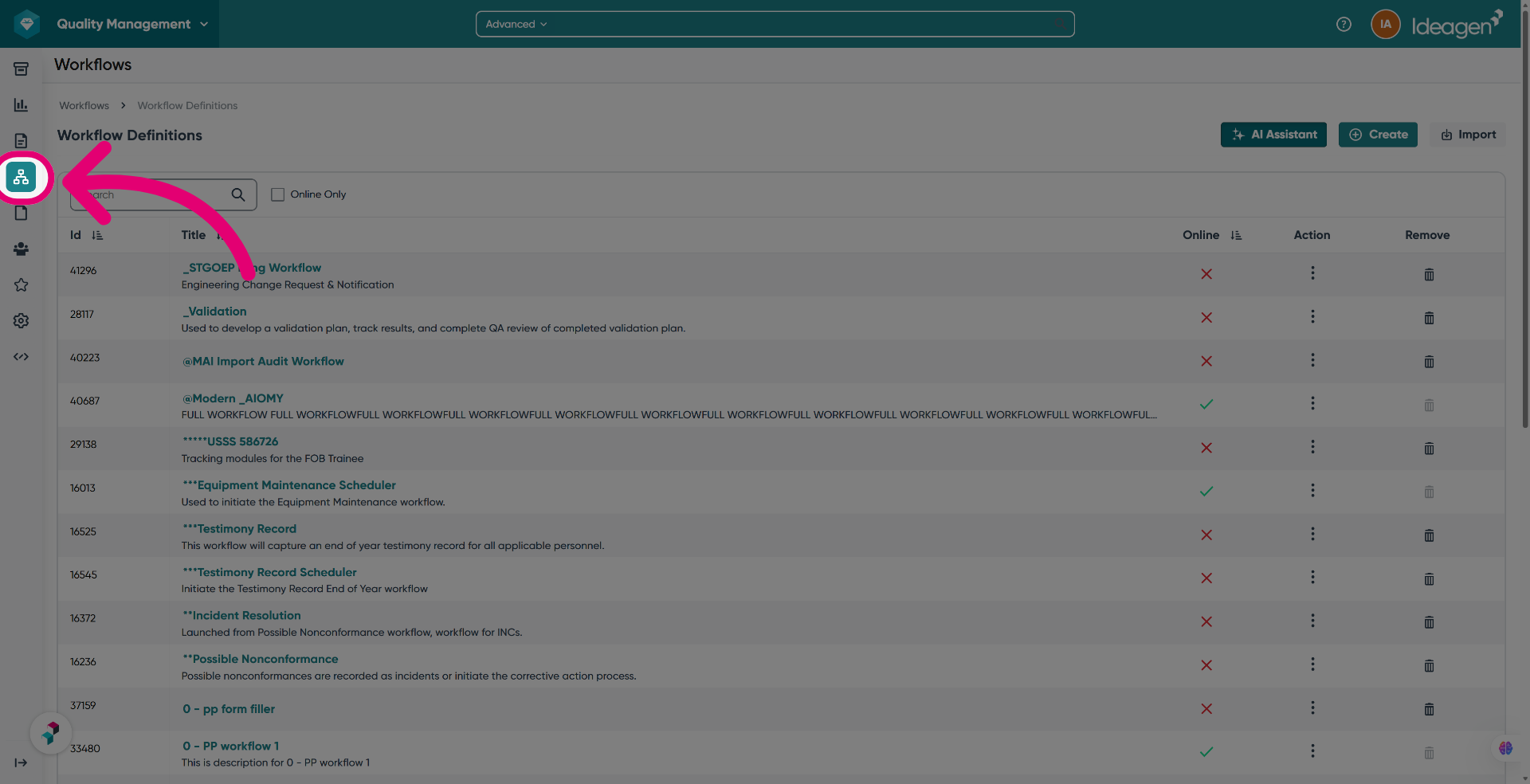
- Navigate to Workflows.
- Select Workflow definitions.
- Click AI Assistant to open the widget.
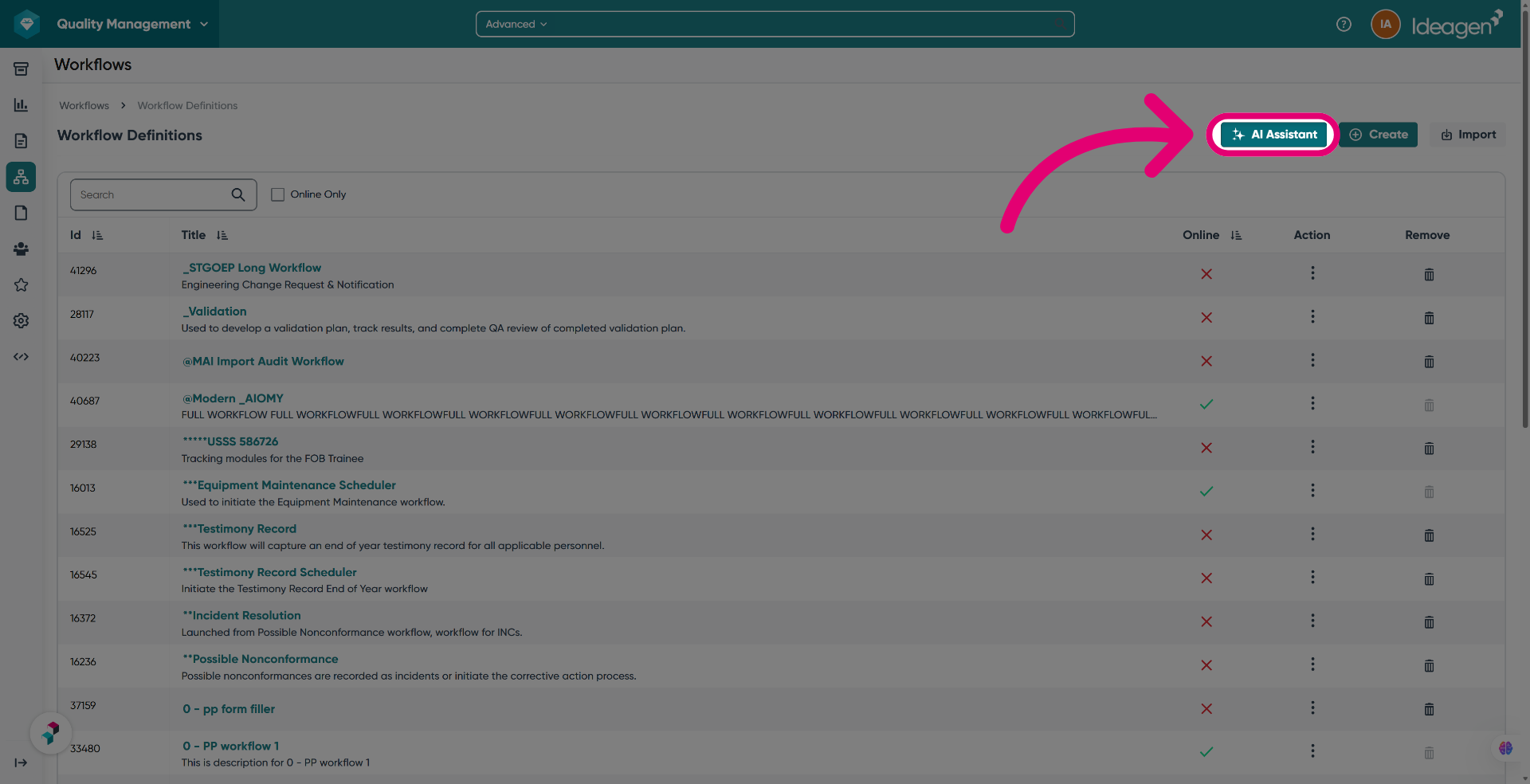
If the AI Assistant button is not visible, Mazlan has not been enabled for your tenant and you will need to get in touch with your Ideagen contact.
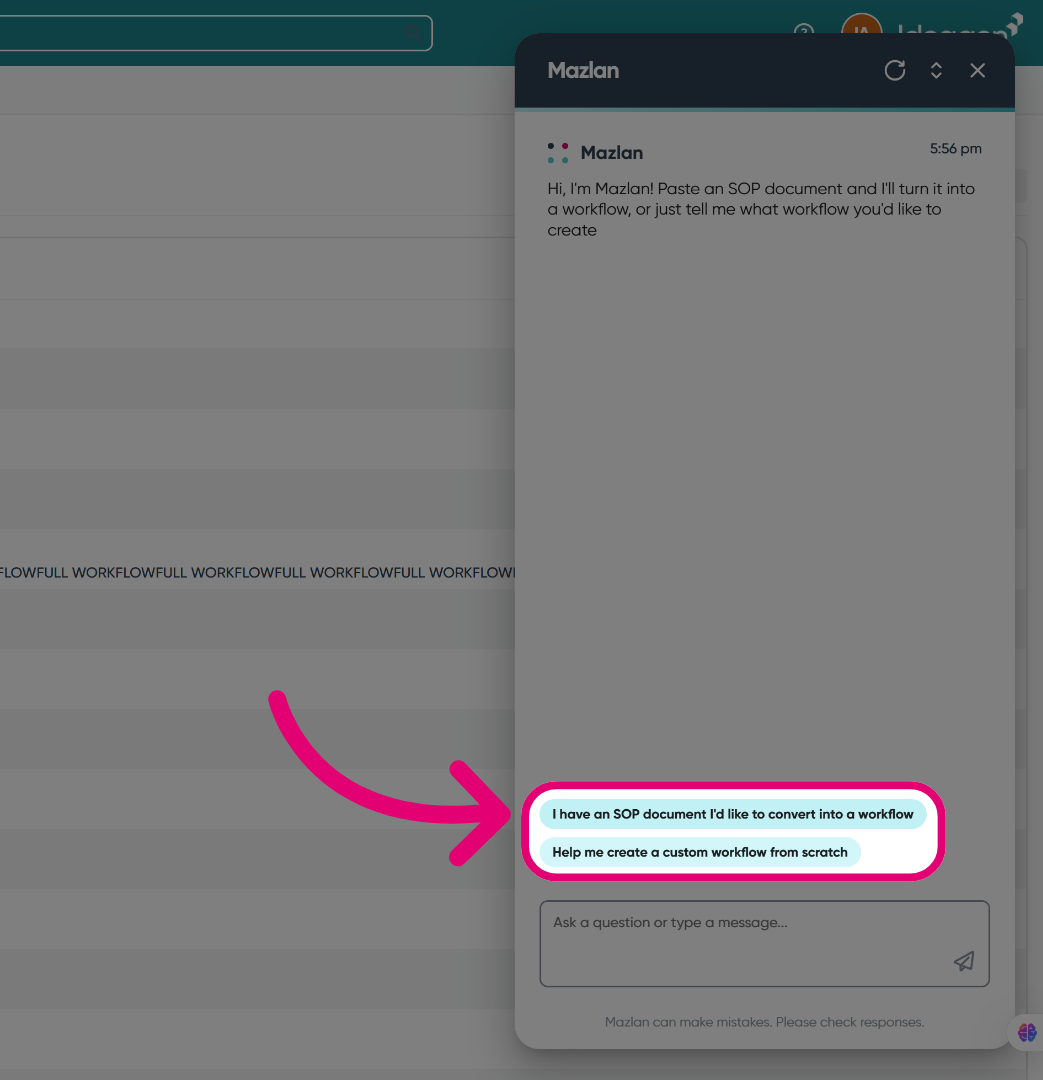
- Select an input option.
You can explain your needs or if you have any SOP or document, you can click the option indicating that you'd like to convert it into a workflow.
What makes a good description?
To create a good description:
- Mention what the workflow is for (e.g. "a corrective action workflow for quality incidents").
- Describe the key stages (e.g. "starts with a report, goes through investigation and approval, then closes").
- Include any important roles or departments if relevant (e.g. "QA team reviews before manager approval").
Example
"Create a nonconformance report workflow that starts with an initial report, goes through root cause investigation by the QA team, then requires a manager sign-off before it is closed."
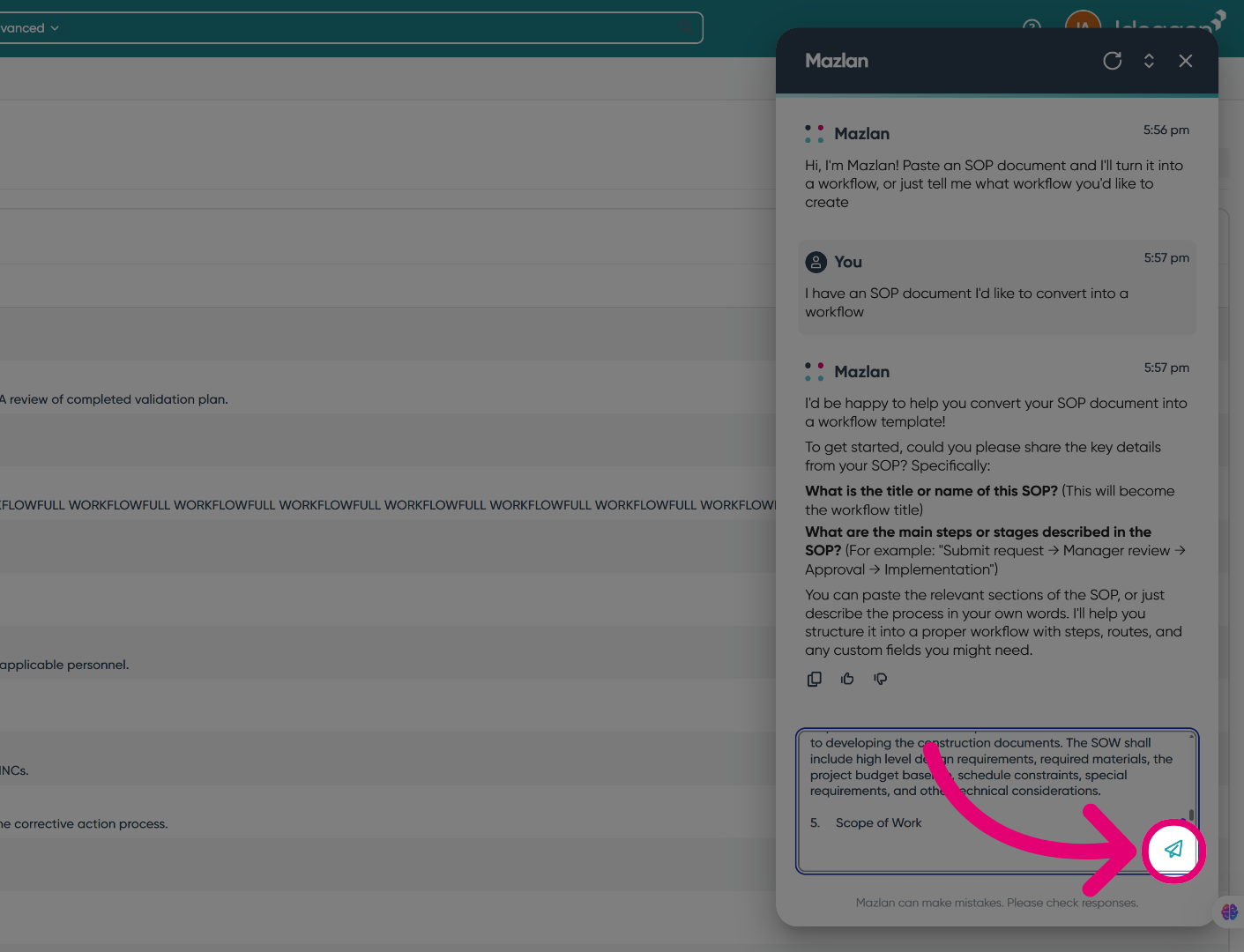
- Click Send to confirm your input.
- Refine the output as needed.
- Confirm the proposal by typing "yes please" or similar.
Mazlan will then proceed to create the workflow.
Important
Once you confirm and the workflow is created, custom fields and workflow steps cannot be automatically undone. If you need to remove them, you will need to do so manually. Take a moment to review and refine the structure before confirming.
- Click View workflow definition.
You will be taken to the newly created definition.
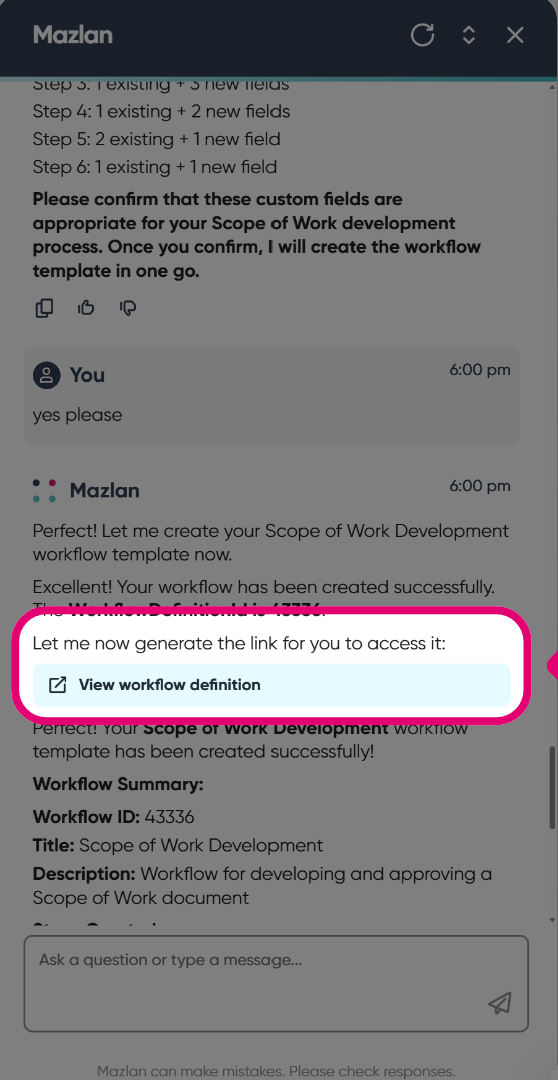
- Refine the details within the newly created workflow as needed.
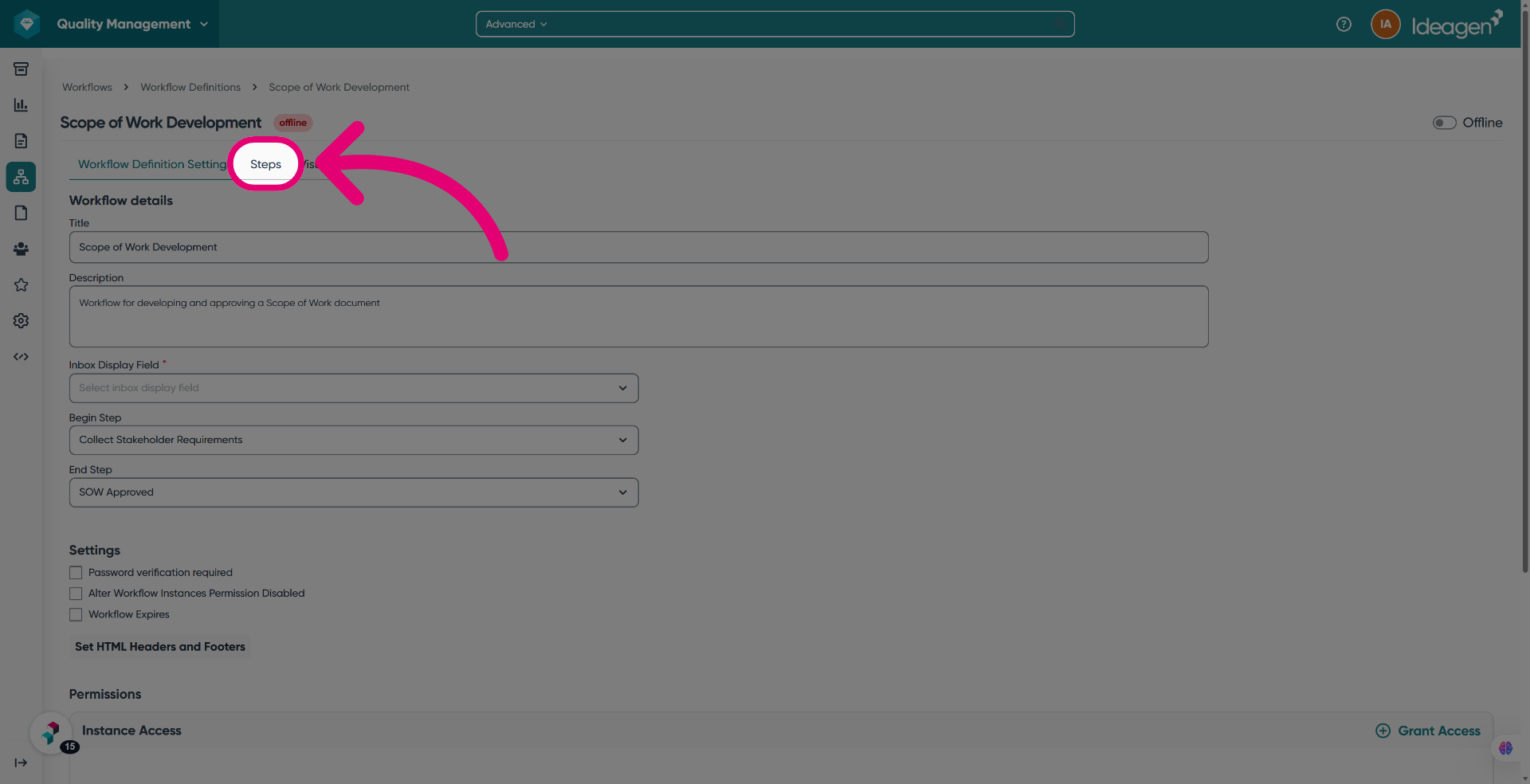
The workflow is created in Offline status by default. You will need to review it in the modern workflow definition editor and set it to Online when you are ready to use it.
Mazlan can make mistakes. Always review the created workflow before setting it online.
3. Refining output
Once you submit your input, Mazlan will propose a workflow structure based on it, including:
- Workflow name and description
- Steps
- Routes
- Custom fields
It will ask you to confirm before creating anything. You can also ask for changes at this point.
Example refinements you can request are:
- "Add an approval step between Investigation and Close"
- "Remove the re-inspection step, we don't need that"
- "Rename step 2 to 'Root Cause Analysis'"
- "Add a date field to the first step"
Mazlan will update its proposal and ask you to confirm again. Nothing is created in the system until you confirm.
4. Known limitations (Pilot)
As this is a pilot release, the following limitations apply:
- Token expiry - The AI session token expires after 1 hour. If your session times out, please refresh the page and sign in again to continue.
- Audit trail differentiation - Workflows created with the help of the AI are not yet separately identified in the audit trail. This will be addressed in a future release.
- No rollback - There is no automatic undo for workflows and custom fields created by the AI. Manual deletion is required if needed.
- Responsible parties not set - The AI generates the structure of your workflow but does not assign responsible parties to steps. You will need to configure these in the workflow editor.
- Automation steps - If your workflow requires automation steps, the AI will suggest standard automation types only. Please verify these match your system configuration.